Changelog

What’s new in Jiva

The big features in each release, newest first. Jiva updates itself in one click, and everything still runs on your Mac.
AllMeetingsCalendarIntegrationsDictationAppLaunch
Jiva v0.1.16: Recordings are named after your meeting
Meetings

Recordings are named after your meeting

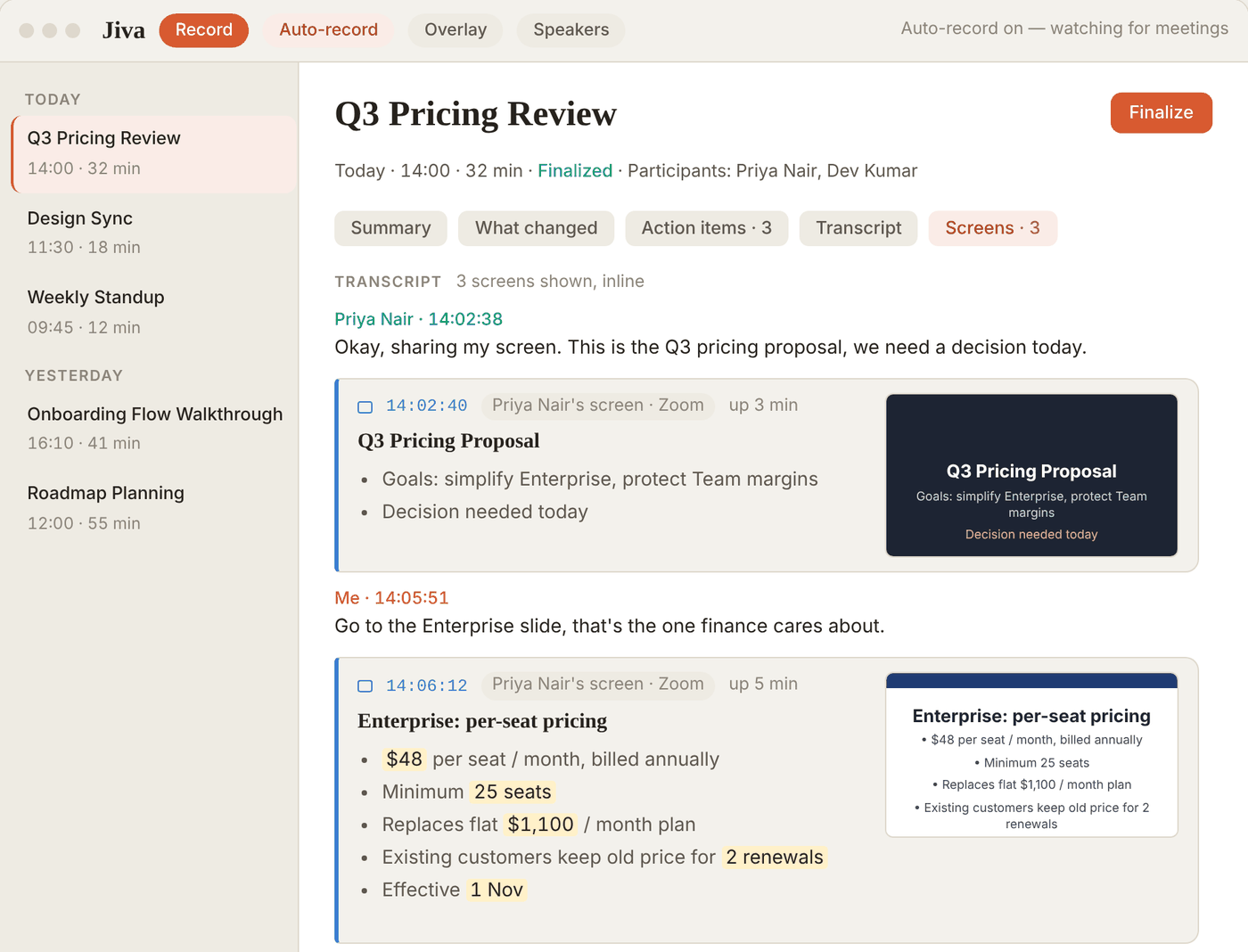
If you've connected Google Calendar, a finished recording now takes the title of the calendar event it overlaps — "FE + BE India Standup" instead of an AI guess. No match, no calendar or no internet? You get the AI title as before.

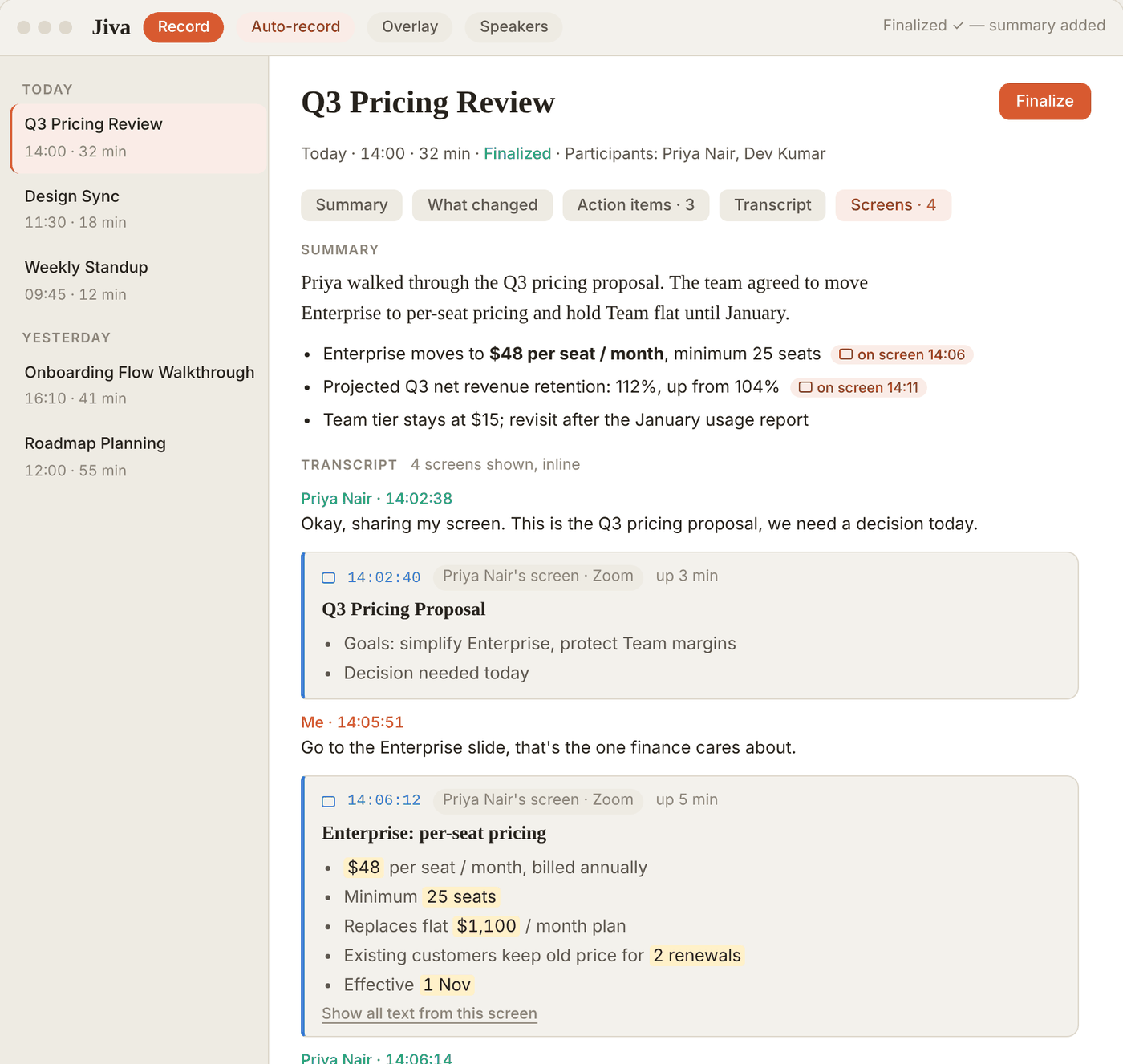
  • Pictures of shared screens. Each shared-screen card in your transcript now has a small picture beside it — click to see it full size and step through every screen from the meeting.
LATEST · v0.1.16 ·
Jiva v0.1.15: Jiva learns names from your meeting window
Meetings

Jiva learns names from your meeting window

It's optional and off by default: turn on Settings → Speakers & Memory → Learn names from the meeting window and grant Screen Recording. During Zoom, Google Meet, Teams, Webex or Slack calls, Jiva reads only the meeting window, on your Mac, and keeps text only — no video or images.

  • Real names for speakers. Jiva reads who's talking from the meeting app (for example Zoom's speaker view) and names the other side's speakers — including in one-on-one calls where one voice used to split into two.
v0.1.15 ·
Jiva v0.1.13: A heads-up before every meeting, with one-click Join & Record
Calendar

A heads-up before every meeting, with one-click Join & Record

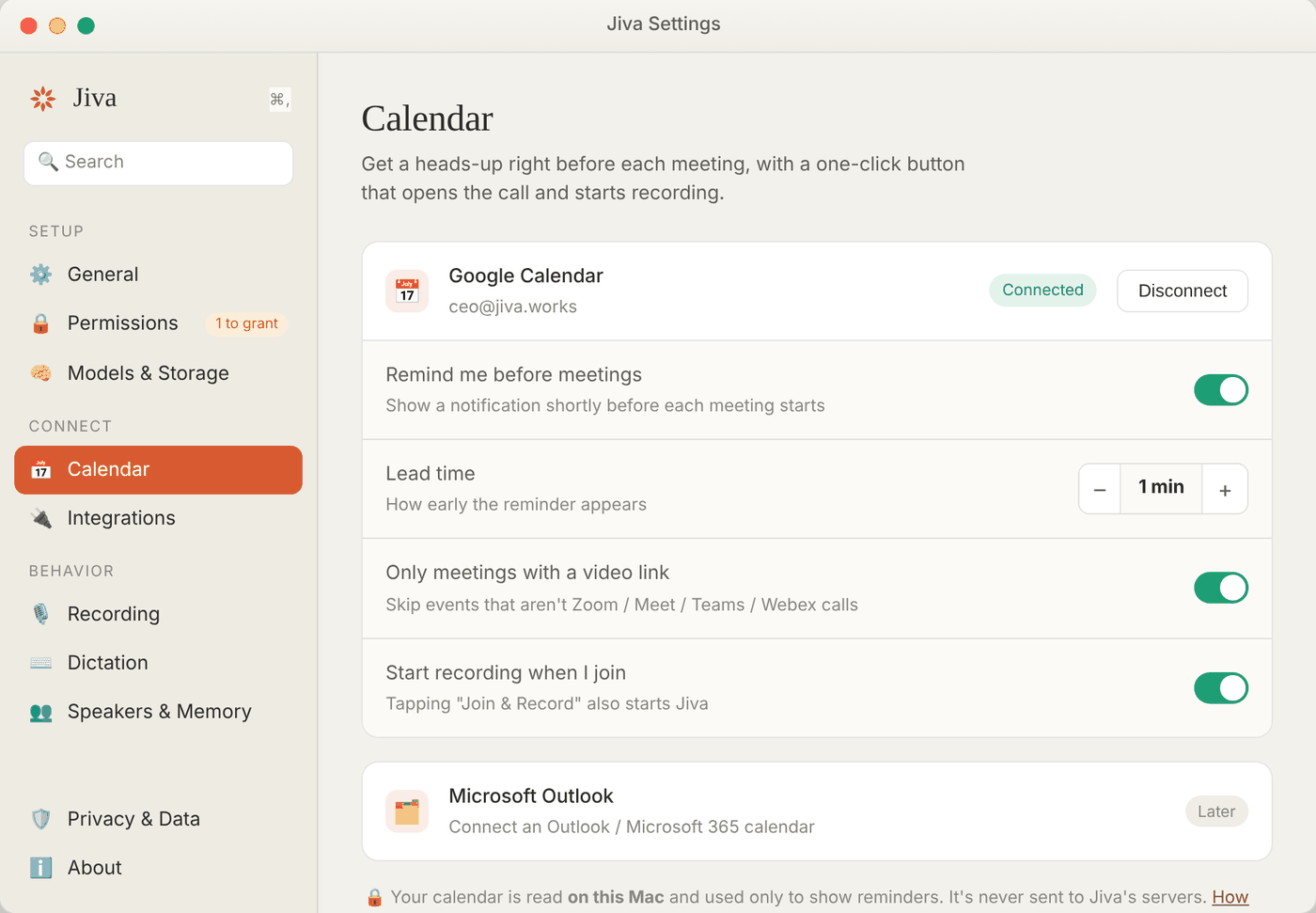
Connect Google Calendar and Jiva reminds you just before each call with its join link. One click opens the meeting and starts recording, so you never miss the first five minutes. Your calendar is read on your Mac, directly from Google.

  • A proper Settings window. Press ⌘, (or click Settings) for everything in one place: permissions, models, calendar, integrations, recording and dictation.
v0.1.13 ·
Meetings

Slack huddles record on their own

With Auto-record on, Jiva now starts when you join a Slack huddle, the way it already did for Zoom, and stops about 20 seconds after you leave. It only starts when the meeting app itself is using your microphone, so notifications and background audio never set it off. Needs macOS 14.4 or later.

v0.1.12 ·
Jiva v0.1.11: Bring your meetings into Claude
Integrations

Bring your meetings into Claude

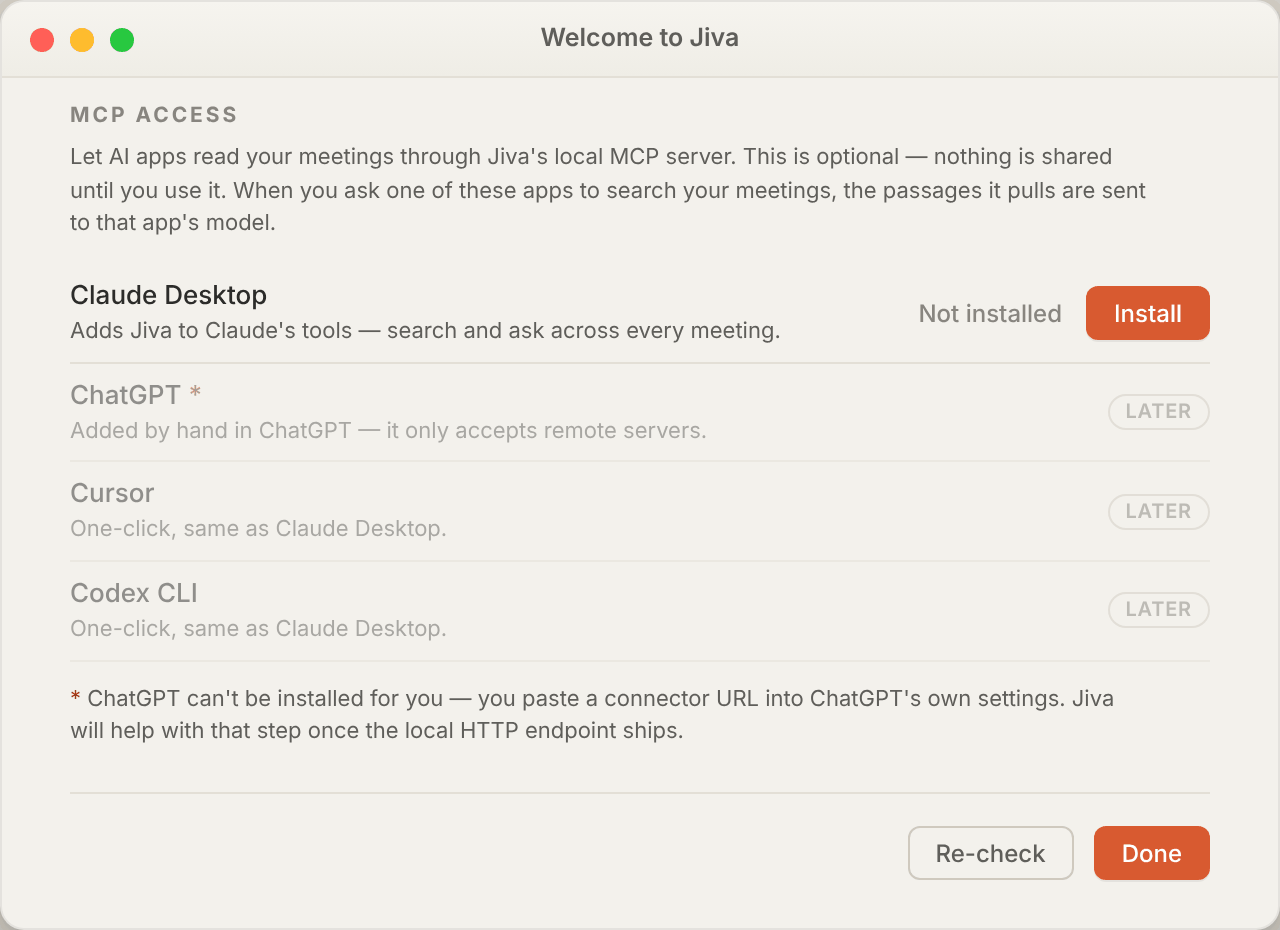
Jiva can now connect to Claude Desktop in one click — open Set Up Permissions… → MCP access → Install, restart Claude, and ask Claude to search your meetings, pull action items, and answer questions across everything you’ve recorded. The connection lives on your Mac and stays off until you turn it on; you can remove it any time from the same screen, and Claude picks up new meetings as you record them with no restart. One honest note: when you ask Claude about a meeting, the parts it reads are sent to Claude to answer — so that’s the one place your notes leave your Mac, and only when you choose to use it.

v0.1.11 ·
Dictation

Dictation learns your spellings

When you fix a misheard word right after dictating, say "nodes" to "notes", Jiva quietly remembers and gets it right next time. It only learns sound-alike, single-word fixes, so ordinary edits never change how it hears you.

v0.1.9 ·
Jiva v0.1.3: One-click updates
App

One-click updates

Jiva now keeps itself current. When a new version is out you'll see it in the menu-bar menu, as a subtle pill in the main window, and as a one-time banner — click Update and Jiva downloads the new version, verifies it, installs it, and reopens for you. No more manual re-downloading.

v0.1.3 ·
Jiva v0.1.0: Jiva is out
Launch

Jiva is out

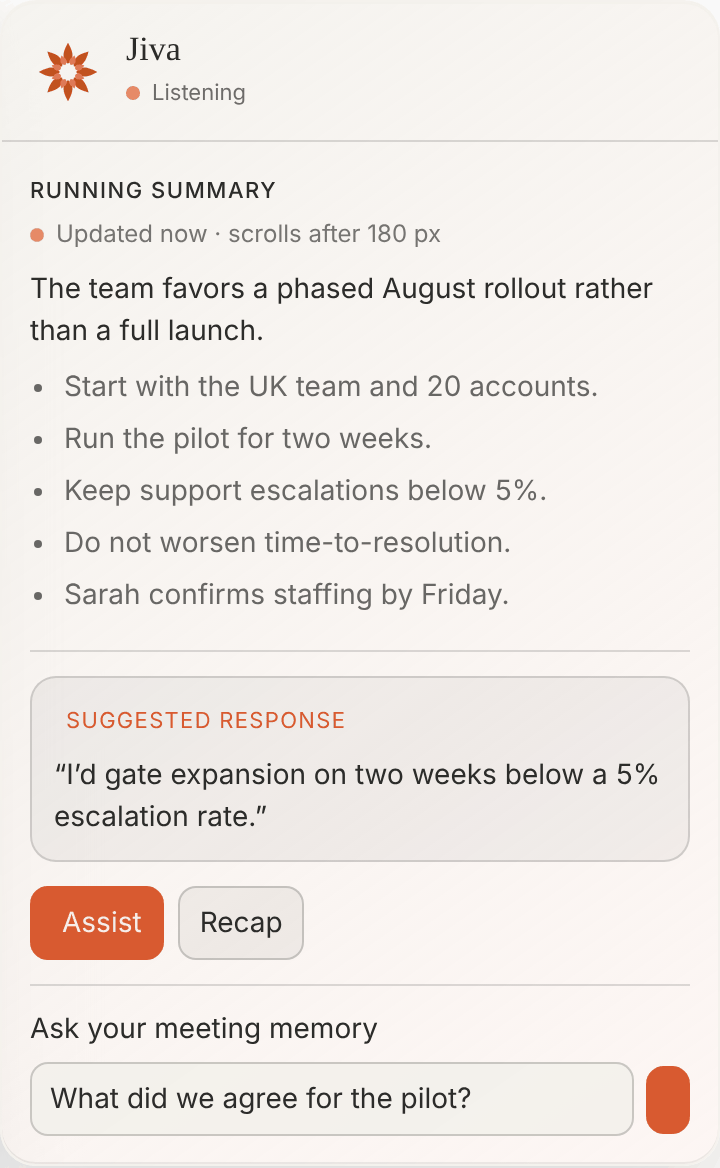
A Mac app that records both sides of your meetings, transcribes them and writes the summary, all on your Mac. A live overlay keeps a running summary during the call, and you can hold a key to dictate into any app. No account and no cloud: your audio and notes never leave your computer.

v0.1.0 ·