Click Connect
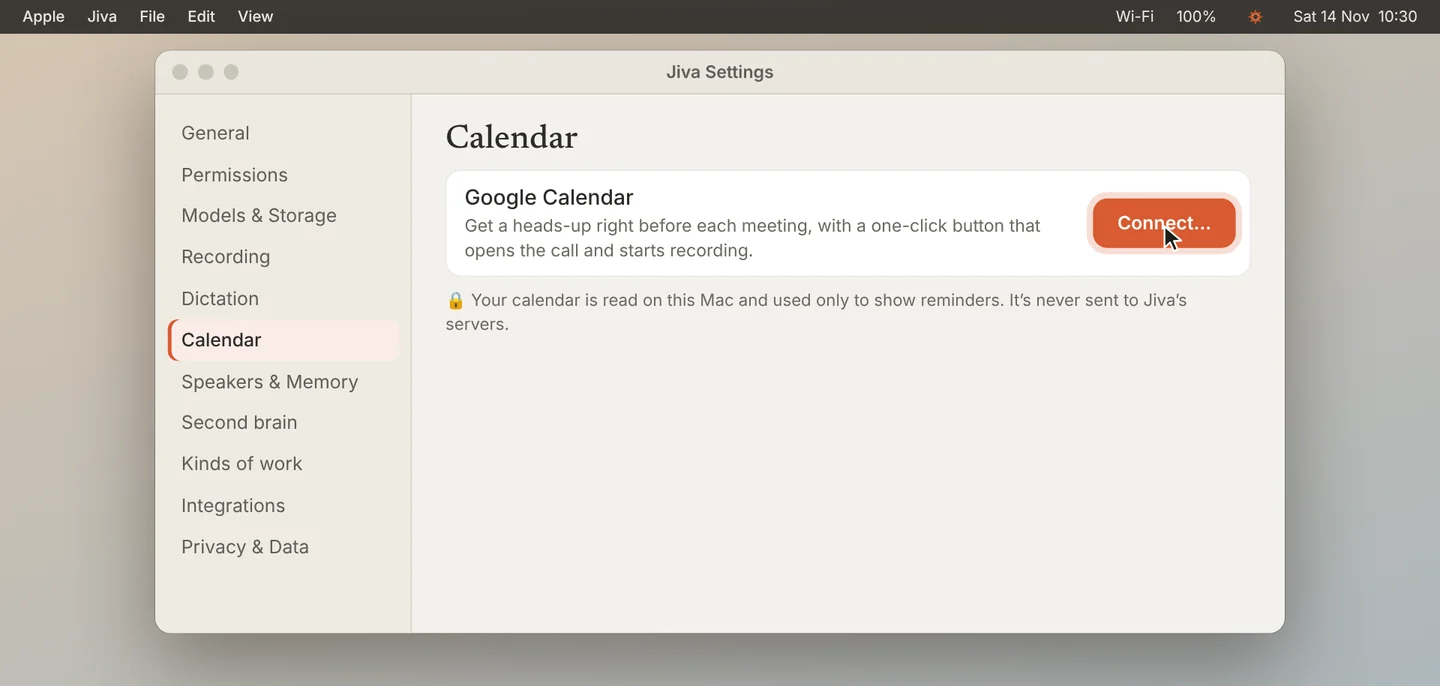
Open Settings, then Calendar. Click Connect… next to Google Calendar.
Allow read-only access
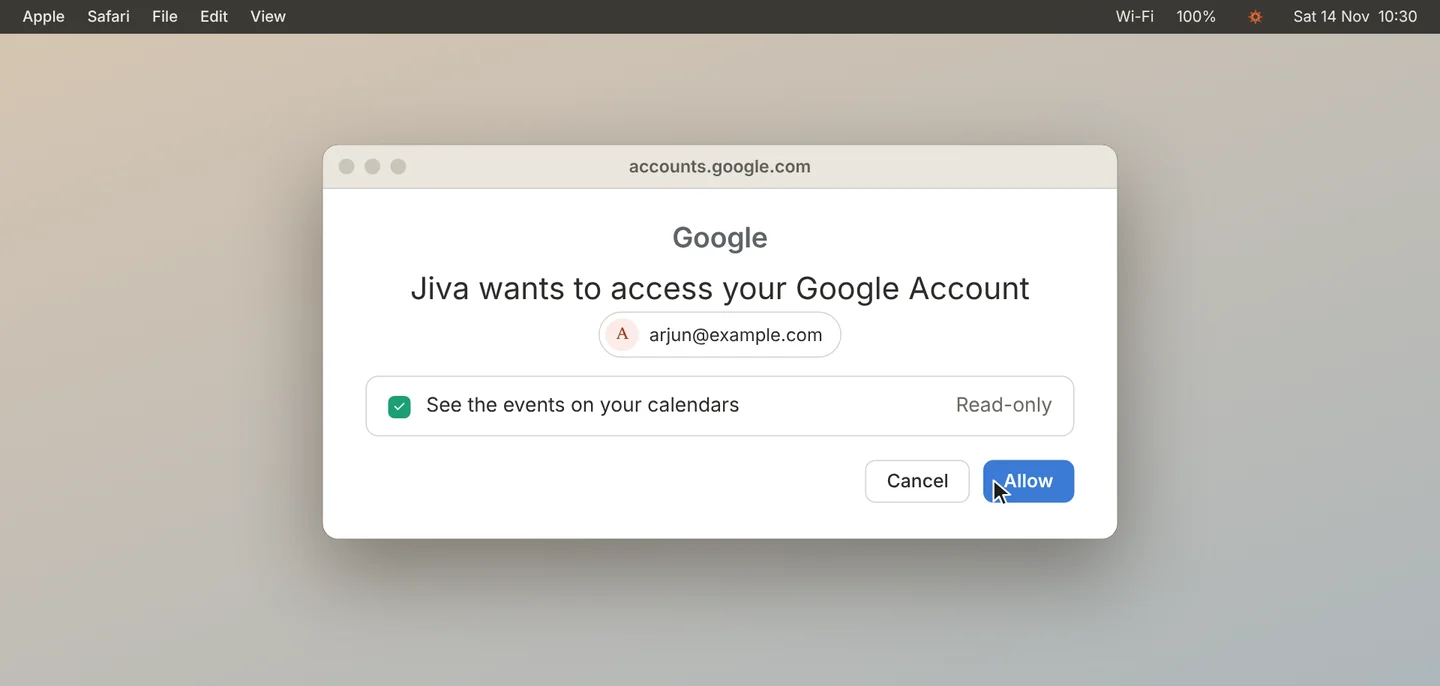
Your browser opens a Google page. Choose your account and click Allow. Jiva asks only to see your calendar events. It cannot change them.
Check that it is connected
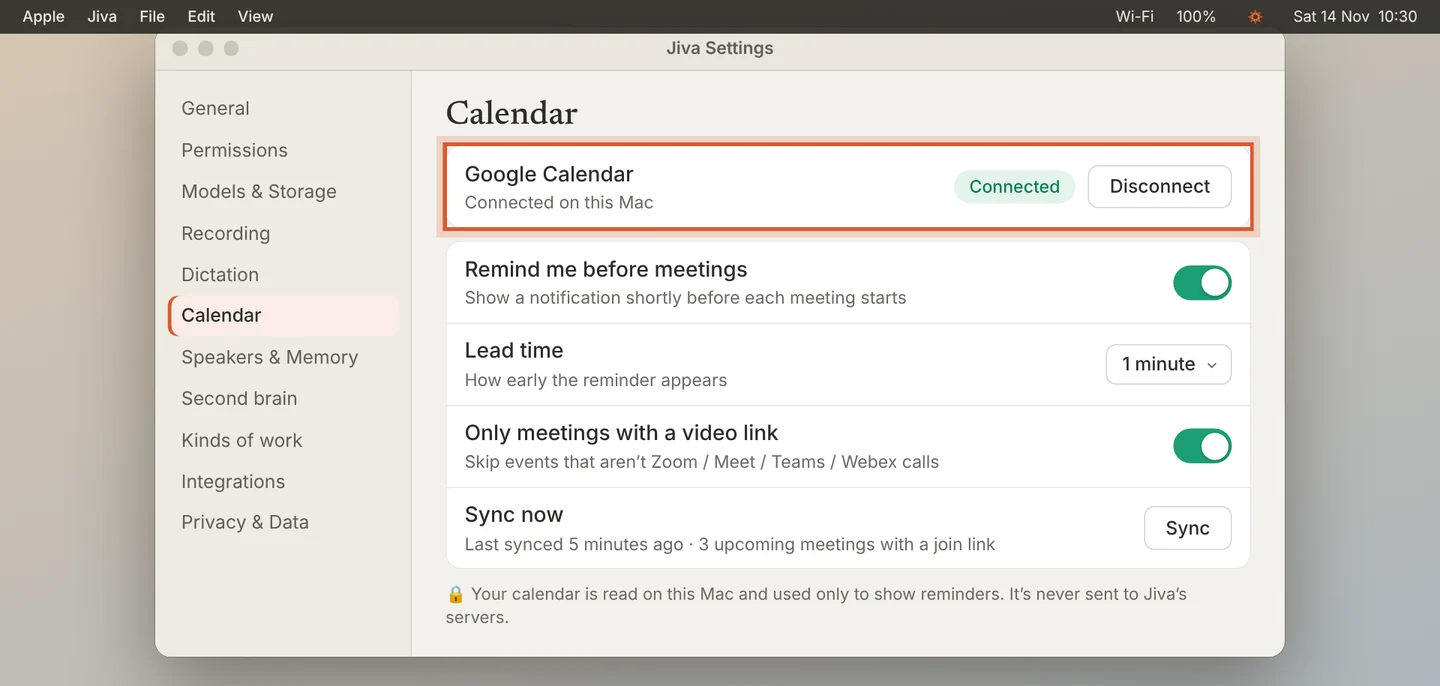
Go back to Jiva. The row shows Connected. Sync now shows how many upcoming meetings have a join link.
Disconnect when you want
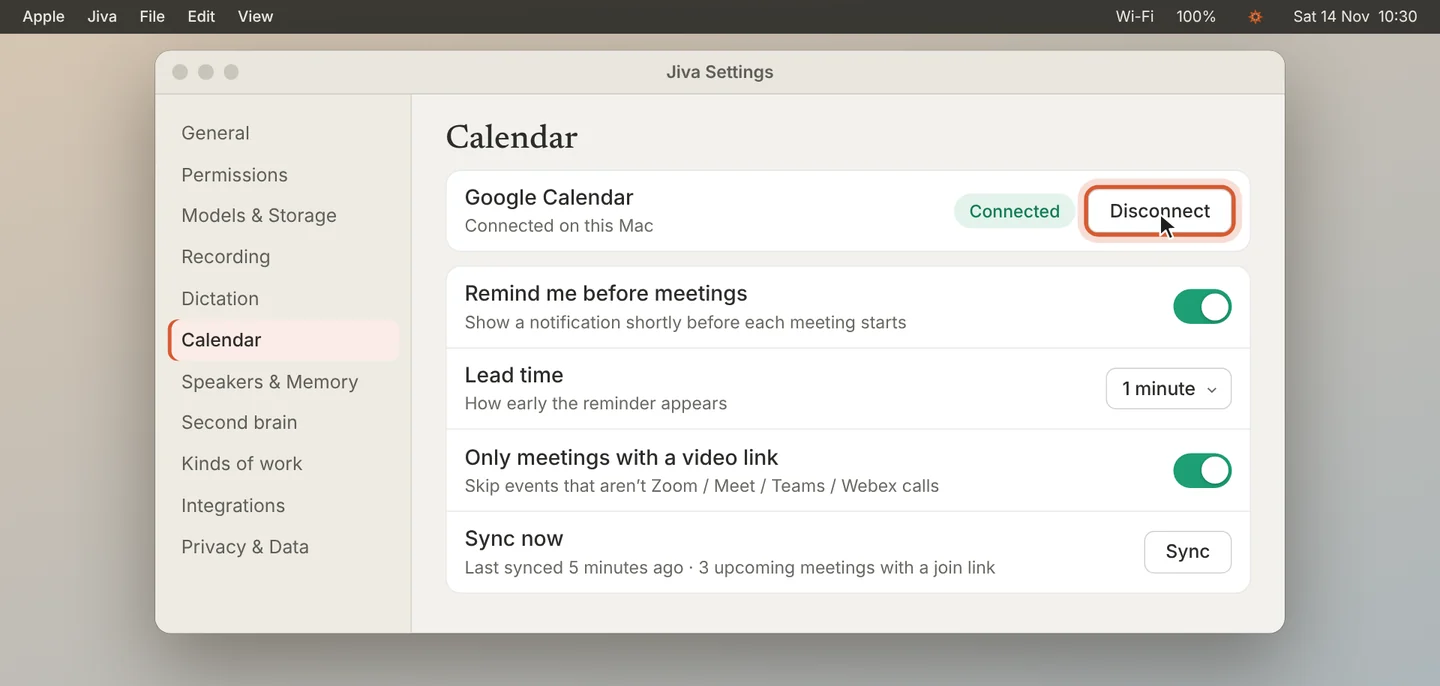
To stop, click Disconnect. Jiva removes the Google sign-in it stored on this Mac.
Your calendar is read on your Mac, directly from Google. It is never sent to Jiva. Jiva works with Google Calendar today; Outlook is not supported yet.
If something goes wrong
The row says “Reconnect needed”
Google stopped accepting the sign-in. Click Reconnect… and allow access again. Reminders are paused until you do.
A meeting is missing
Click Sync. With Only meetings with a video link on, Jiva skips events that have no Zoom, Meet, Teams or Webex link.