Let the downloads run
The downloads start by themselves in the Welcome to Jiva window. Keep your Mac online. You can use other apps while you wait.
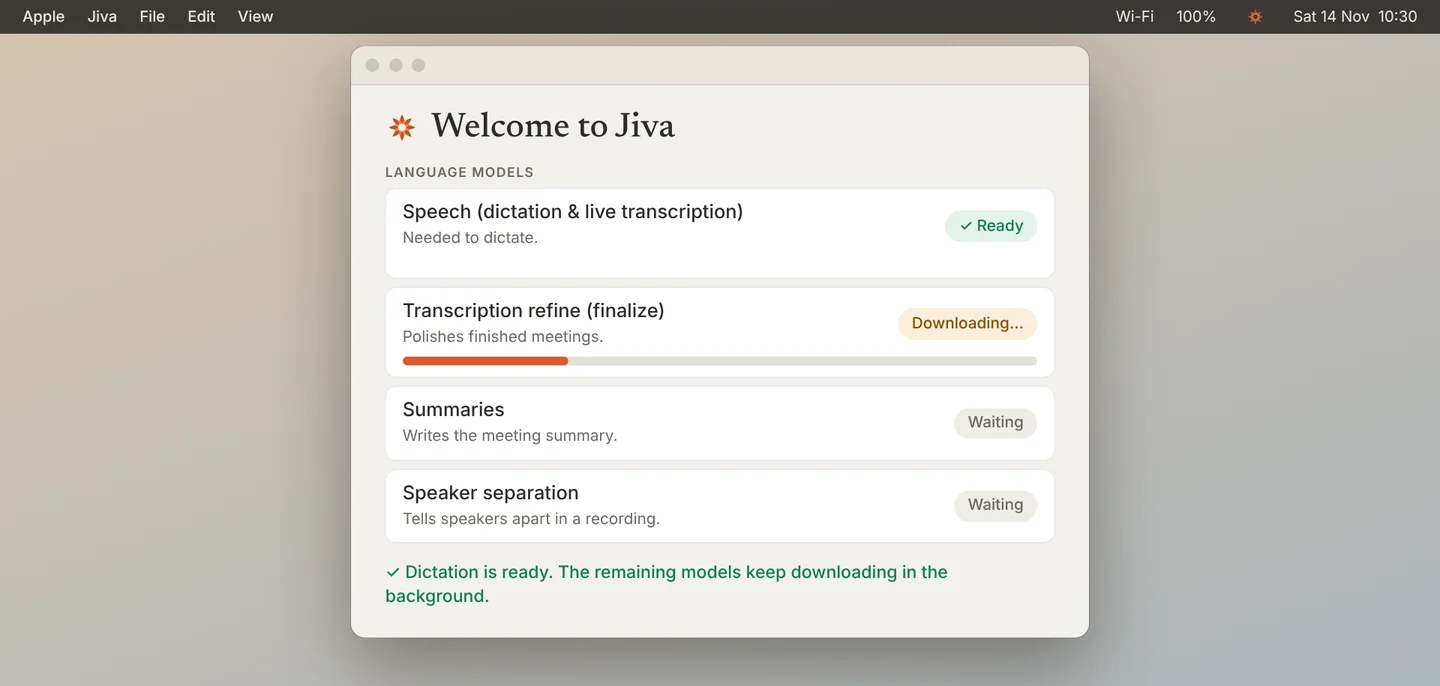
There are four models: speech, transcript polish, summaries, and speaker separation. Each row shows its own progress.
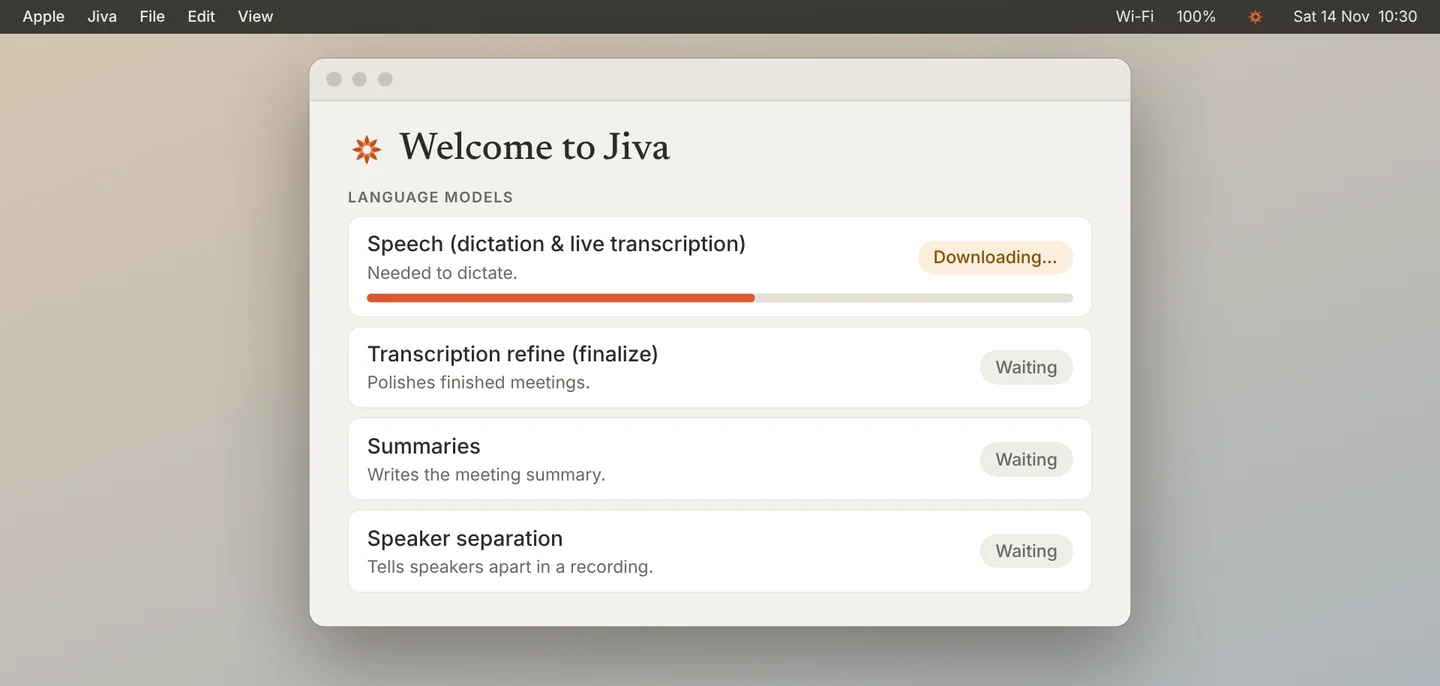
Wait for Speech
Speech finishes first. When its row shows Ready, you can dictate. The other models keep downloading in the background.
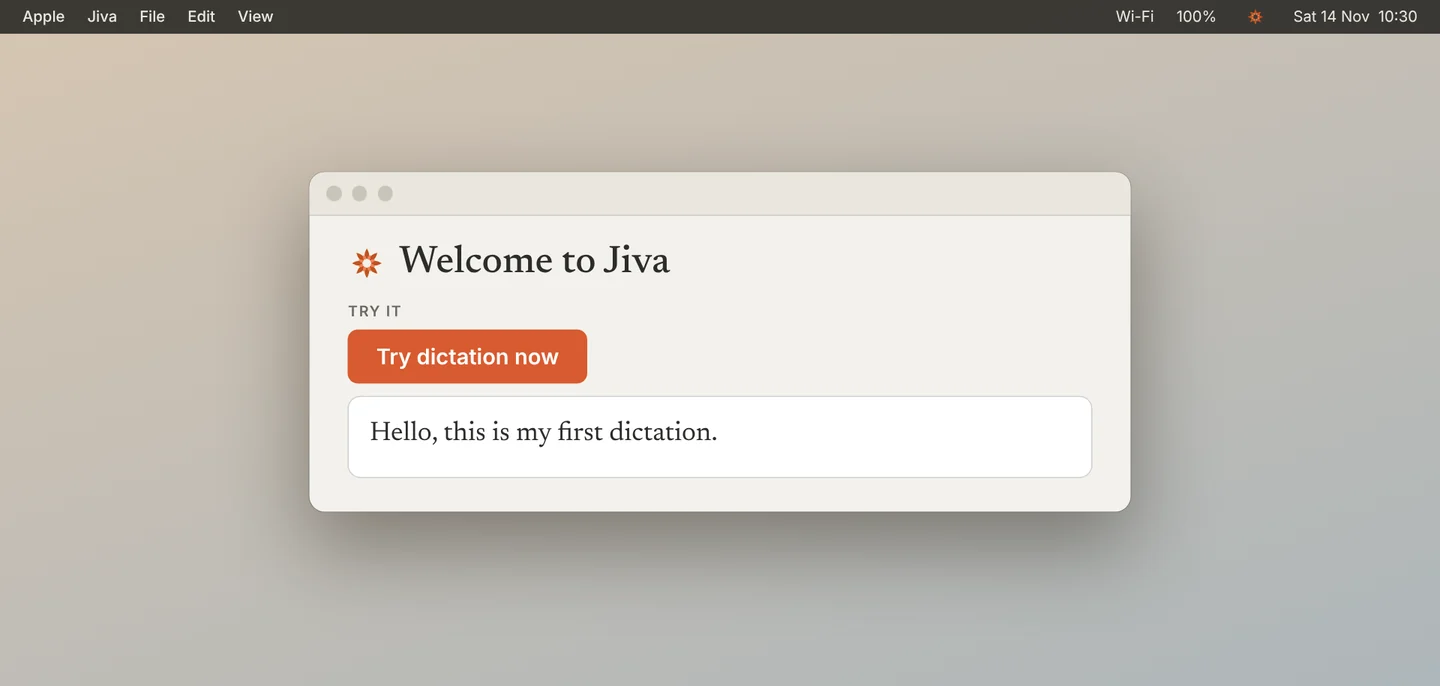
Try dictation
Click Try dictation now. Hold the Right ⌘ key, say a few words, and release. Your words appear in the box.
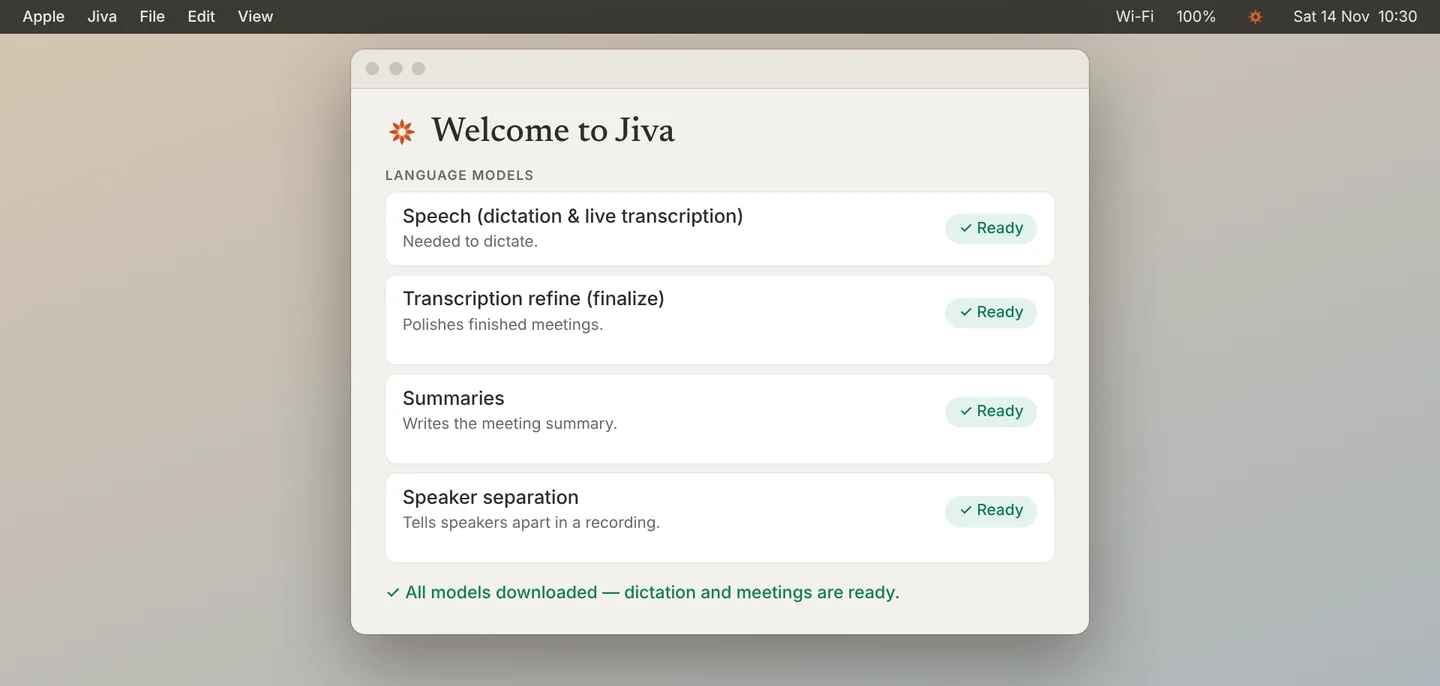
Wait for the rest
Wait until the window says All models downloaded. Then close it. Jiva is ready for your first meeting.
The models run on your Mac. After this download, recording, transcripts and dictation work without internet.
If something goes wrong
A row says “Failed — Retry”
Check your internet connection, then click Retry on that row. Click Show error details to see the download log, and send it to us if it fails again.
The downloads did not start
Click Download models now in the Welcome window.
I closed the window too early
The downloads continue in the background. To see them again, click the lotus in the menu bar and choose Set Up Permissions….
No transcript after my first meeting
The models were still downloading. Wait for them to finish, then click the lotus and choose Finalize Last Meeting.