Join your call
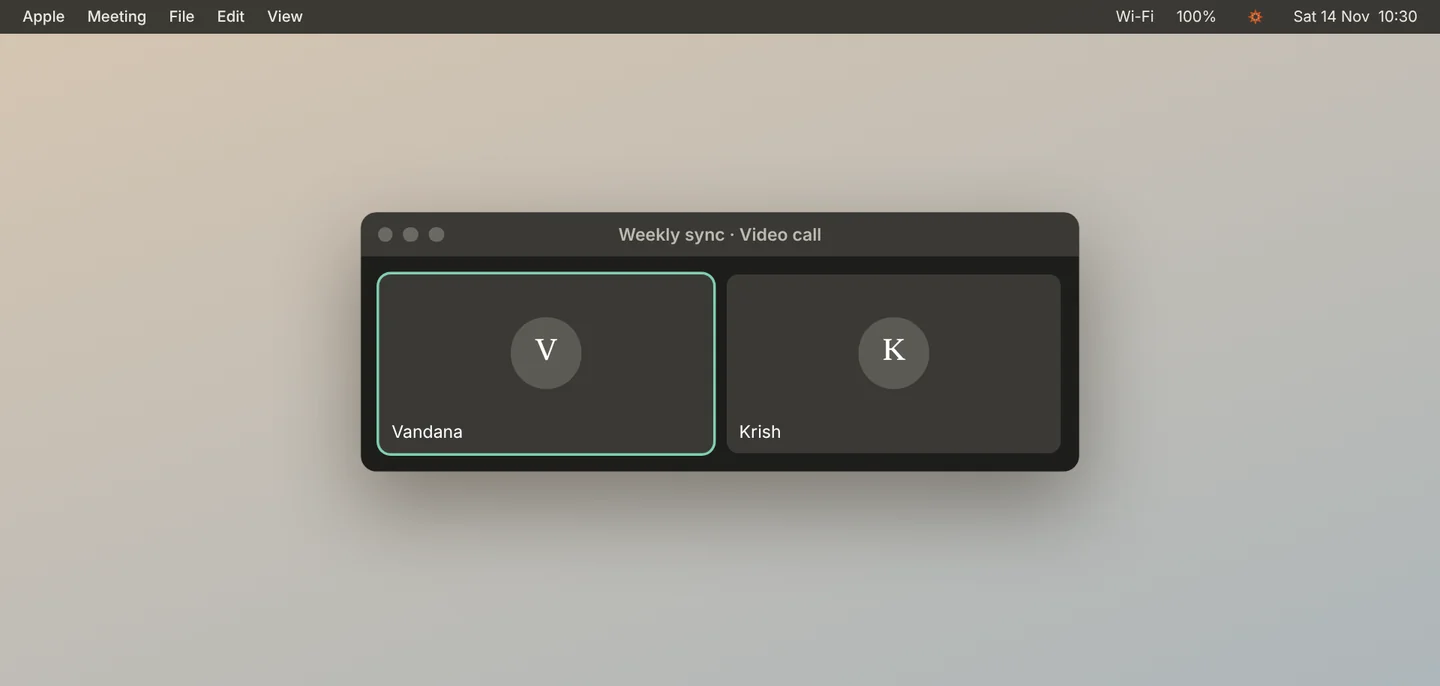
Join the call the way you always do. Jiva records from your Mac. It does not join the call, and no bot appears in it.
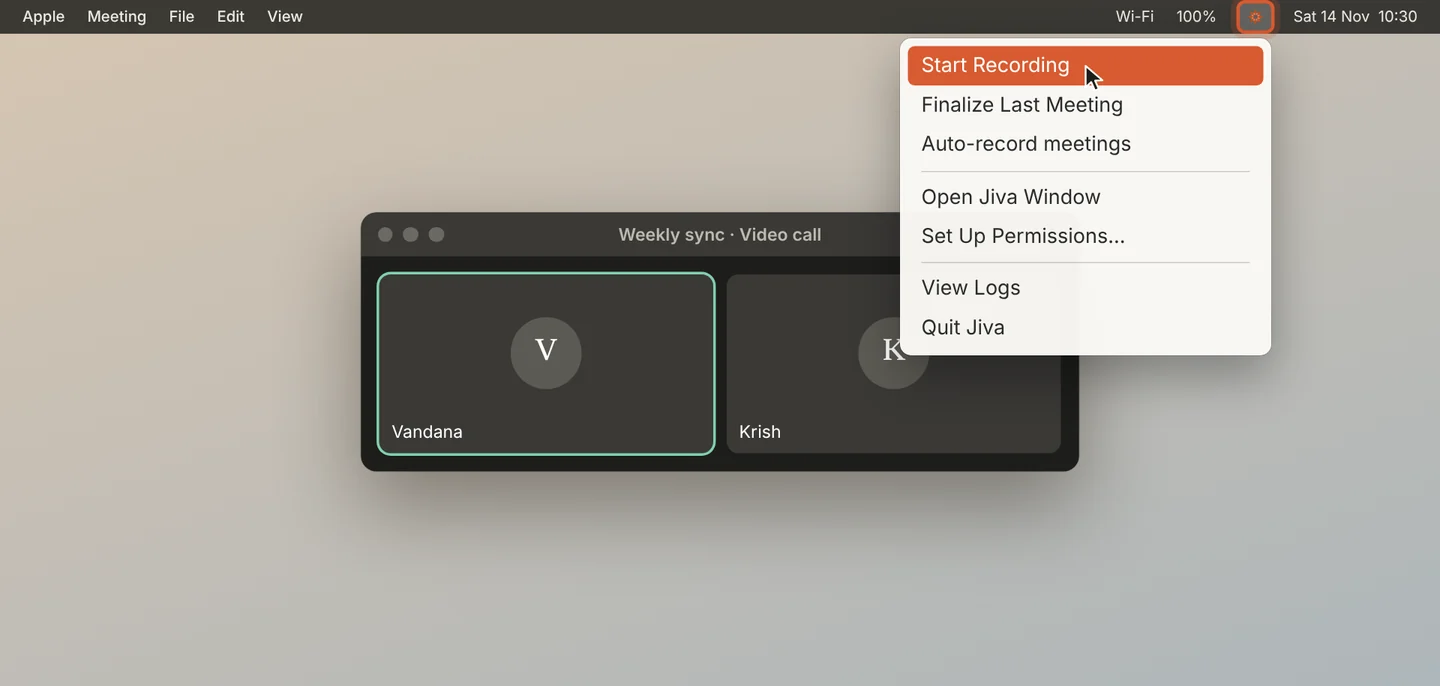
Start recording
Click the lotus in the menu bar, then Start Recording. Or click Record in the Jiva window.
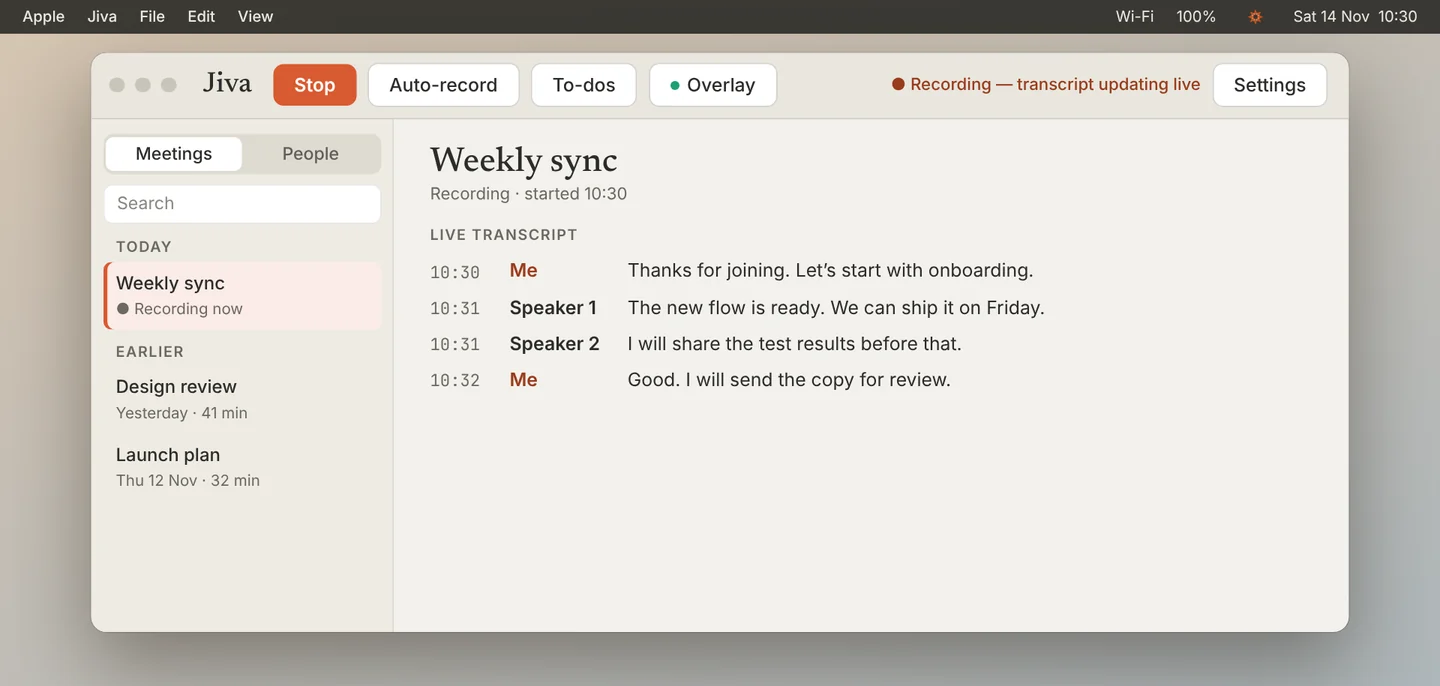
Watch Jiva work
An overlay appears beside your call with a running summary. The Jiva window shows the transcript as people speak.
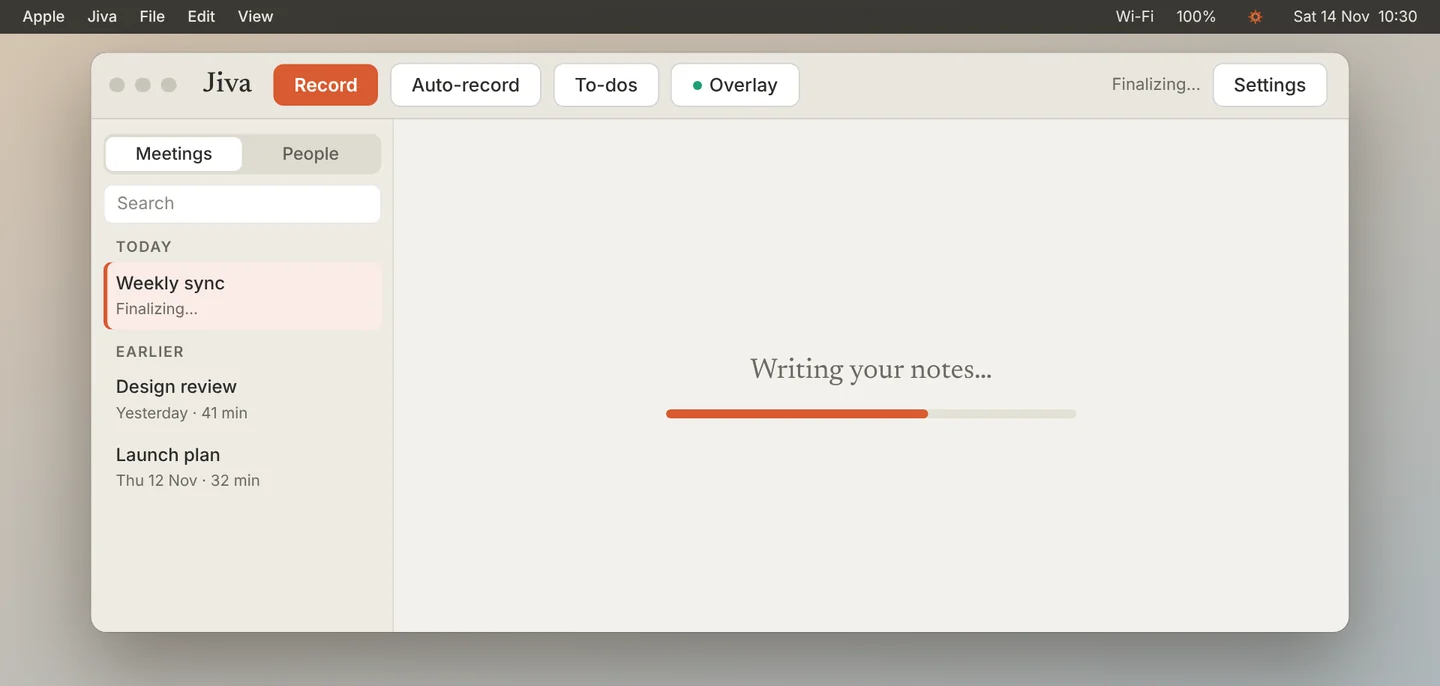
Stop the recording
When the call ends, click Stop. Jiva writes your notes on your Mac. Wait until Finalizing… ends.
Read your notes
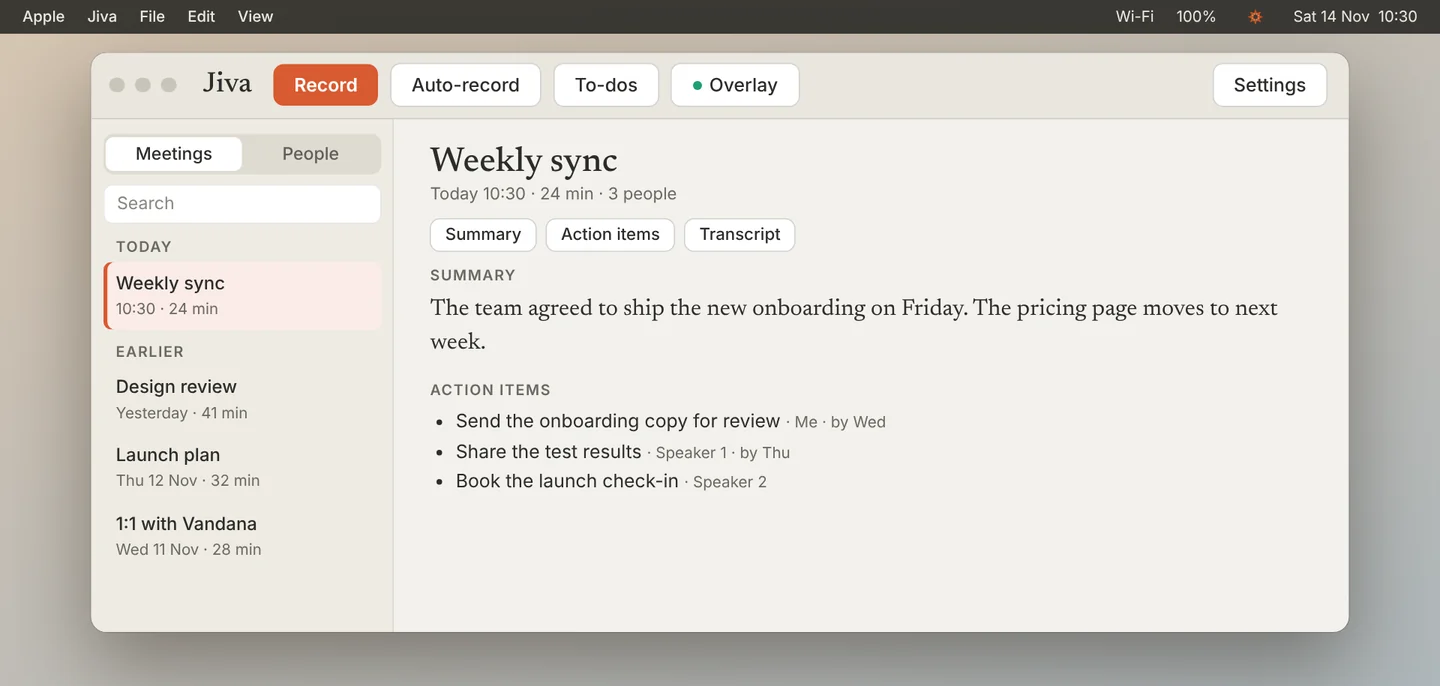
Open the meeting. Read the Summary and the Action items, then scroll to the Transcript.
A new voice starts as Speaker 1. Click the label and type the person’s name. Jiva remembers the voice for later meetings.
Turn on Auto-record
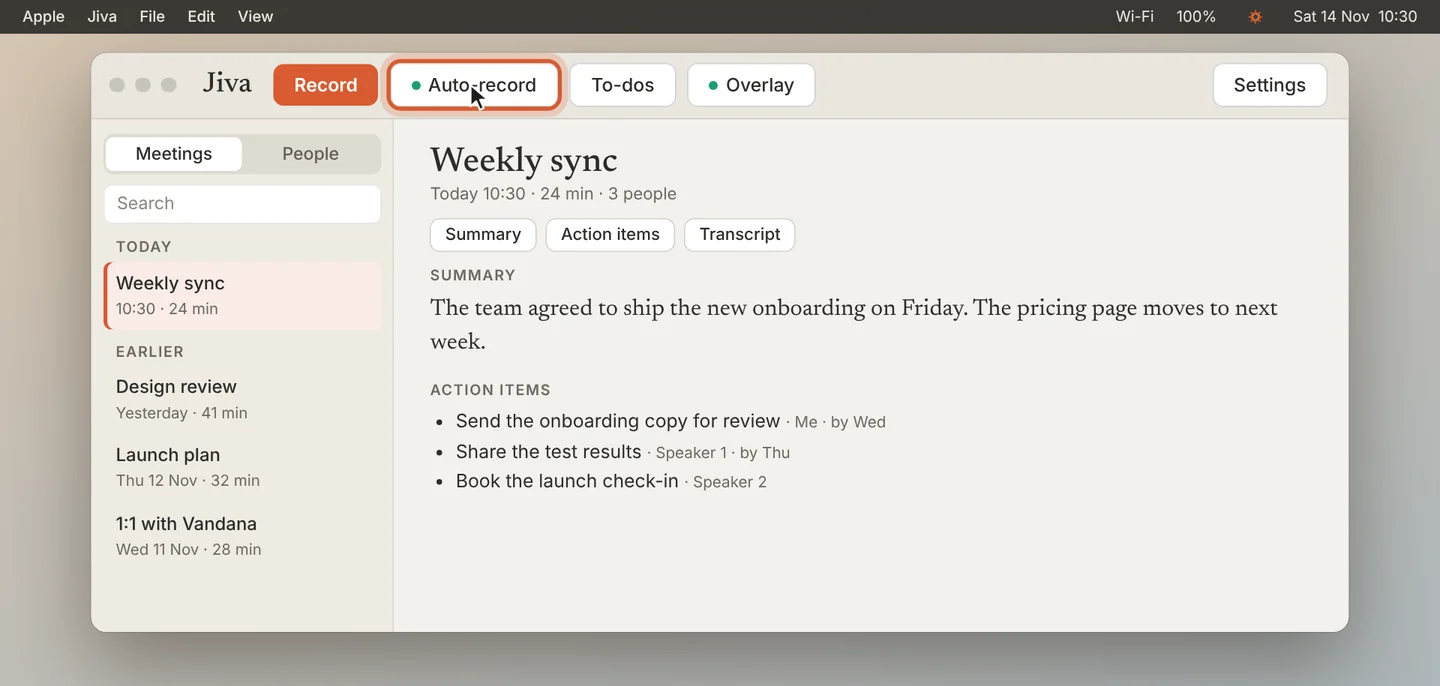
Click Auto-record in the Jiva window. From now on, Jiva starts recording when a call starts and stops when it ends.
On a Mac with 8 GB of memory, the running summary in the overlay stays off during the call. The summary after the call is still written. Tell the people on the call that you are recording.
If something goes wrong
The other side of the call is missing
Jiva did not get system audio. Click the lotus, choose Set Up Permissions…, and run the System Audio Recording test again.
There are no notes after the call
Click the lotus and choose Finalize Last Meeting. If the models are still downloading, wait for them first.
The overlay is in the way
Drag it to another corner, or click Overlay in the Jiva window to turn it off.