1
Search
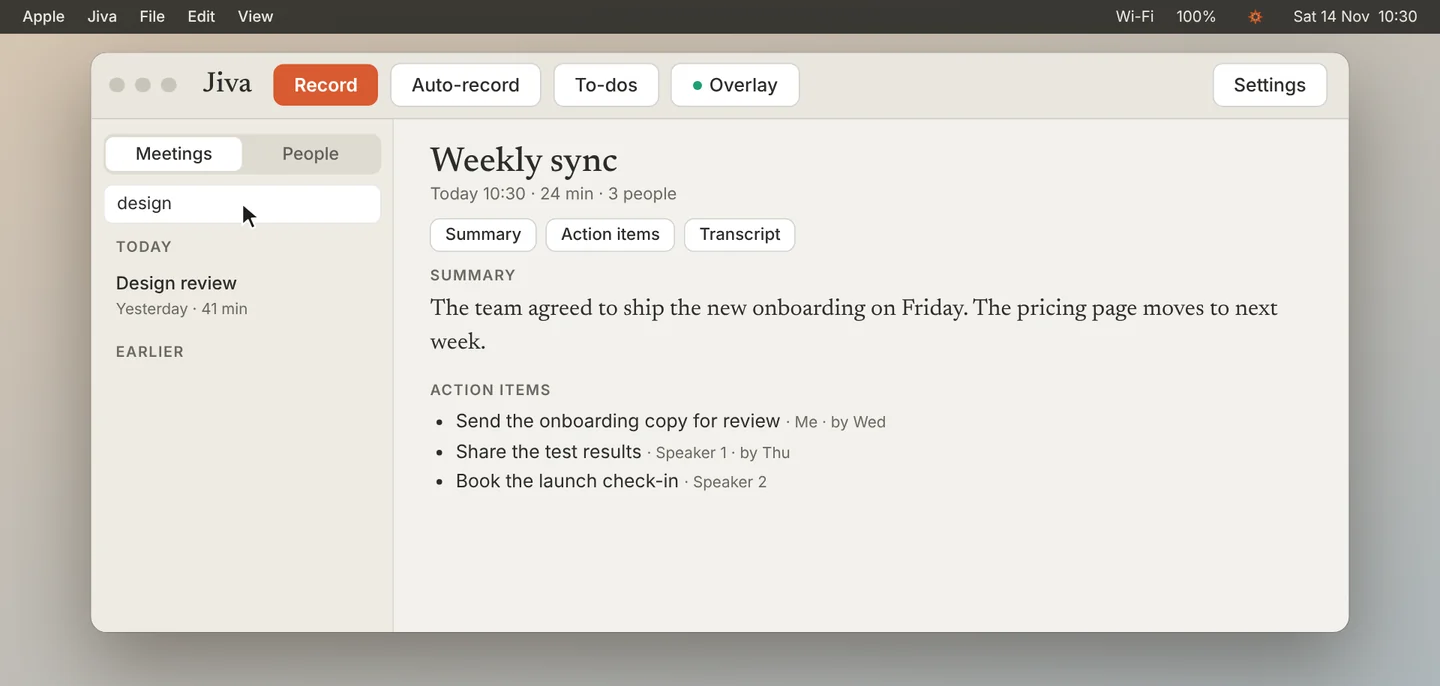
Type in Search above the list. The list shows only the meetings that match.
2
Open the menu for a meeting
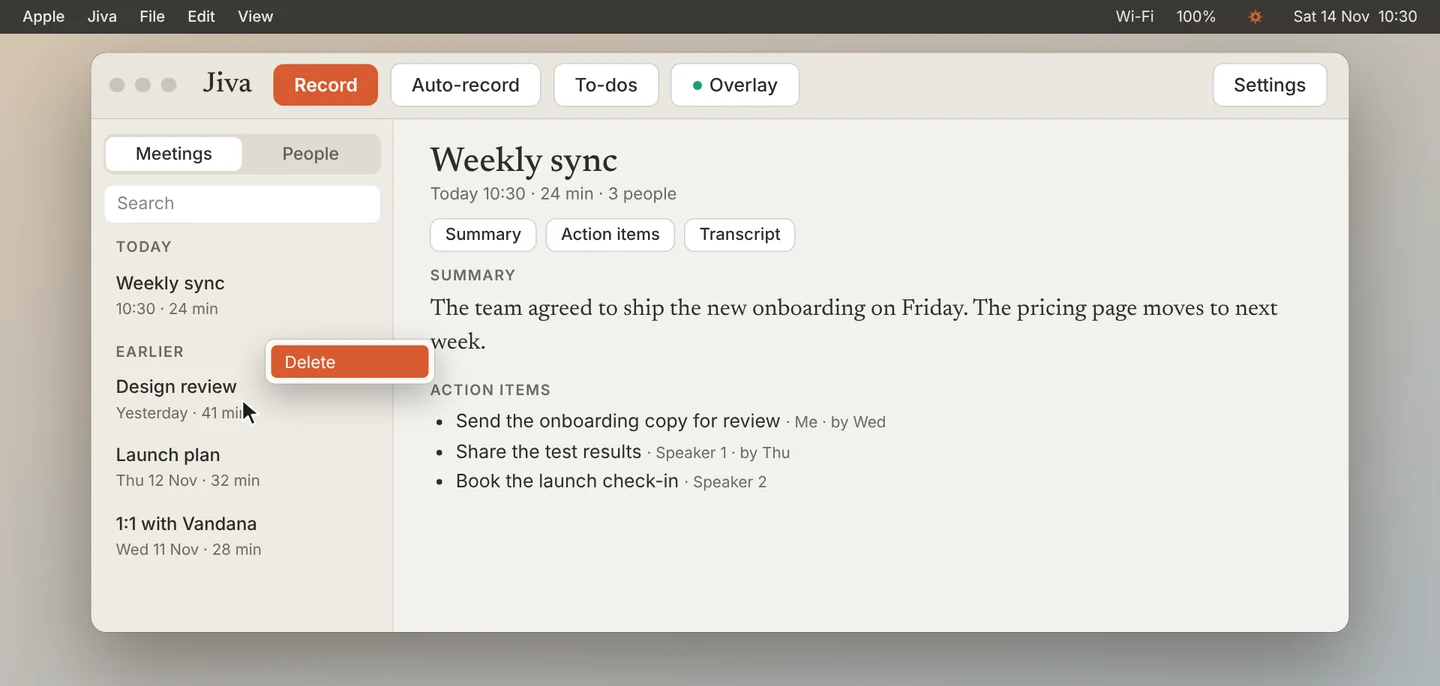
To delete a meeting, right-click it in the list (or Control-click) and choose Delete.
3
Confirm
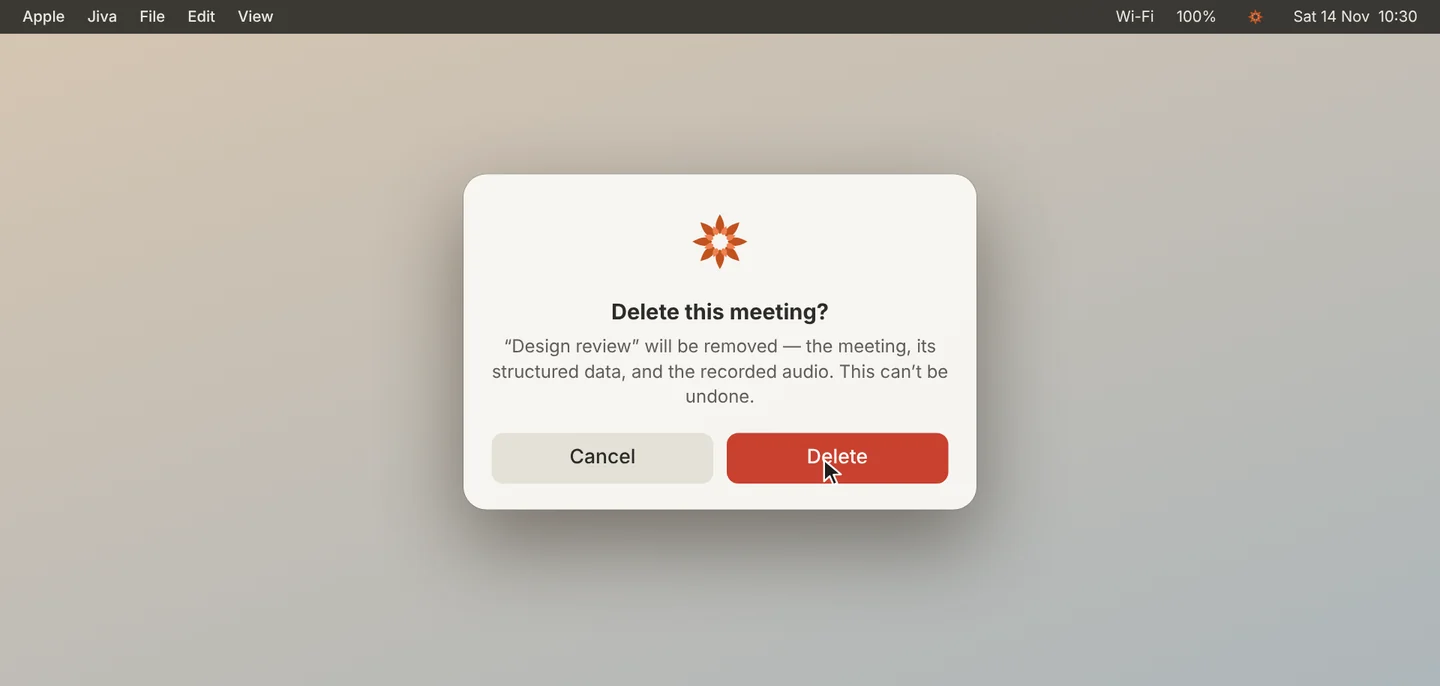
Read the message and click Delete. Jiva removes the transcript, the notes and the recorded audio. This cannot be undone.
Good to know
Voices you have named stay known. A voice that has no name and was heard only in the deleted meeting is removed too.
If something goes wrong
I deleted the wrong meeting
A deleted meeting cannot be restored from Jiva. If you back up your Mac, restore the Jiva folder from your backup.
Did this guide help?
Next topic · Speakers and names
How Jiva learns voices →0:50 video · 4 steps