1
Open Permissions
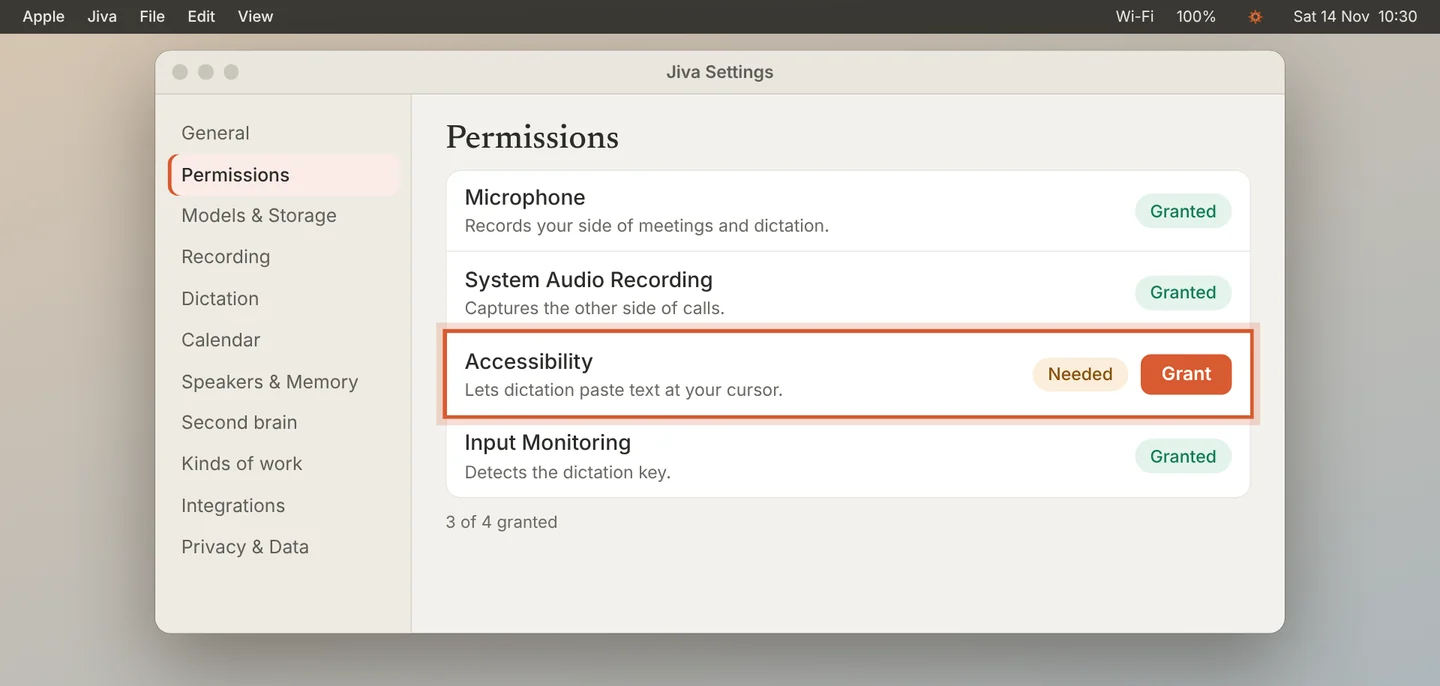
Open Settings, then Permissions. Each permission says Granted or Needed.
2
Click Grant
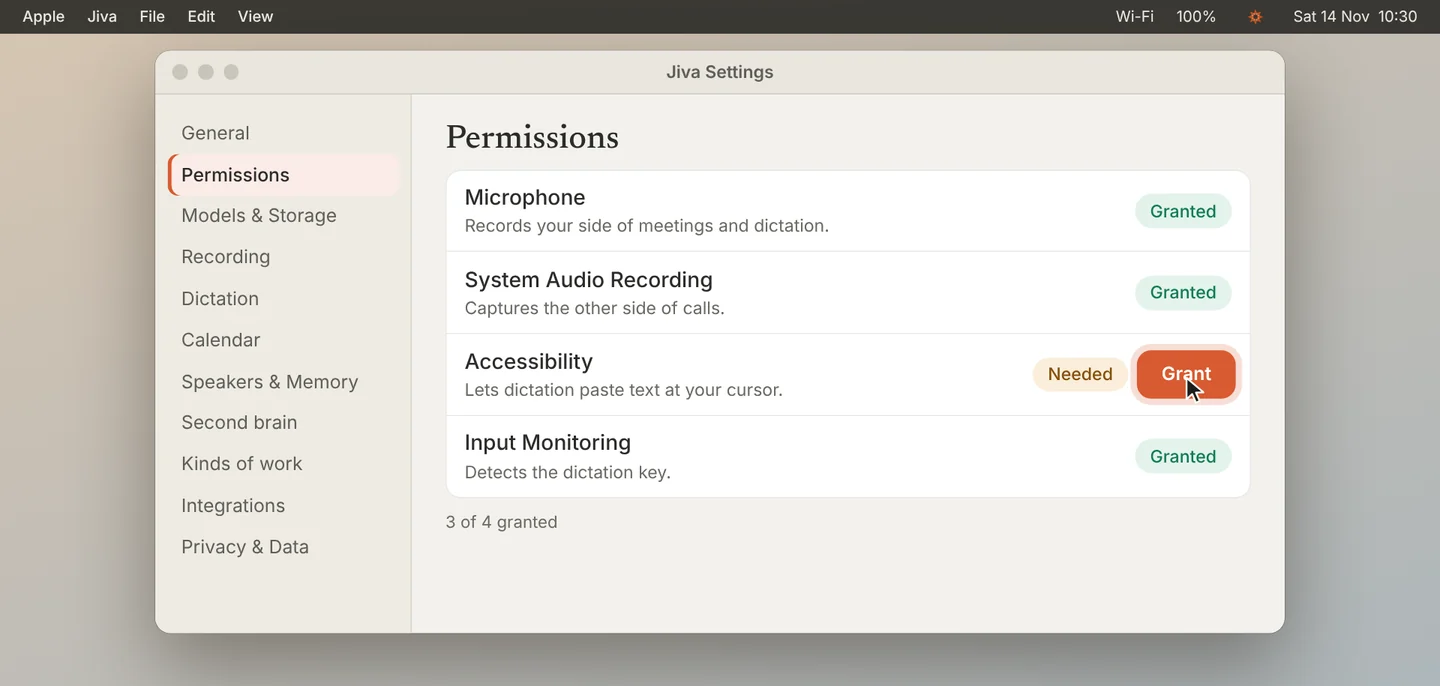
Click Grant on the row that says Needed. System Settings opens on the right page.
3
Switch Jiva on
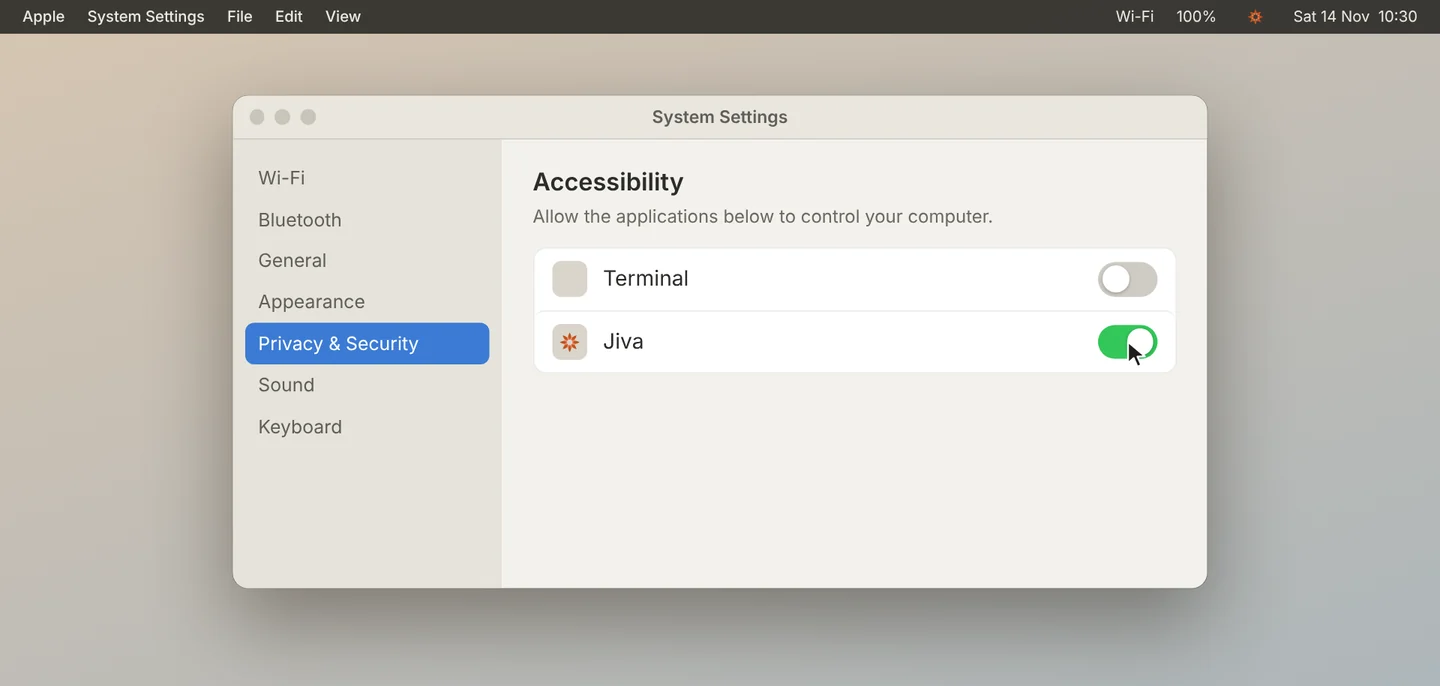
Switch Jiva on. If the switch is already on but Jiva still says Needed, switch it off and on again. macOS may ask for your password.
4
Quit and reopen Jiva
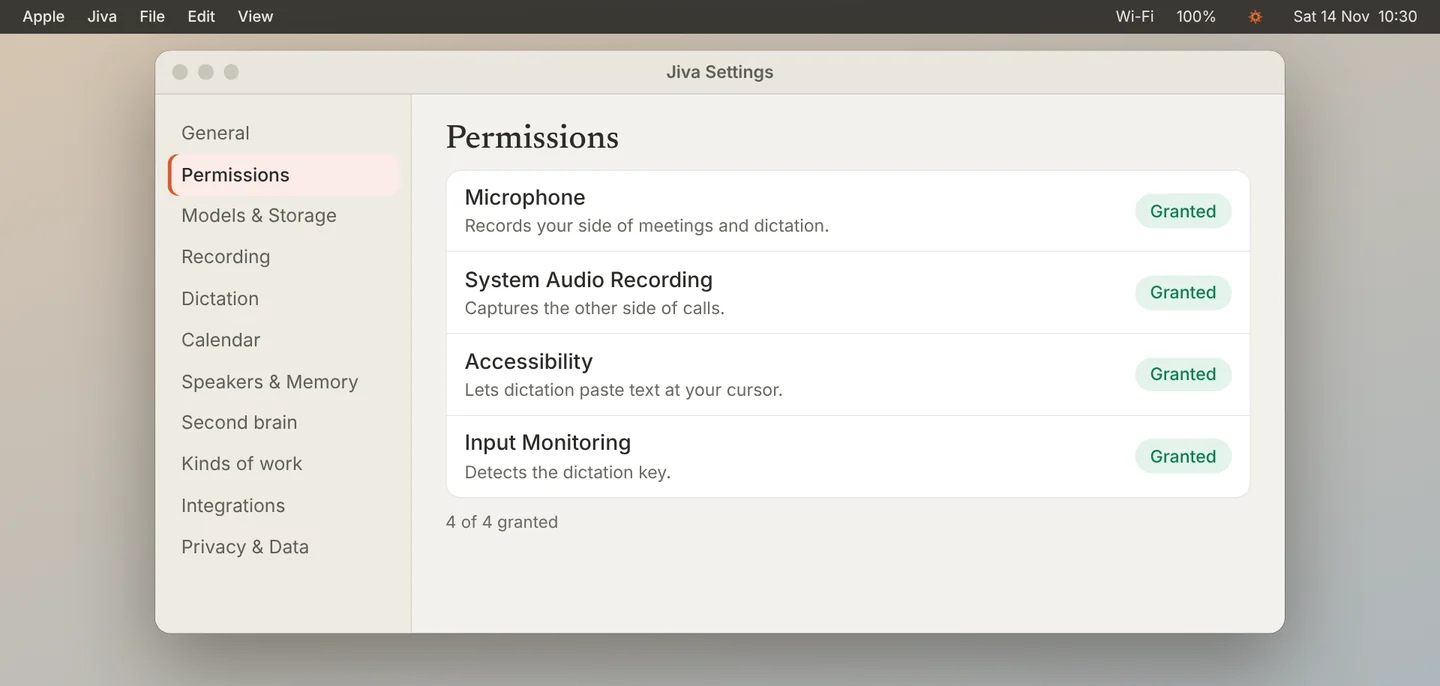
Quit Jiva from the lotus menu and open it again. The row now says Granted.
Good to know
Which permission does what: Microphone and System Audio Recording are for meetings. Accessibility and Input Monitoring are for dictation and Reply with context. Screen Recording is only for names and shared screens.
If something goes wrong
Jiva is not in the list in System Settings
Click Grant in Jiva once more; macOS adds Jiva to the list when it asks.
The permission goes off again after an update
Tell us: write to ceo@jiva.works with your Jiva version.
Did this guide help?
Next · Guide 5 of 5
Send your logs and get help →0:49 video · 3 steps