Click the label
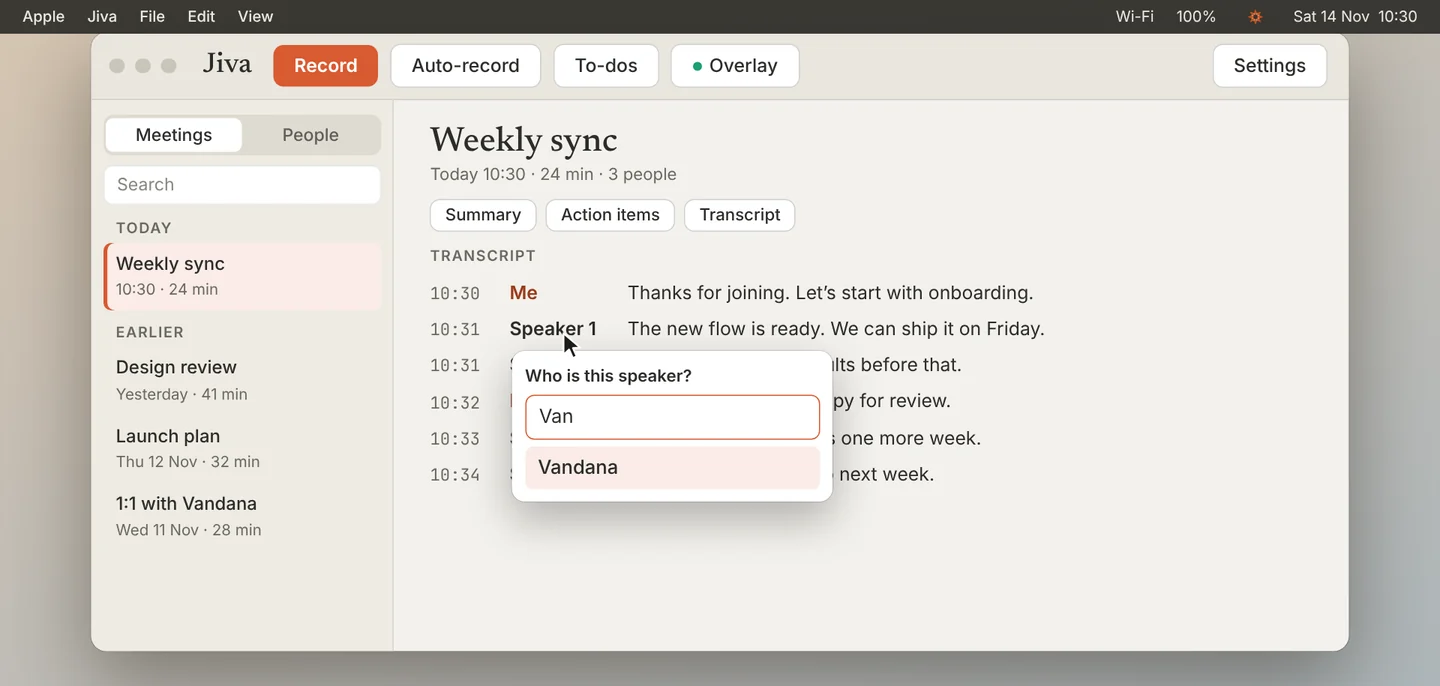
In the transcript, click the speaker label that is wrong or that says Speaker 1. Type the name. The list narrows as you type; pick the person.
Check the result
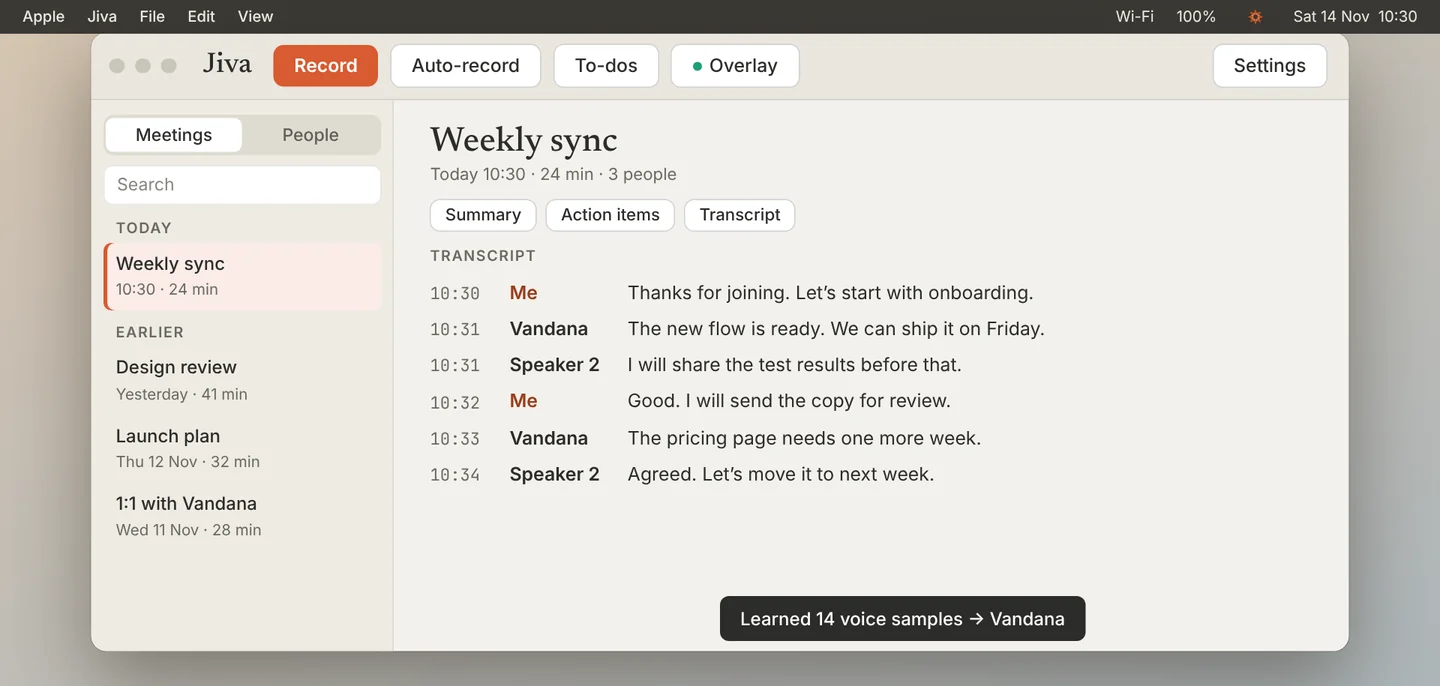
Jiva changes every line from that voice in this meeting, and uses your correction to recognise the voice better from now on.
Set how many people were on the call
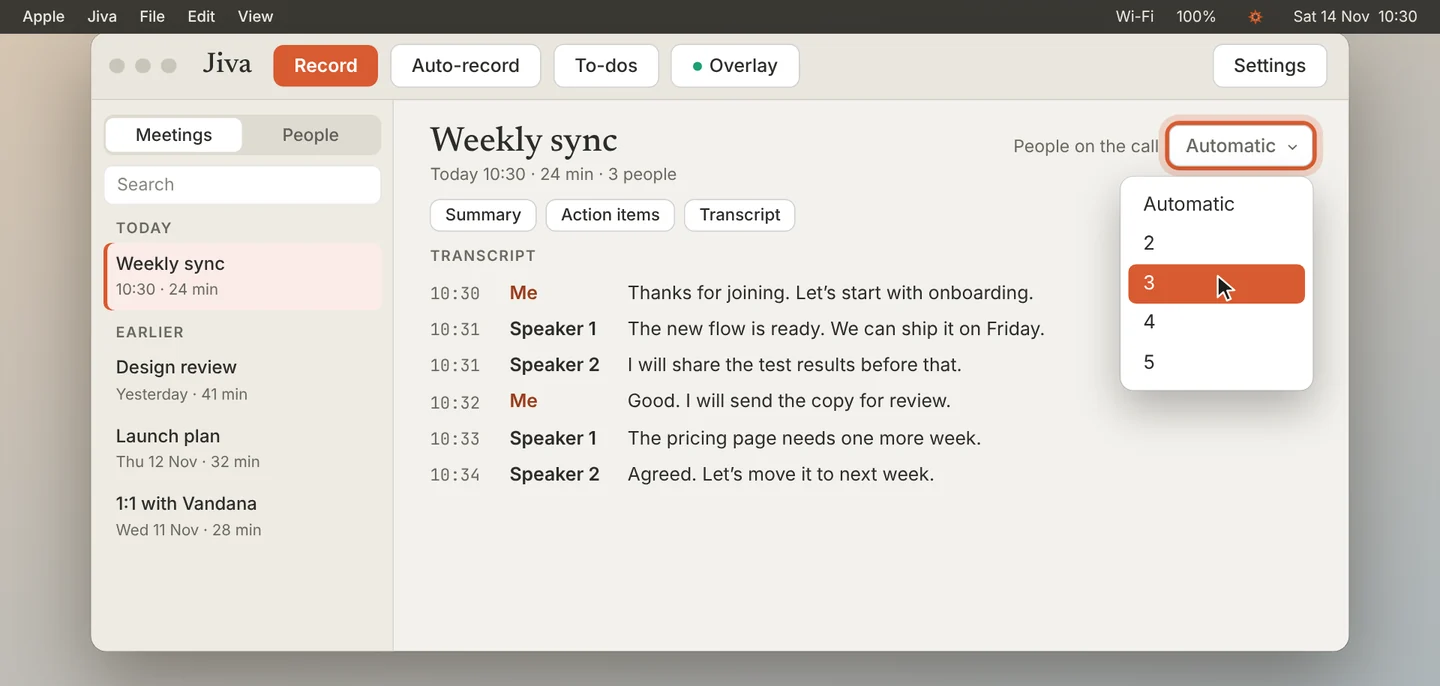
If a call shows more speakers than were really on it, set People on the call at the top of the meeting to the real number, including you. Jiva works out the speakers again.
Rename a person everywhere
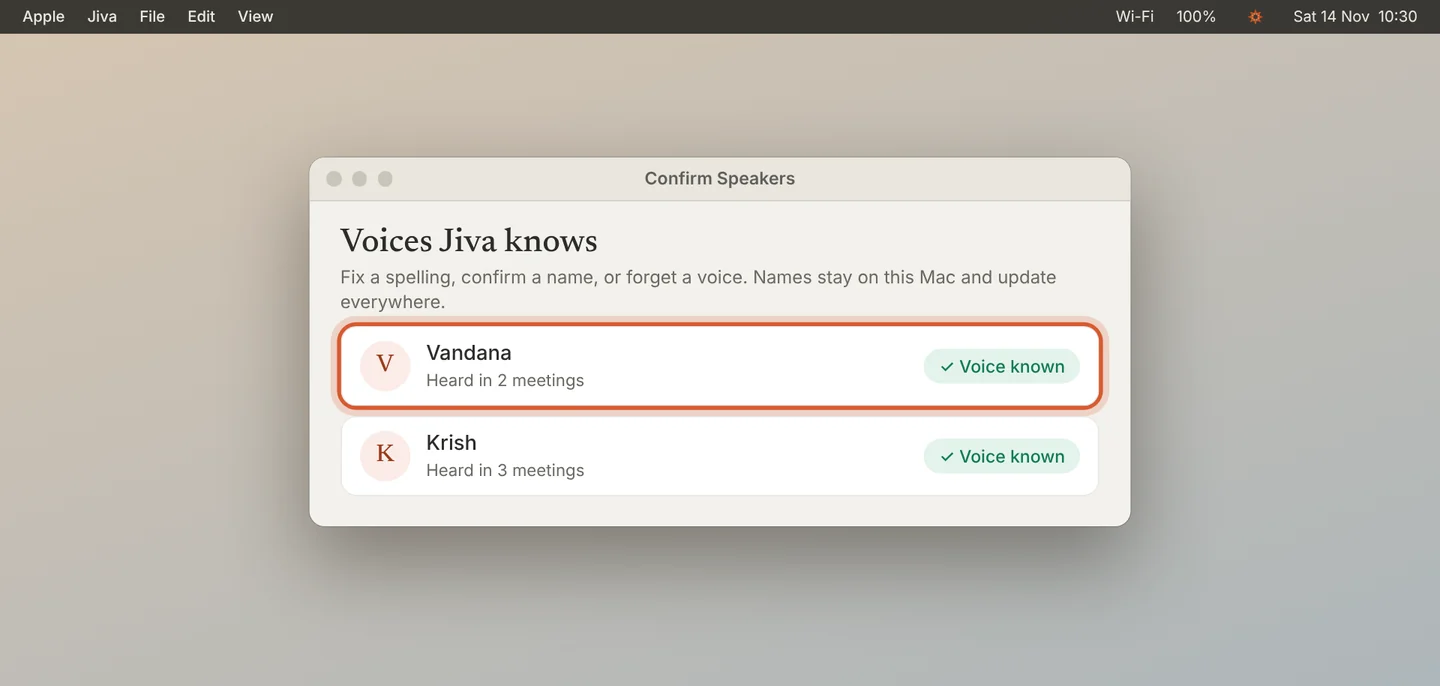
A fix in the transcript applies to that meeting and to future ones. To change a name in every past meeting too, open Settings, Speakers & Memory, Confirm… and edit the name there.
When Jiva cannot tell the other speakers apart, it offers to read their names from the meeting window. See “Learn names from the meeting window”.
If something goes wrong
The whole other side is one speaker
Set People on the call to the real number. For future calls, turn on Learn names from the meeting window.
A label changed but no voice was learned
Those lines had no clear voice sample. The label is fixed for this meeting; name the person again in a later meeting.