For
Zoom Rooms, Meet Companion, Teams RoomsUses
Your Mac’s microphoneSwitch
None. It is automatic.1
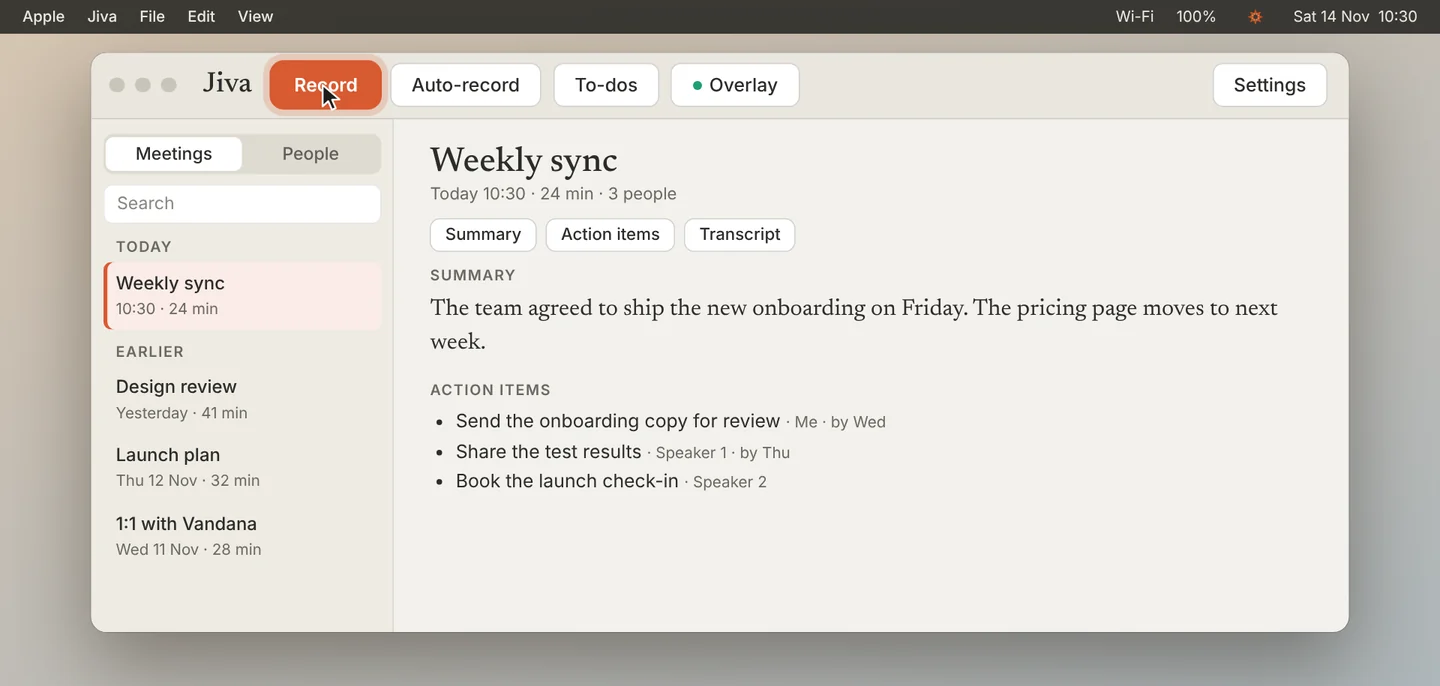
Start recording in the room
Put your Mac on the table, where its microphone can hear the room. Click Record.
2
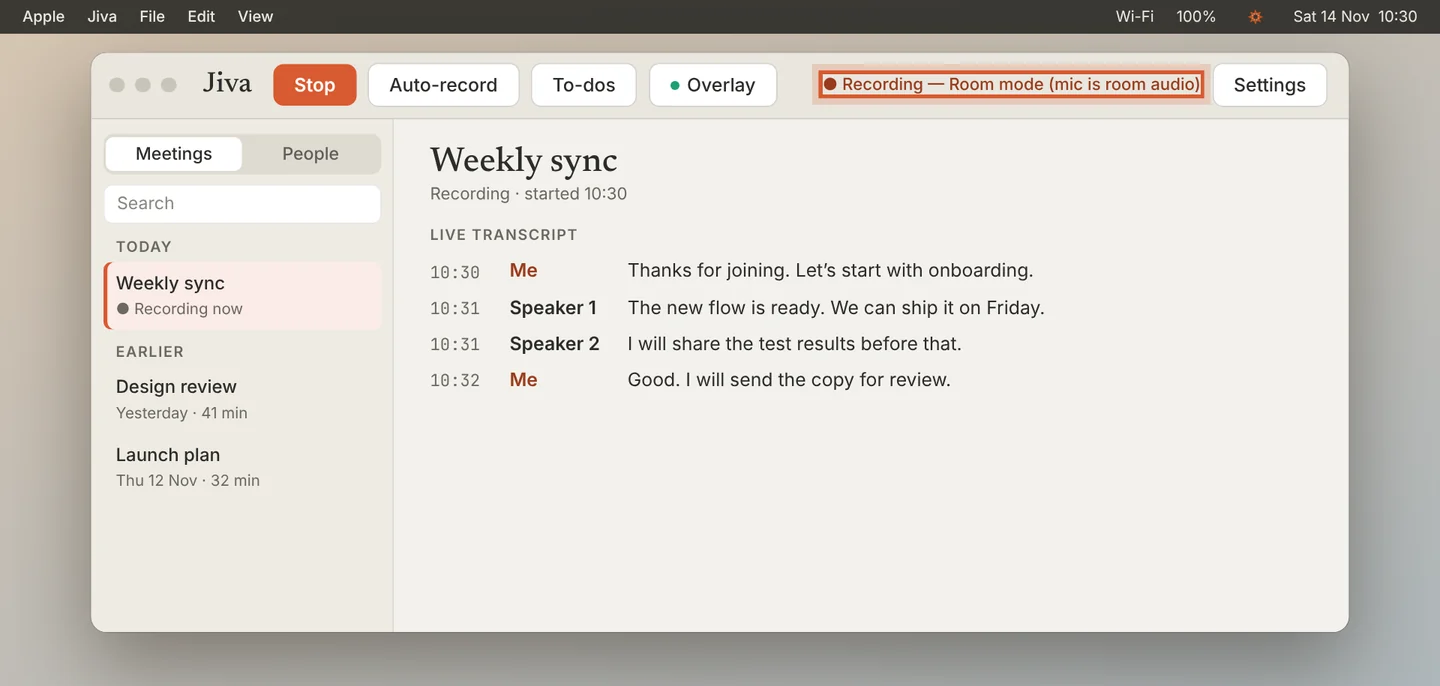
Let Jiva switch to Room mode
When the call’s sound comes from the room and not from your Mac, Jiva notices and switches to Room mode by itself. Click OK. The Jiva window shows Recording — Room mode.
3
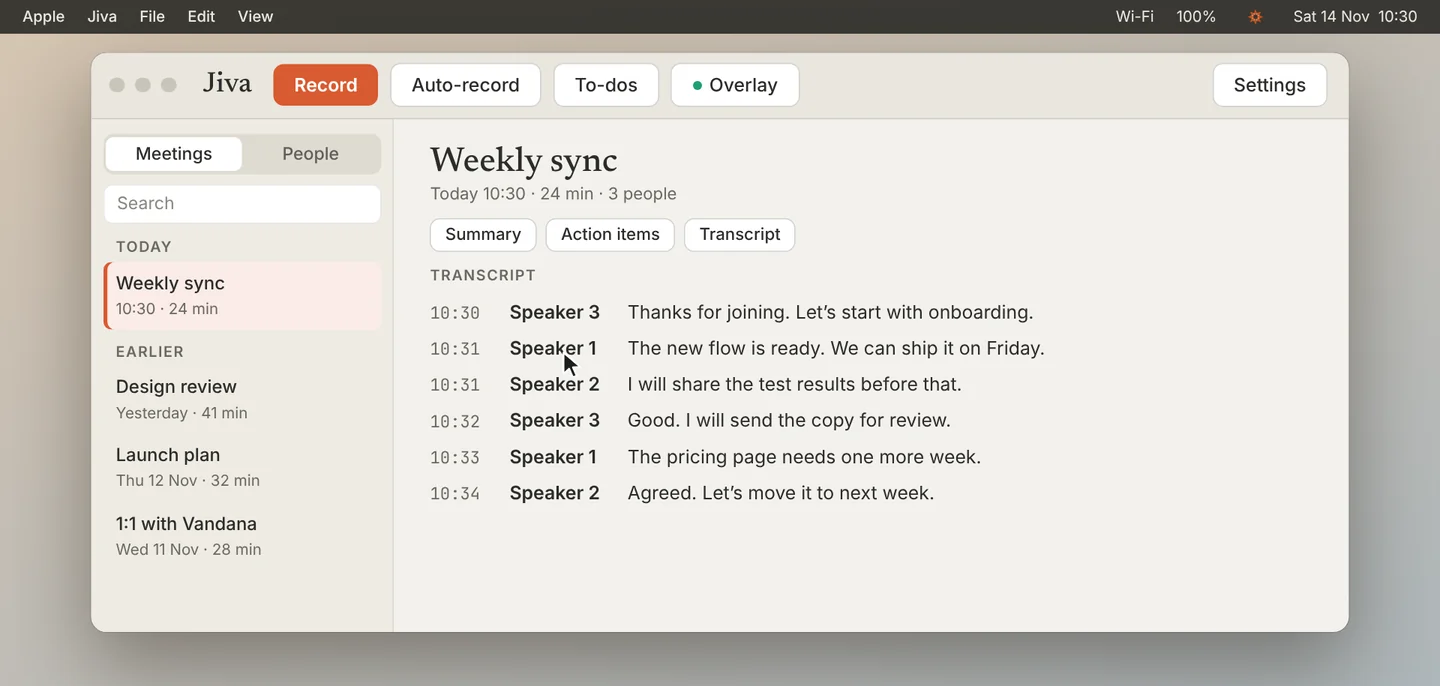
Name the speakers afterwards
In Room mode, everyone is heard through one microphone, so the transcript uses Speaker 1, Speaker 2 and so on. It does not call anyone Me. Click a label to type the person’s name.
Good to know
Room mode starts by itself. There is no switch for it.
If something goes wrong
Voices are faint in the transcript
Move your Mac closer to the people speaking, and away from the room’s loudspeaker.
Did this guide help?
Next · Guide 6 of 7
Use the overlay during a call →0:59 video · 4 steps