Read the running summary
When a recording starts, the overlay appears at the top right of your screen. Running summary lists the main points so far and updates as people speak.
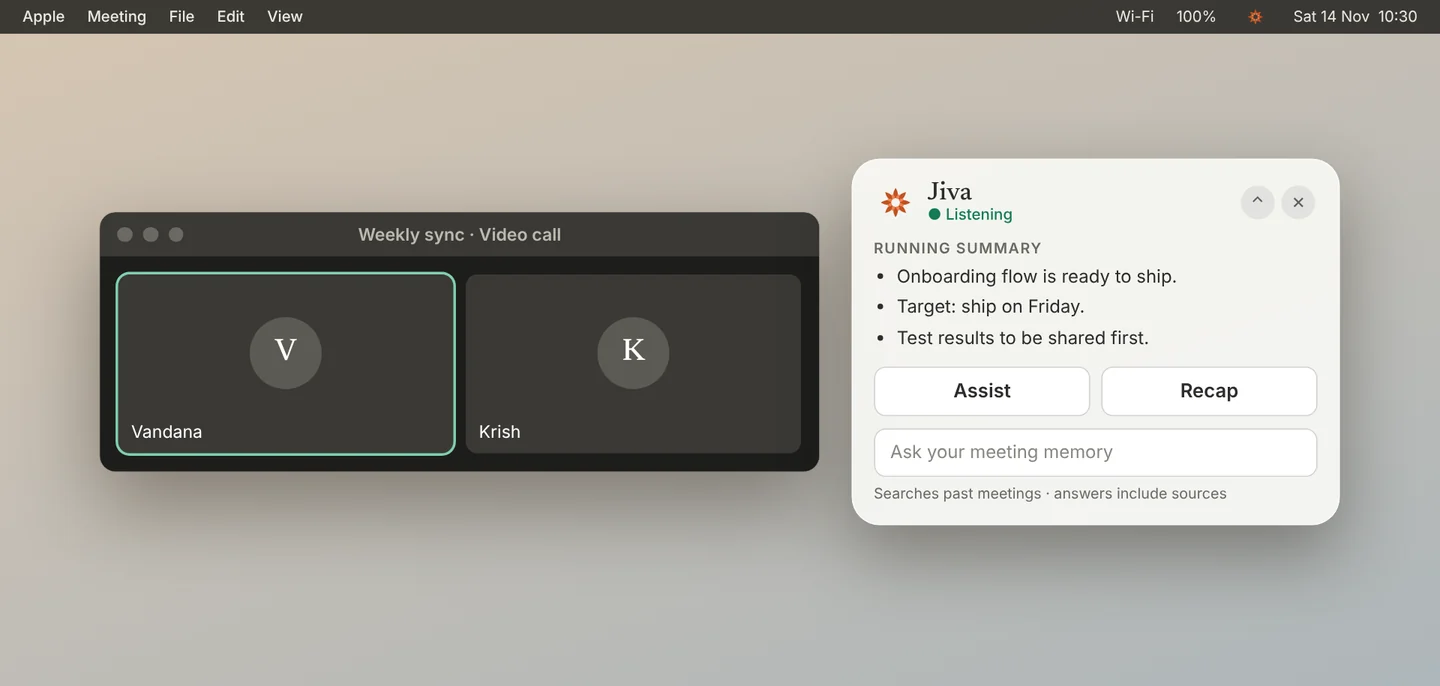
Move it
Drag the overlay by its header to any part of the screen.
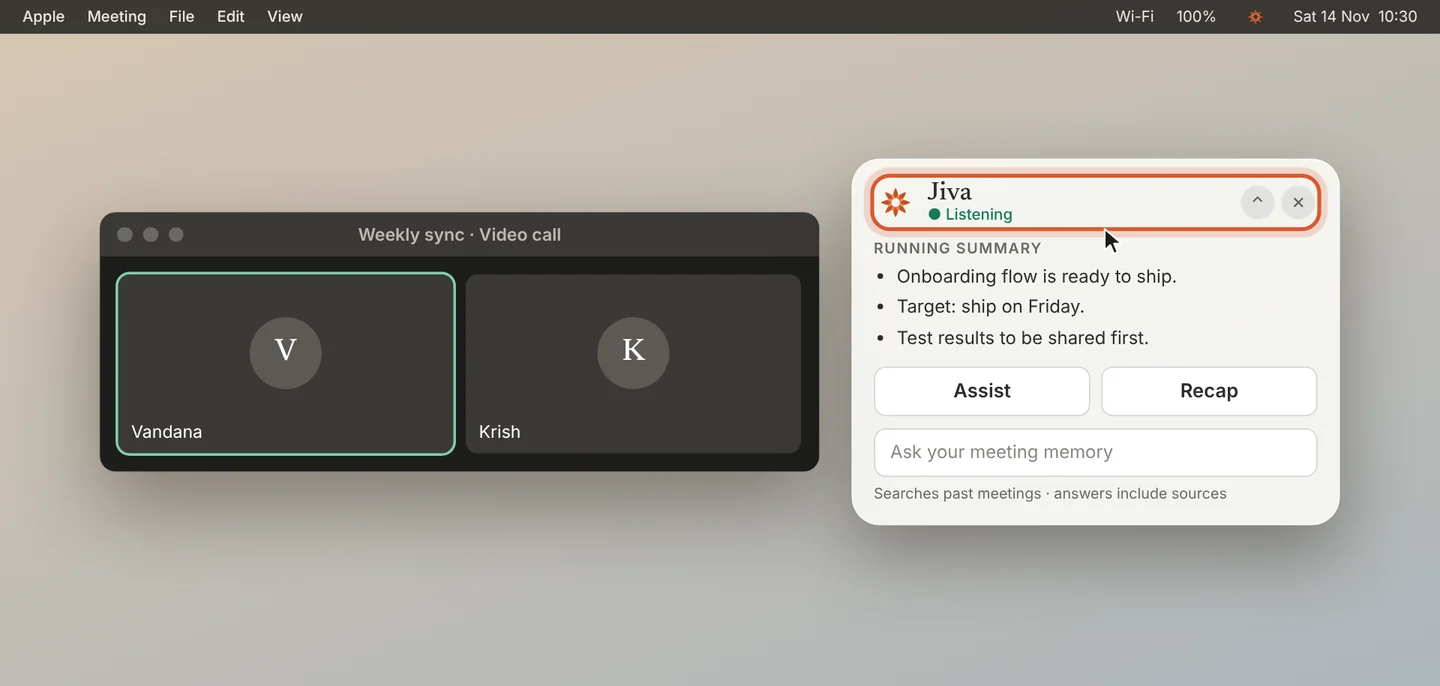
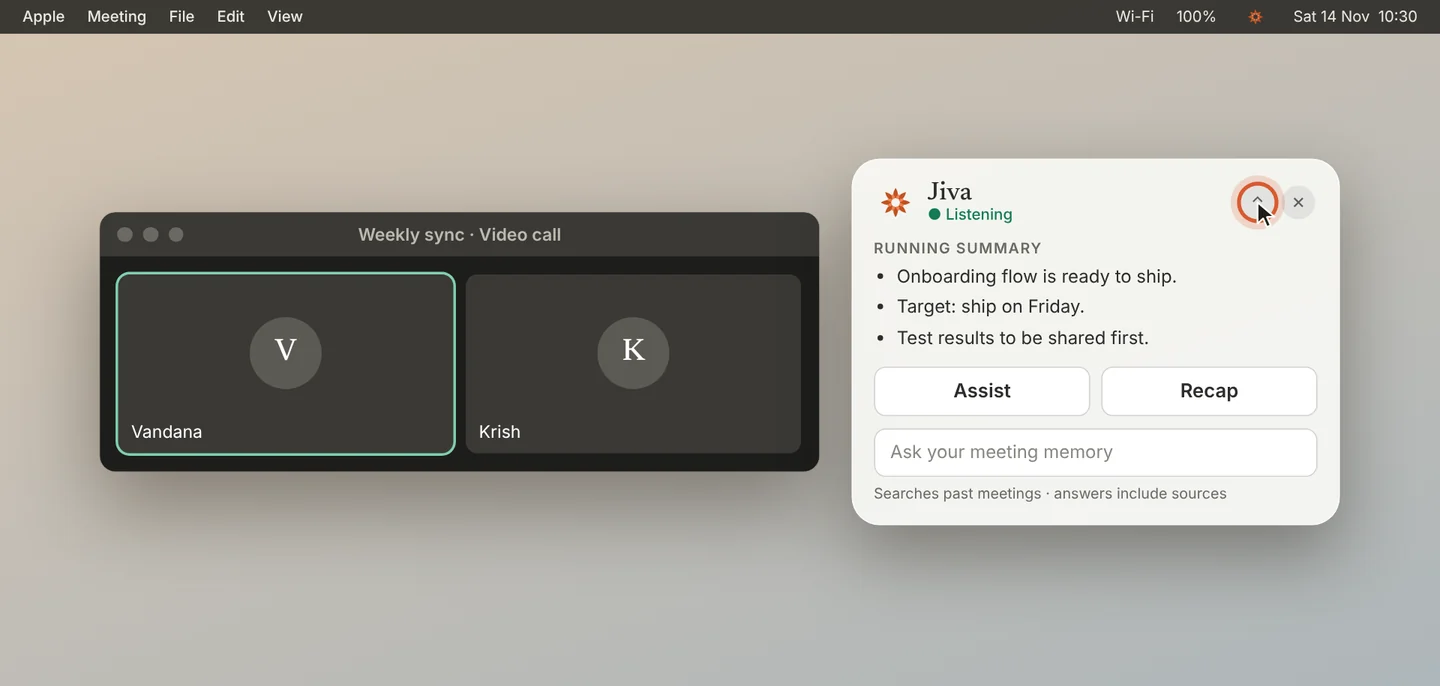
Collapse or hide it
Click ⌃ to collapse the overlay to a small pill. Click the pill to open it again.
Click ✕ to hide it. To bring it back, click the lotus in the menu bar, then Show On-Screen Intelligence.
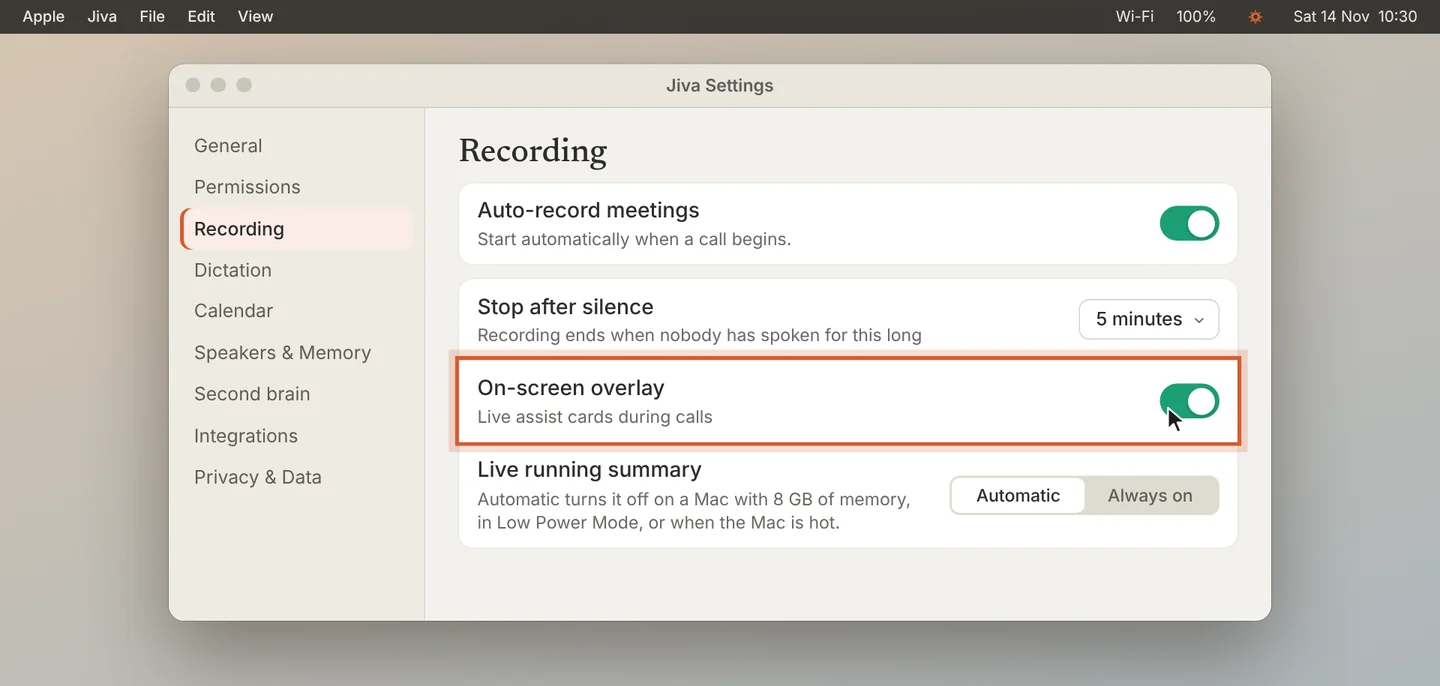
Turn it off
To stop the overlay from appearing, open Settings, then Recording, and turn off On-screen overlay. The Overlay button at the top of the Jiva window does the same.
On a Mac with 8 GB of memory, in Low Power Mode, or when the Mac is hot, the running summary stays empty and the overlay says why. Assist and Ask still work. The overlay closes when the meeting ends.
If something goes wrong
The running summary is empty
Read the line on the card: it says why. On a Mac with more than 8 GB you can set Live running summary to Always on in Settings, Recording. The change applies from the next meeting.
The overlay did not appear
Check that On-screen overlay is on, then click the lotus and choose Show On-Screen Intelligence.