Turn it on
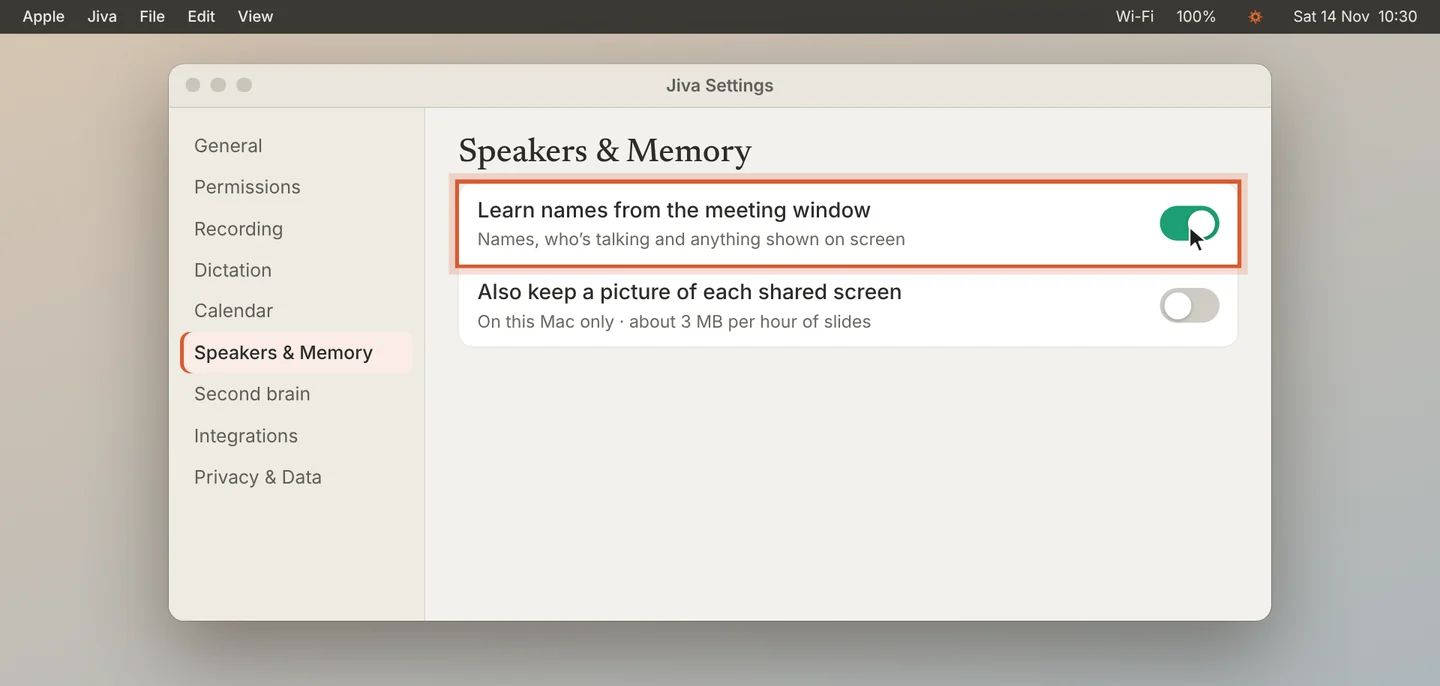
Open Settings, then Speakers & Memory, and turn on Learn names from the meeting window. Jiva also offers this under a meeting when it could not tell the speakers apart.
Allow Screen Recording
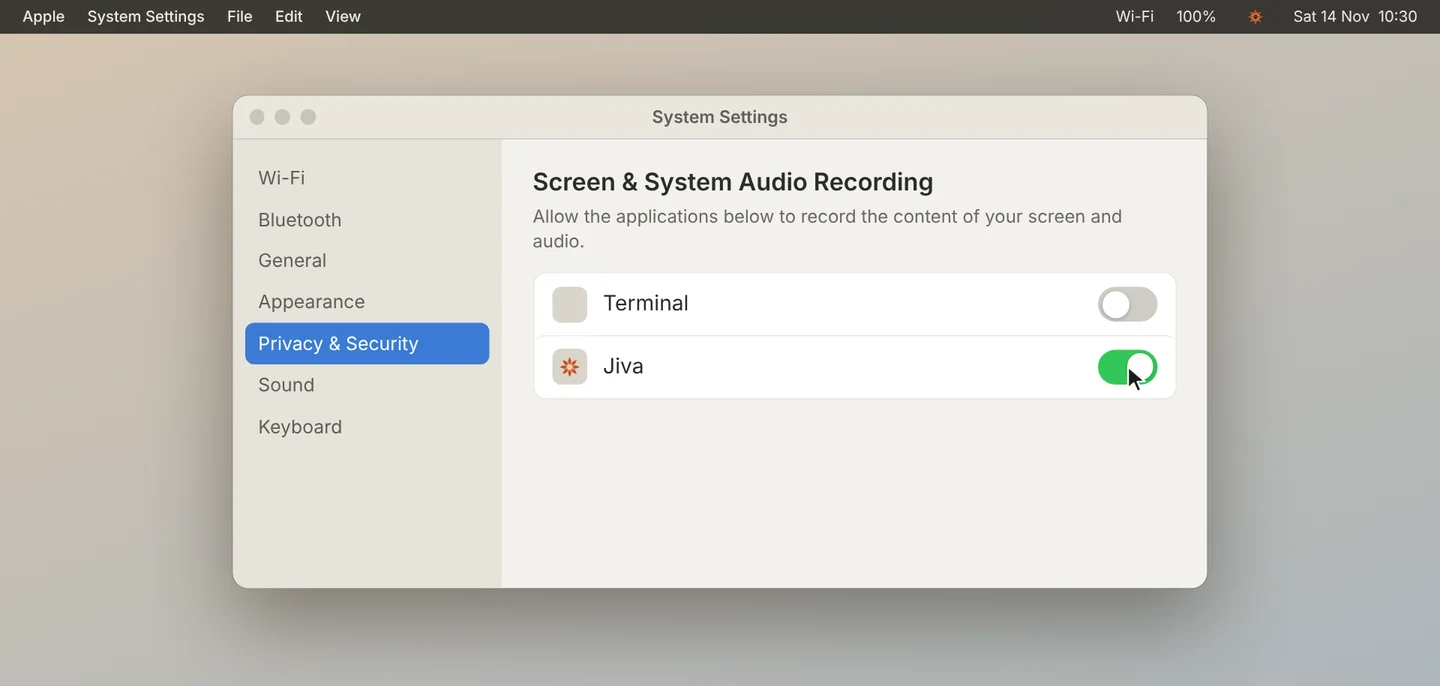
macOS asks to let Jiva record the screen. Open System Settings and switch Jiva on under Screen & System Audio Recording. Jiva uses this to read text. It never records video.
Record a call
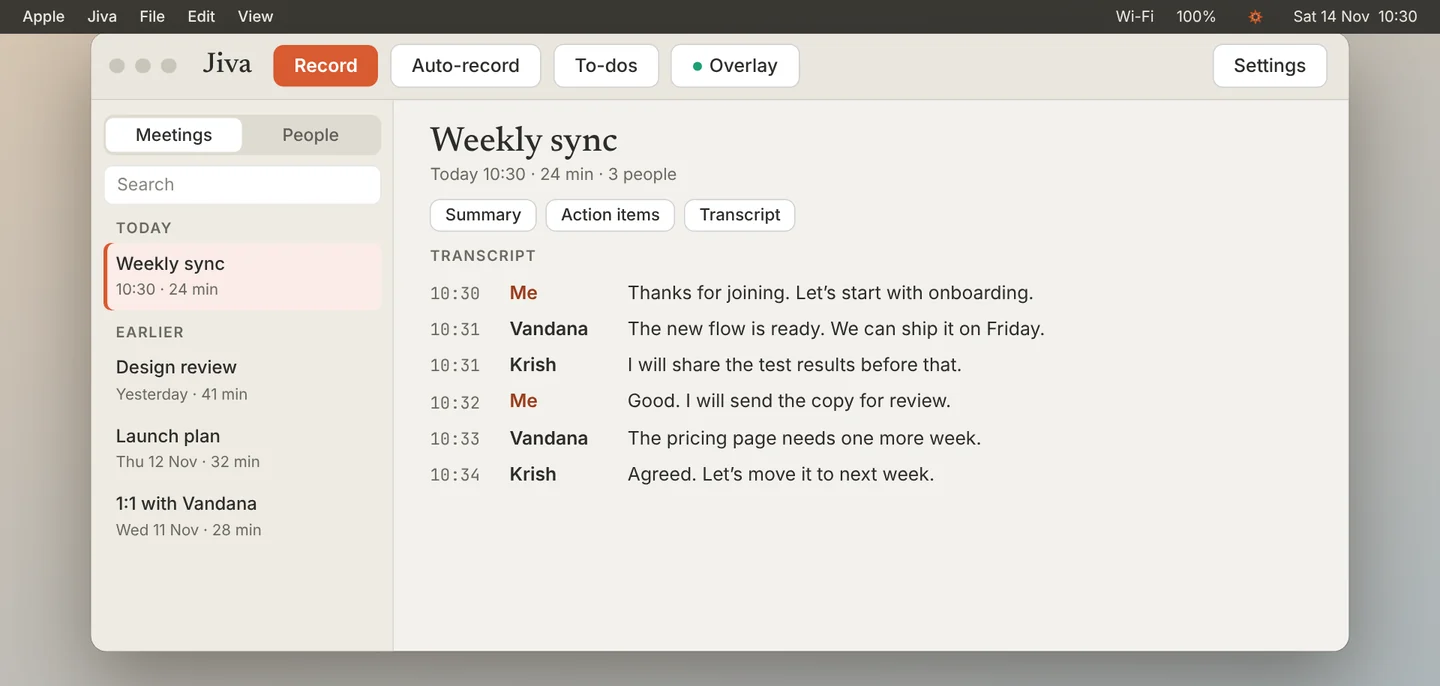
From your next call, Jiva reads the names in the meeting window and who is talking. The transcript shows real names, and names are spelled the way the meeting app shows them.
Watch for the warning
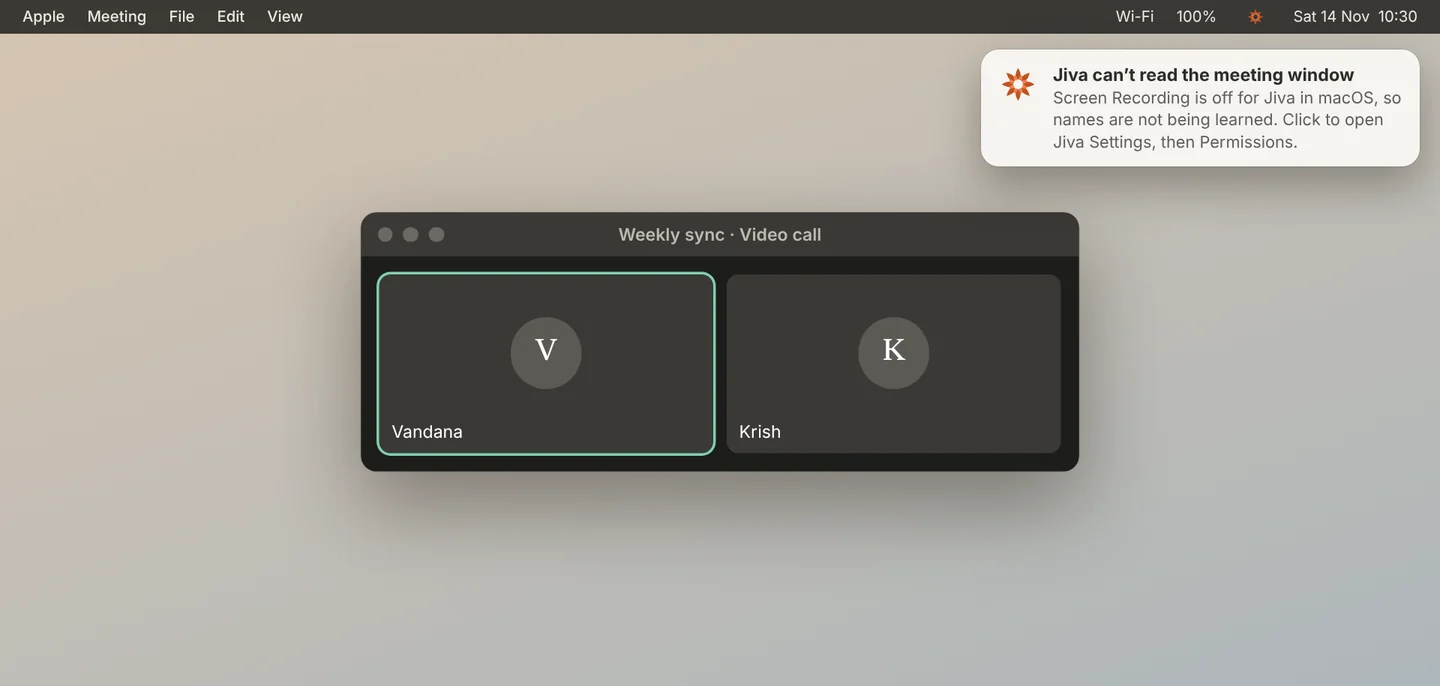
If the permission is switched off later, Jiva shows a notification: Jiva can’t read the meeting window. Click it, open Permissions, and grant Screen Recording again.
This works in Zoom, Google Meet, Microsoft Teams, Webex and Slack calls. Jiva reads only the meeting window and the window in front of you, on this Mac, and keeps text only unless you also turn on pictures.
If something goes wrong
Names are still missing
The meeting app must show who is talking, for example Zoom’s speaker view. Keep the meeting window open, not minimised.