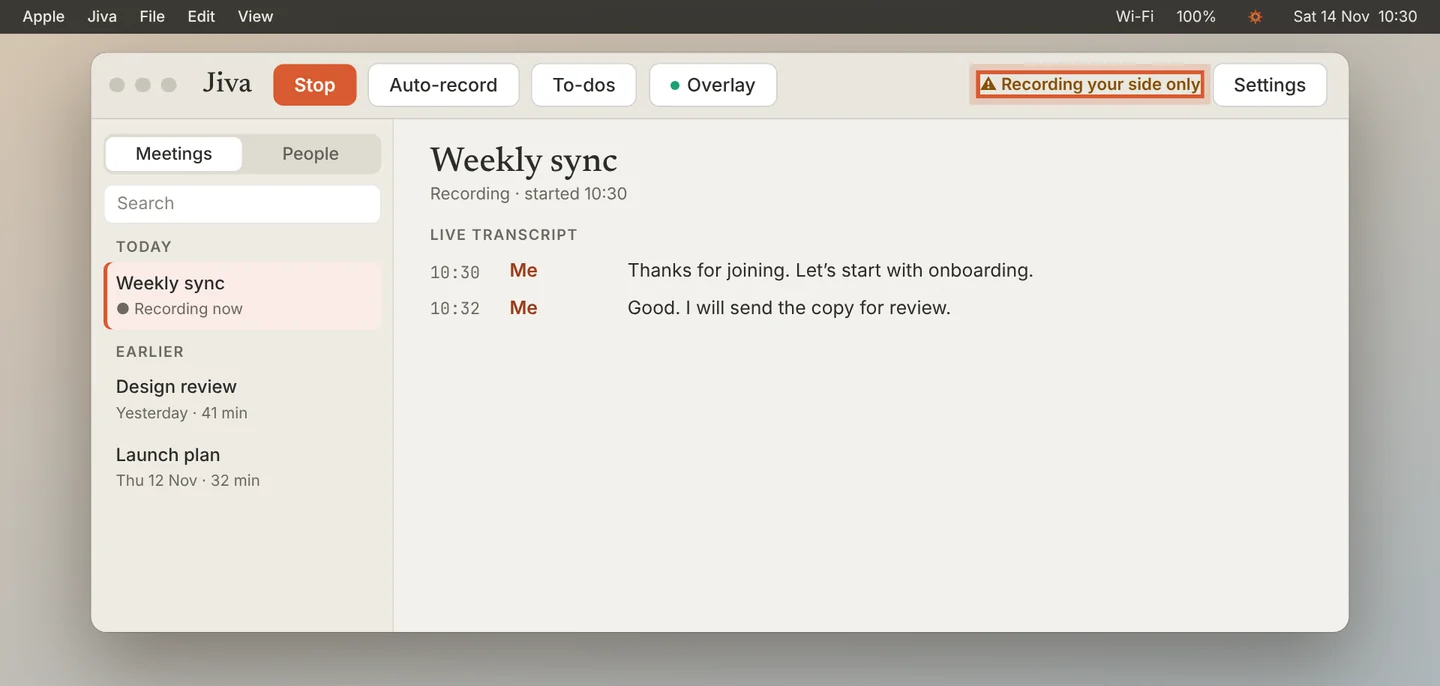
Look for the warning
During a recording, the Jiva window shows Recording your side only when it cannot hear your Mac’s sound.
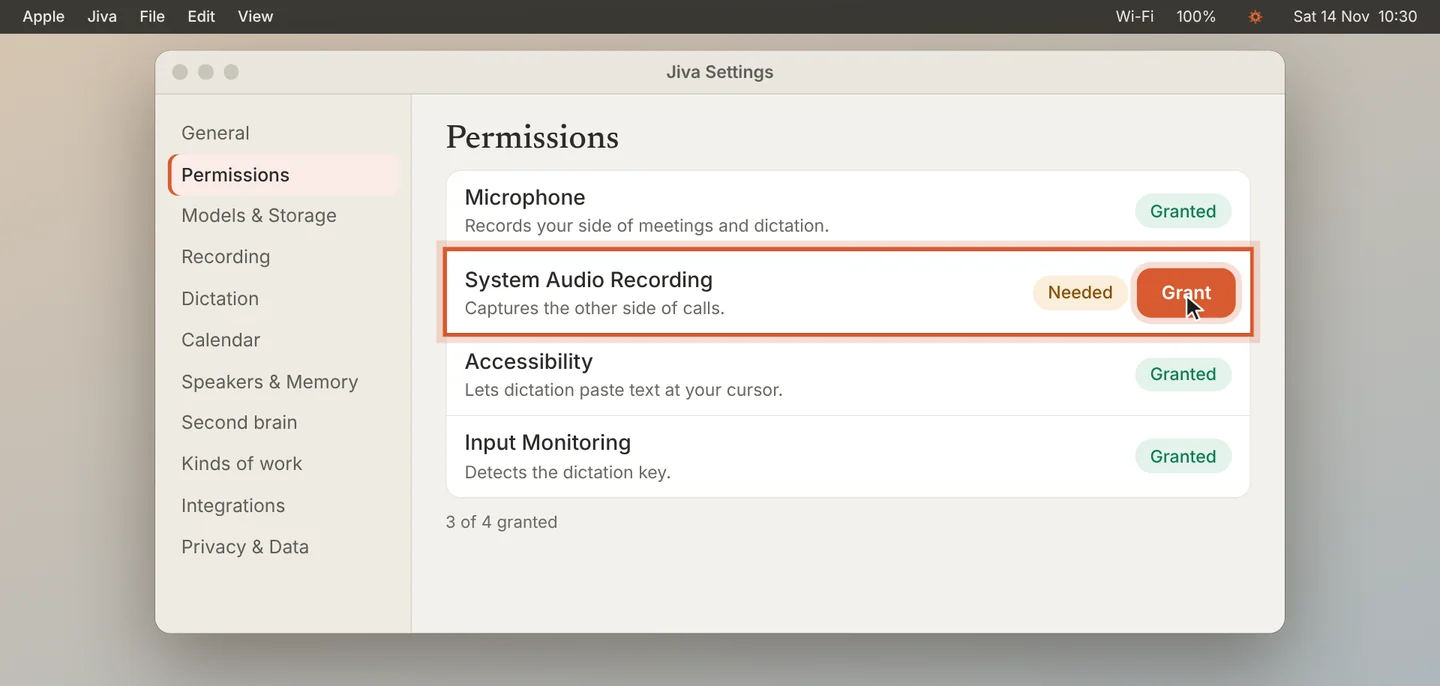
Turn on System Audio Recording
Open Settings, then Permissions. If System Audio Recording says Needed, click Grant and switch Jiva on in System Settings.
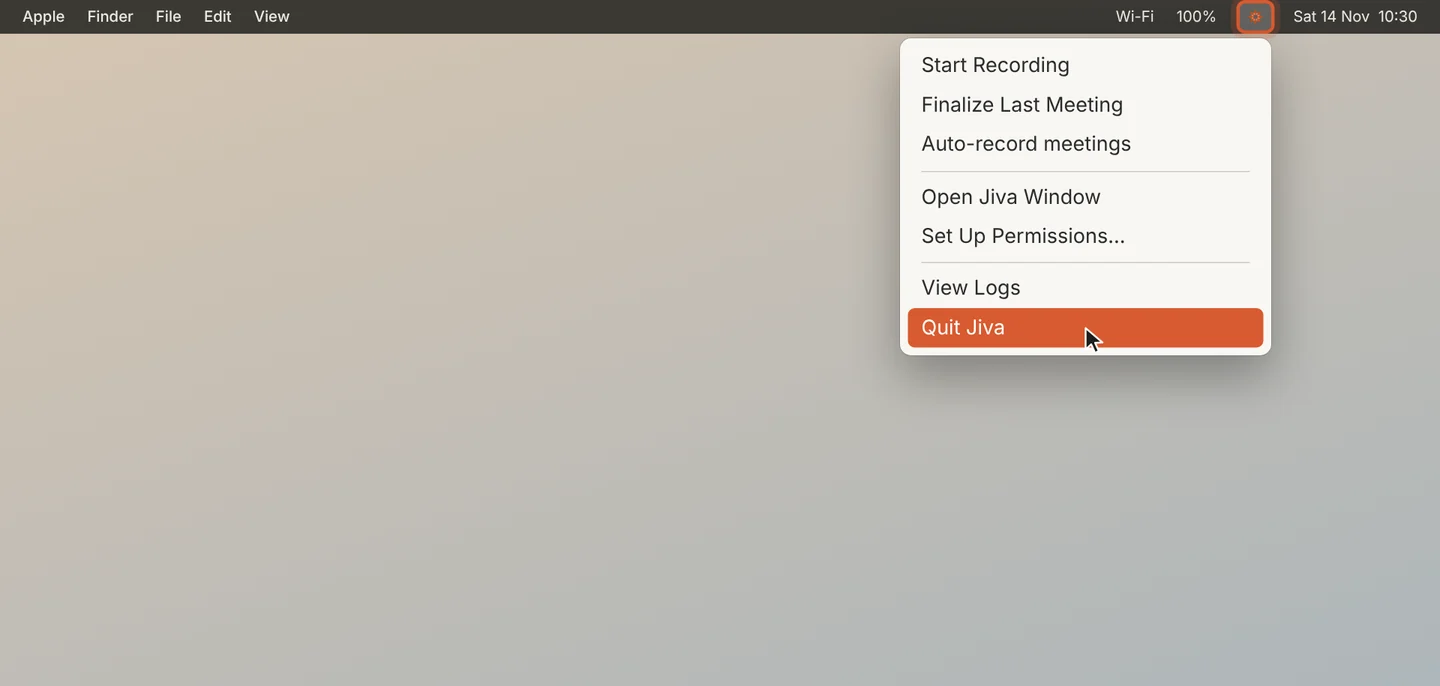
Quit and reopen Jiva
Click the lotus in the menu bar and choose Quit Jiva. Open Jiva again. macOS applies the permission when Jiva starts.
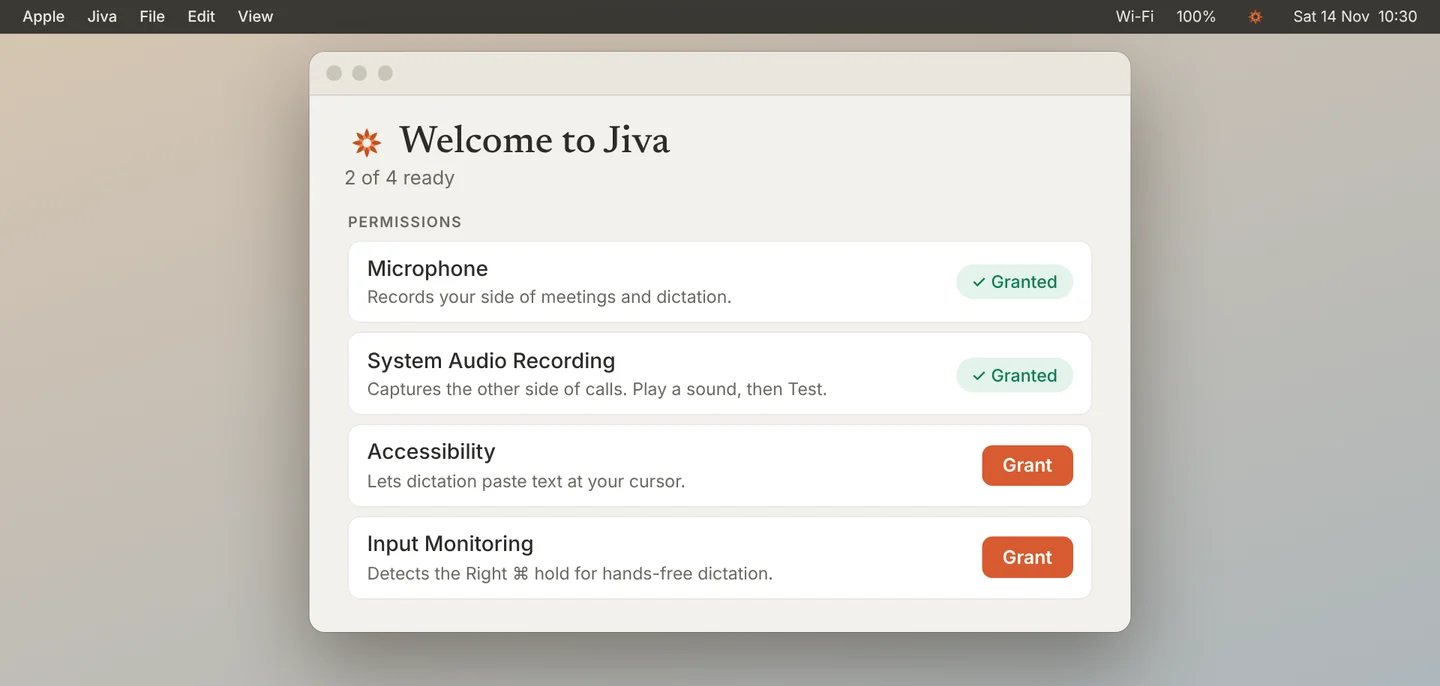
Test it
Play any sound on your Mac. Click the lotus, choose Set Up Permissions…, and click Test next to System Audio Recording. The row turns green when Jiva hears the sound.
If the call’s sound comes from a room system and not from your Mac, Jiva cannot capture it as the other side. It switches to Room mode and records the room through your microphone.
Still missing?
The call plays through another device
Jiva records the sound that plays on this Mac. If you joined the call’s audio by phone, the other side is not on your Mac.
Only some people are missing
Quiet voices can be lost on a bad line. Tell us: write to ceo@jiva.works and send your logs.