1
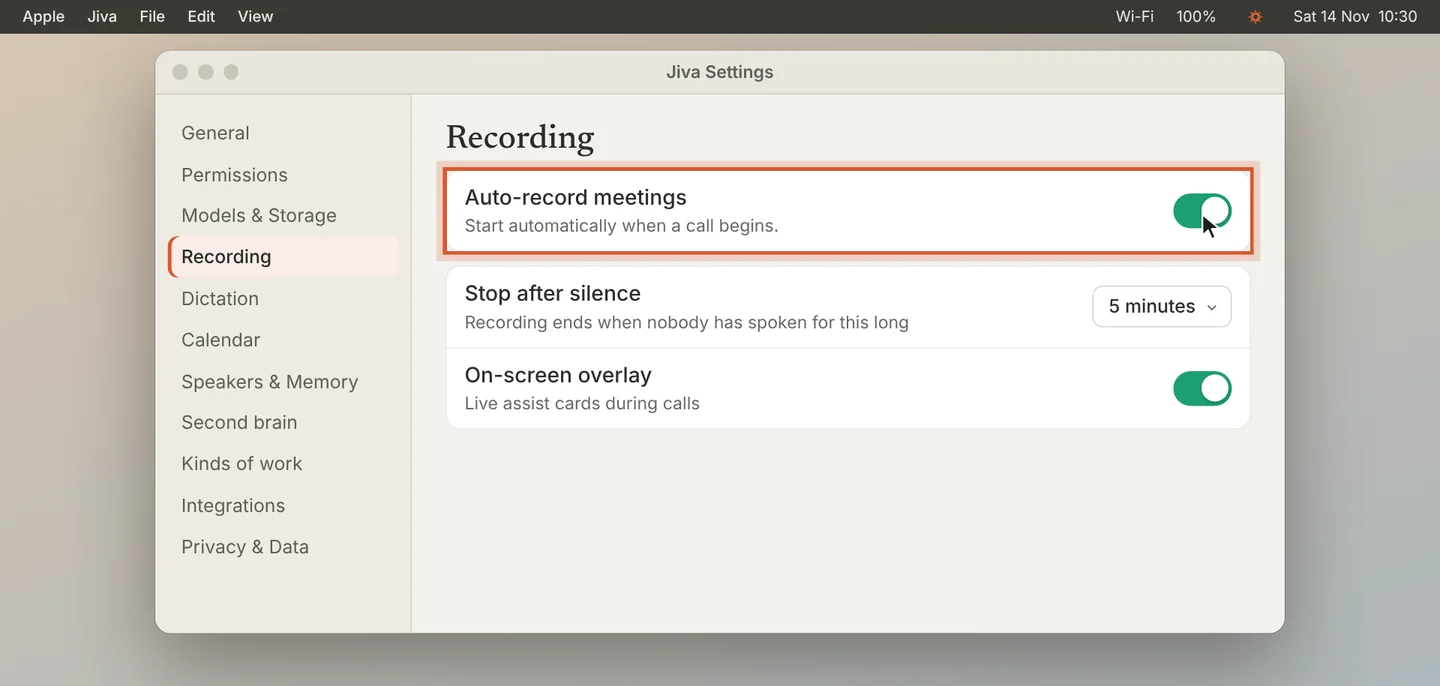
Check Auto-record
Open Settings, then Recording. Auto-record meetings must be on.
2
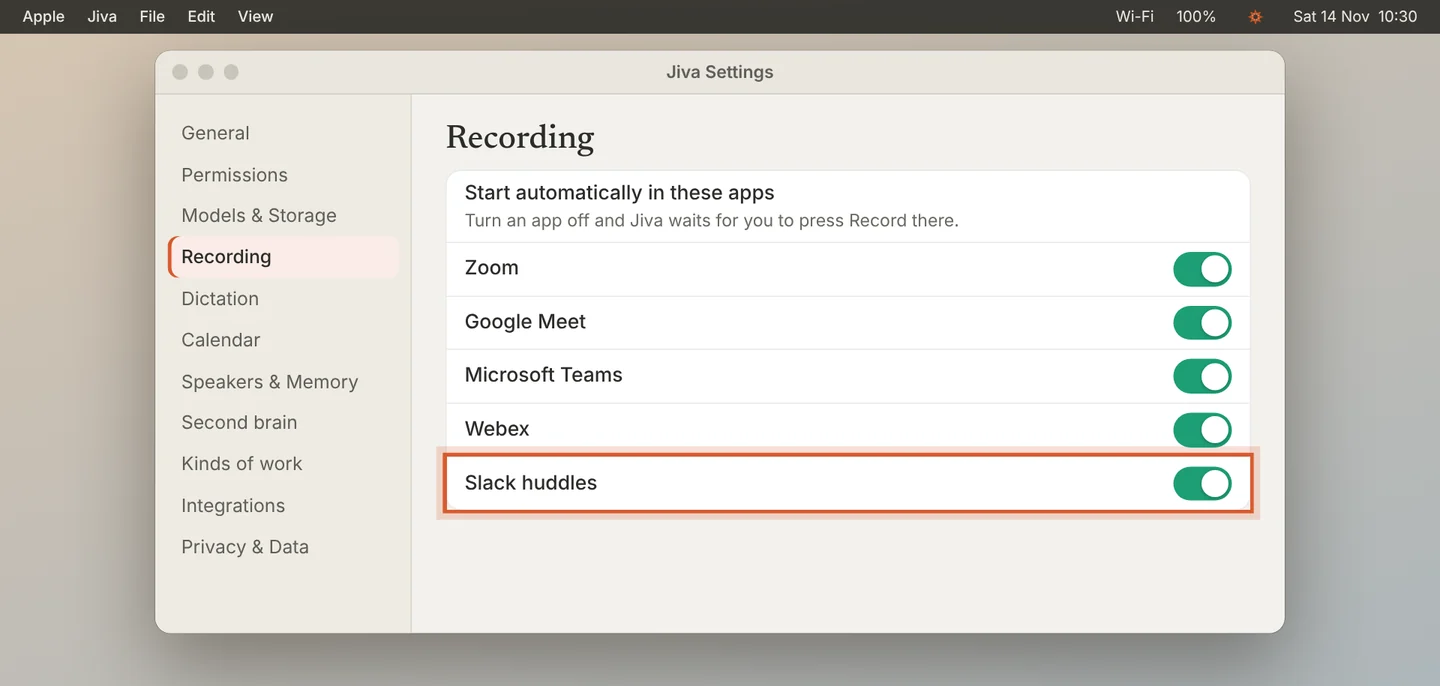
Check the app’s switch
Under Start automatically in these apps, the app you use must be on.
3
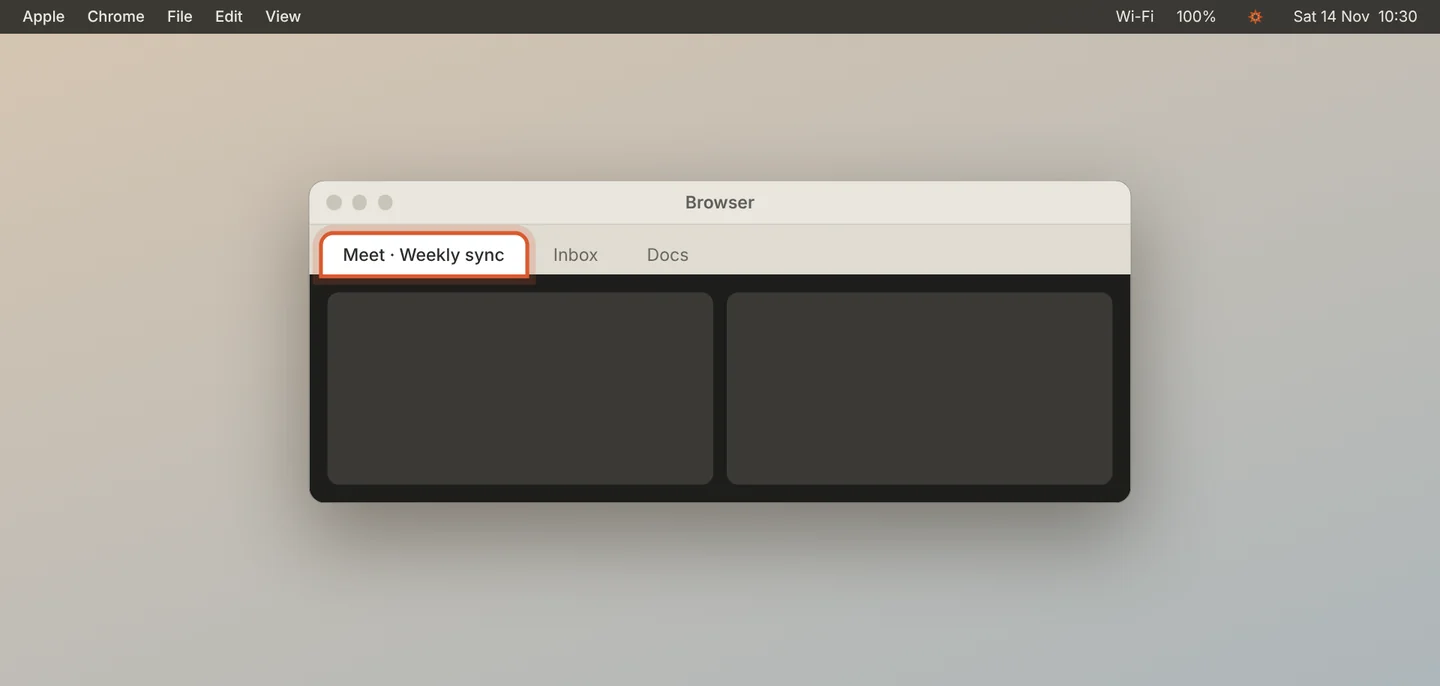
For Google Meet, bring the tab forward
Jiva detects Google Meet when the Meet tab is in front in your browser. Click the Meet tab once at the start of the call.
4
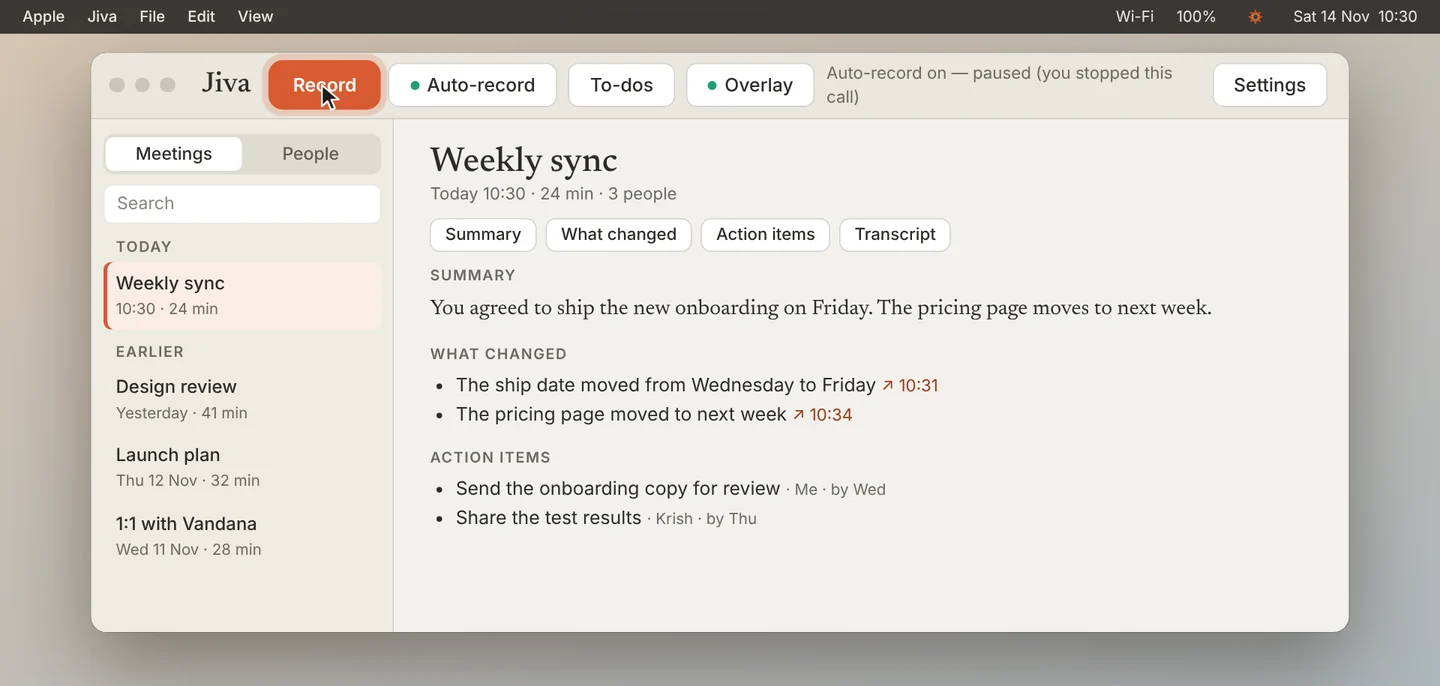
Click Record if you stopped this call
If you clicked Stop during this call, Jiva does not start again by itself for the same call. Click Record.
Good to know
Jiva starts only when the meeting app is using your microphone. It does not start while your Mac is locked or the display is off.
Other cases
Jiva recorded when there was no meeting
Tell us which app was open: write to ceo@jiva.works and send your logs. You can turn that app off under Start automatically in these apps.
The recording stopped in the middle
Set Stop after silence to a longer time, or to Never.
Did this guide help?
Next · Guide 3 of 5
A meeting has no notes →0:50 video · 4 steps