1
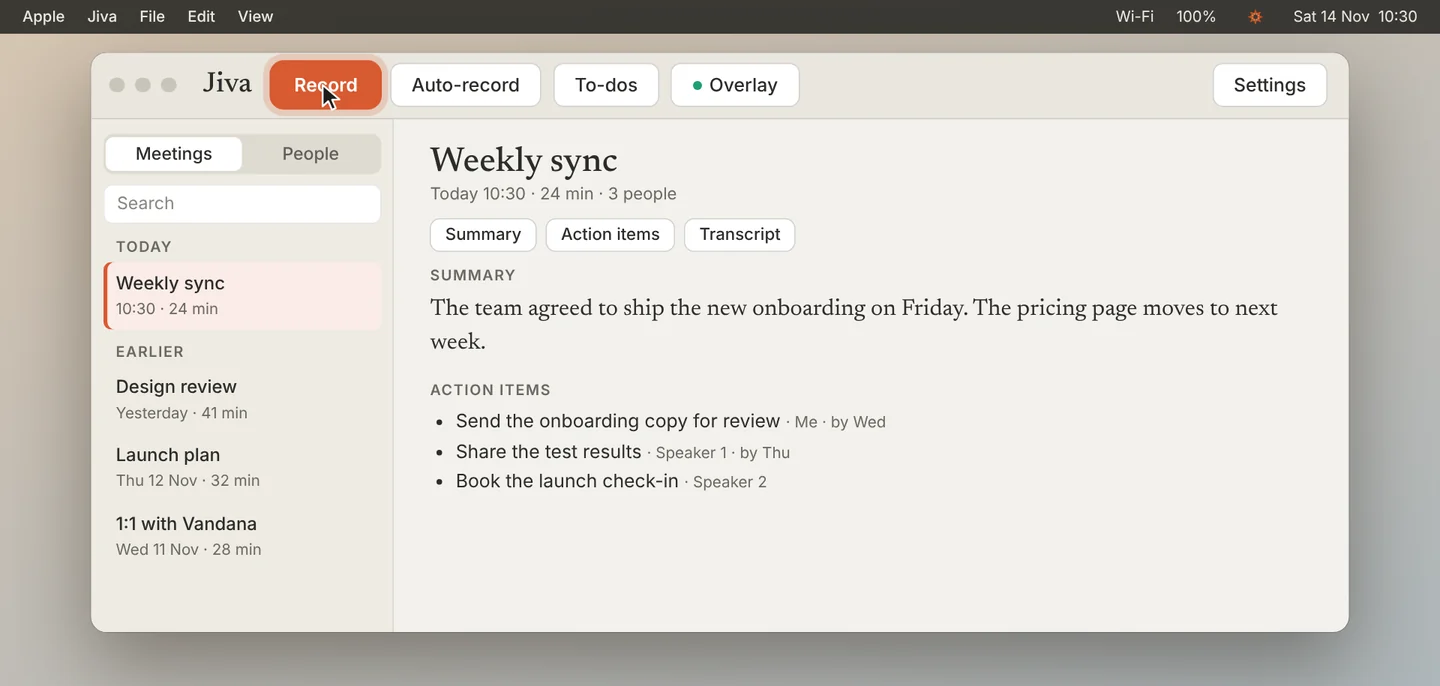
Click Record
Click Record in the Jiva window. Or click the lotus in the menu bar, then Start Recording.
2
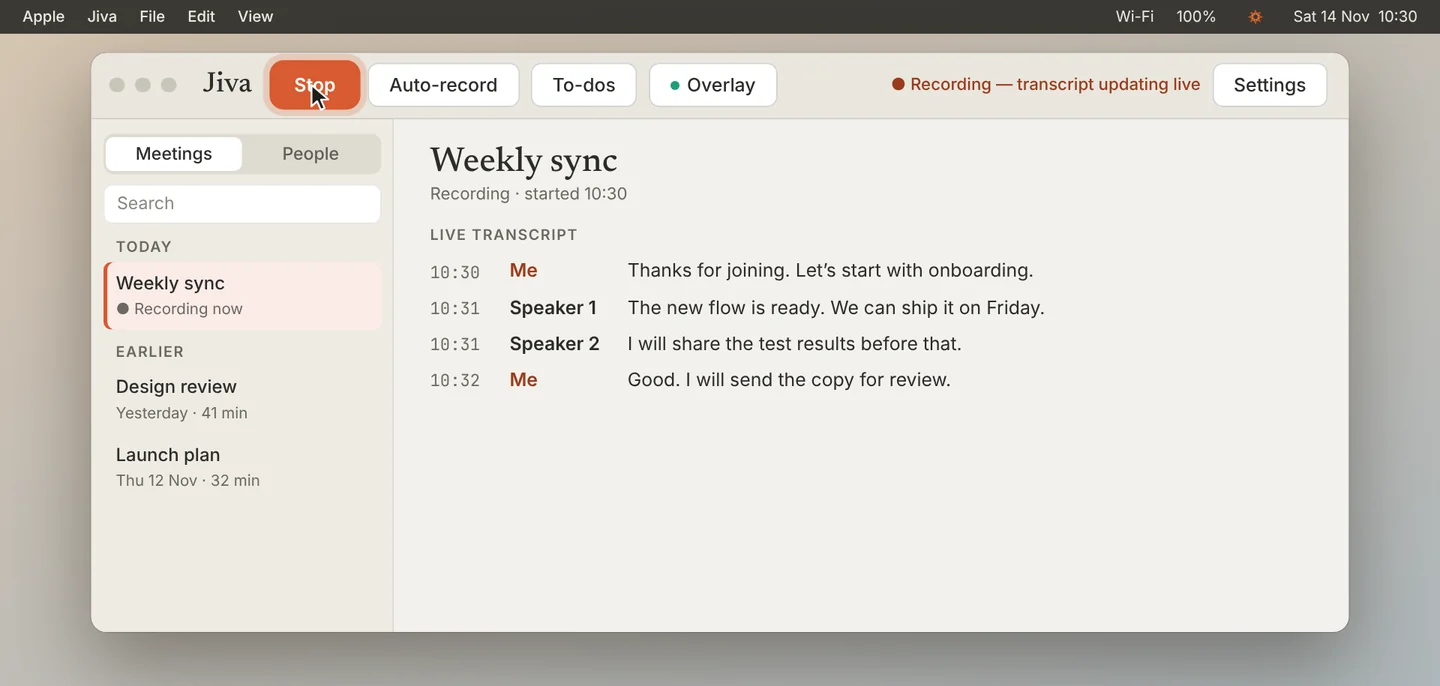
Click Stop
Click Stop when the call ends. Jiva writes your notes. Wait until Finalizing… ends.
3
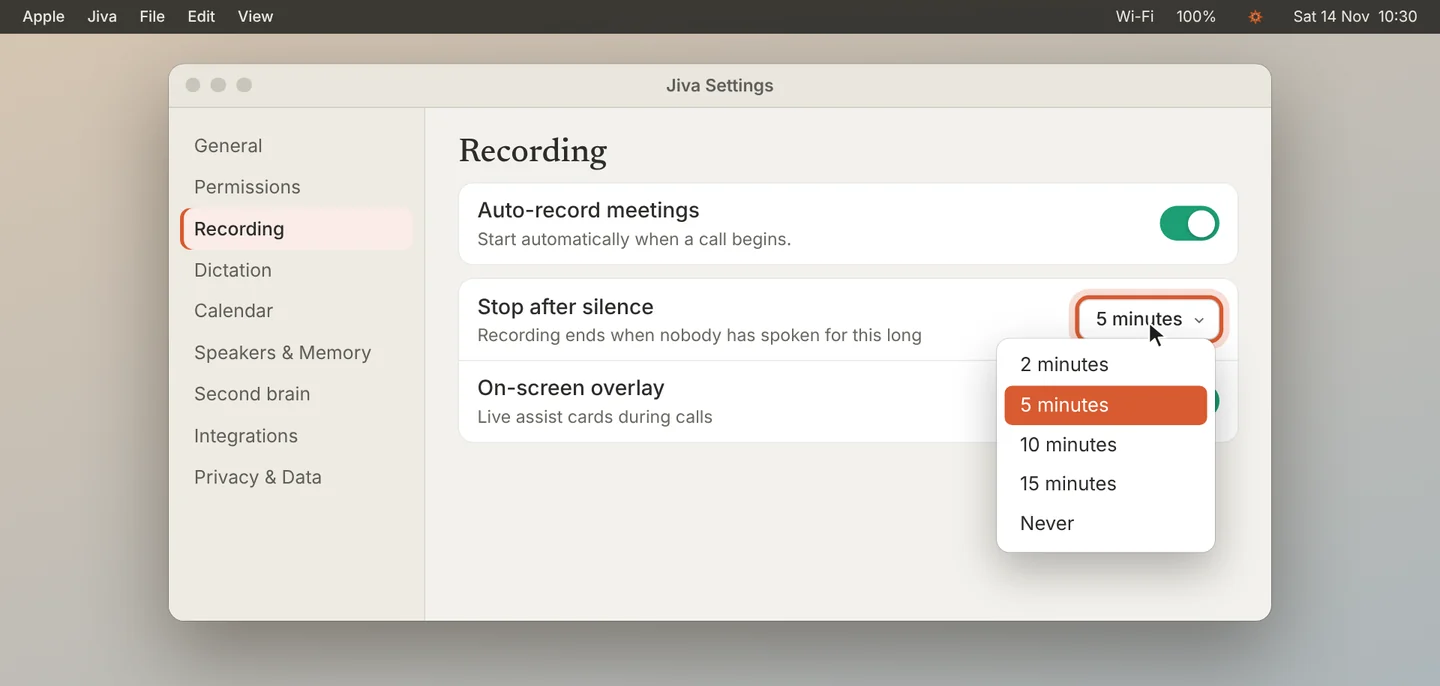
Set the silence timer
If you forget to stop, Jiva stops when nobody has spoken for a while. Open Settings, then Recording, and set Stop after silence to 2, 5, 10 or 15 minutes, or Never.
4
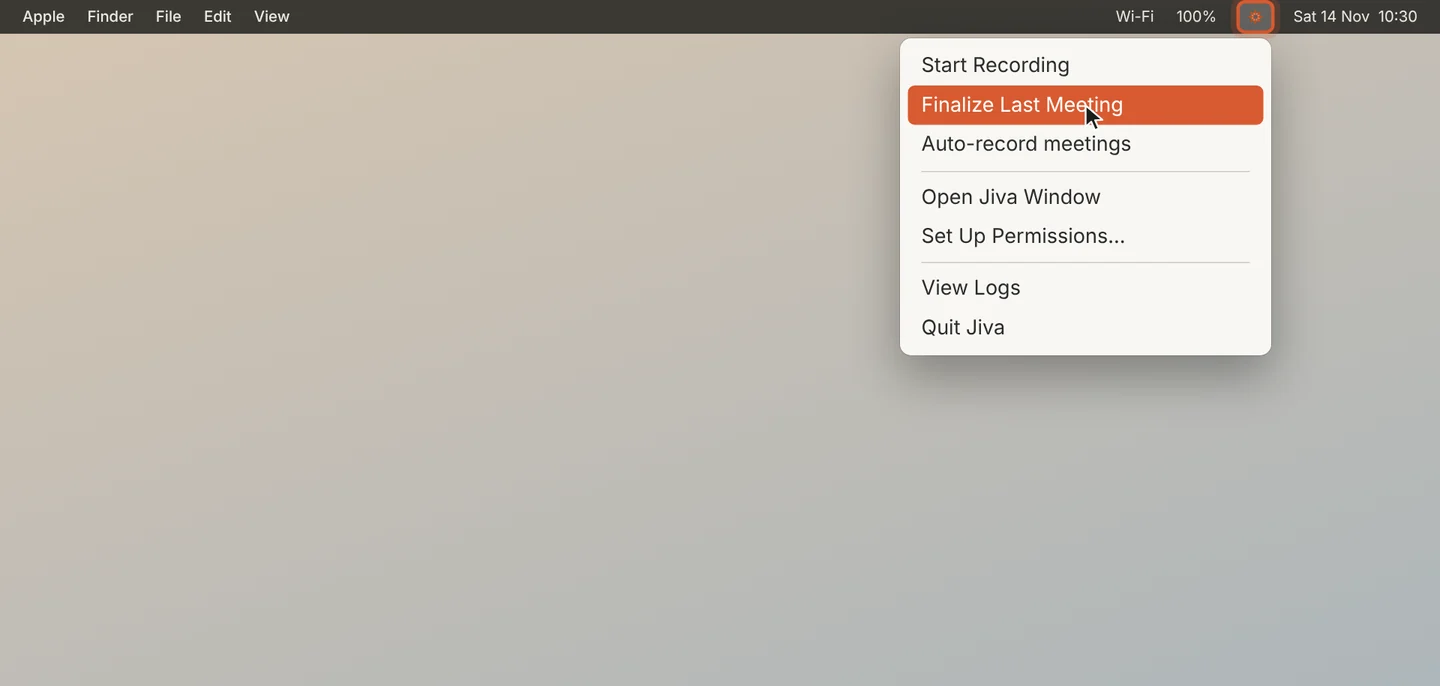
Finish a meeting that has no notes
If a meeting has no notes, click the lotus in the menu bar, then Finalize Last Meeting.
Good to know
Tell the people on the call that you are recording.
If something goes wrong
Jiva says it could not reconnect to my audio devices
Jiva stopped the recording and kept what it had. Check your microphone and System Audio Recording in Settings, then Permissions, and record again.
Did this guide help?
Next · Guide 4 of 7
How Jiva hears both sides of a call →0:42 video · 3 steps