Know the two sources
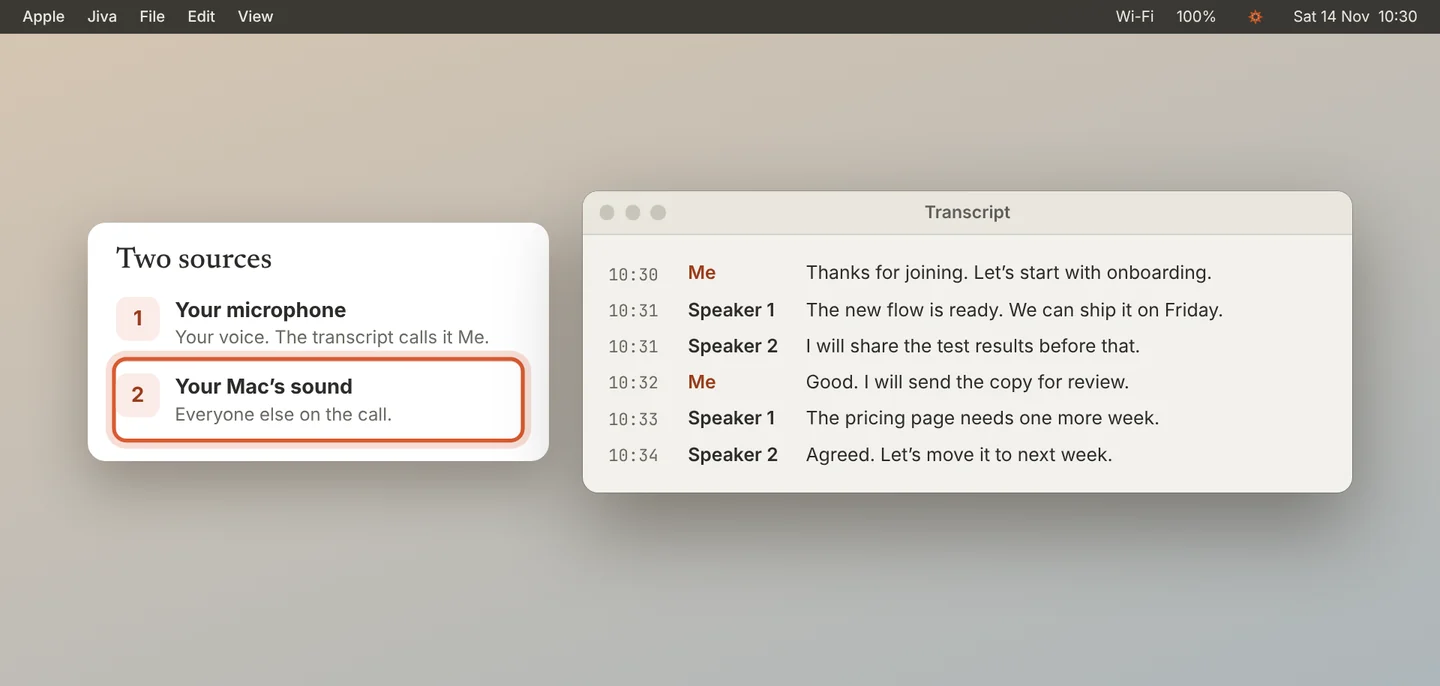
Jiva records two things at once. Your microphone is your side, and the transcript calls it Me. The sound your Mac plays is the other side: everyone else on the call.
Use headphones if you can
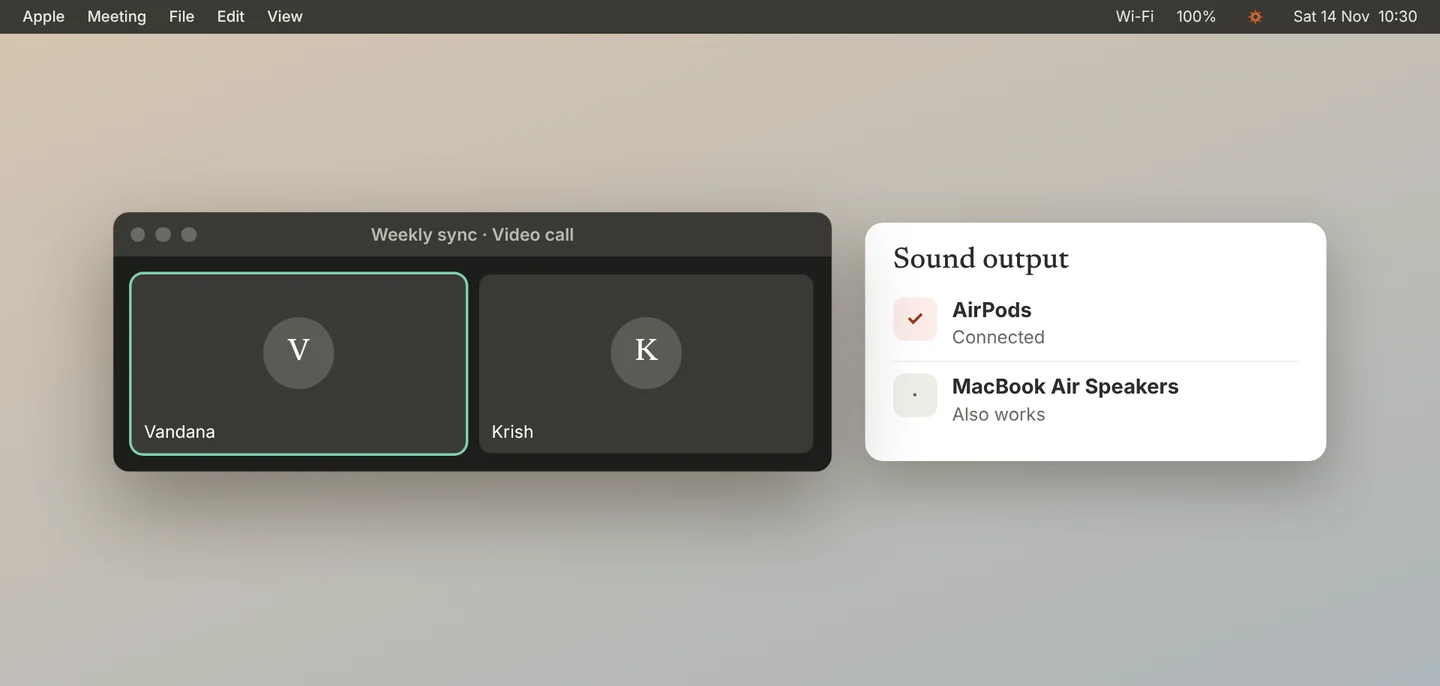
Headphones and AirPods work, and so do your Mac’s speakers. With headphones, the other side cannot leak into your microphone, so the two sides stay clean.
You can switch between speakers and headphones during a call. Jiva follows the change.
Fix “Recording your side only”
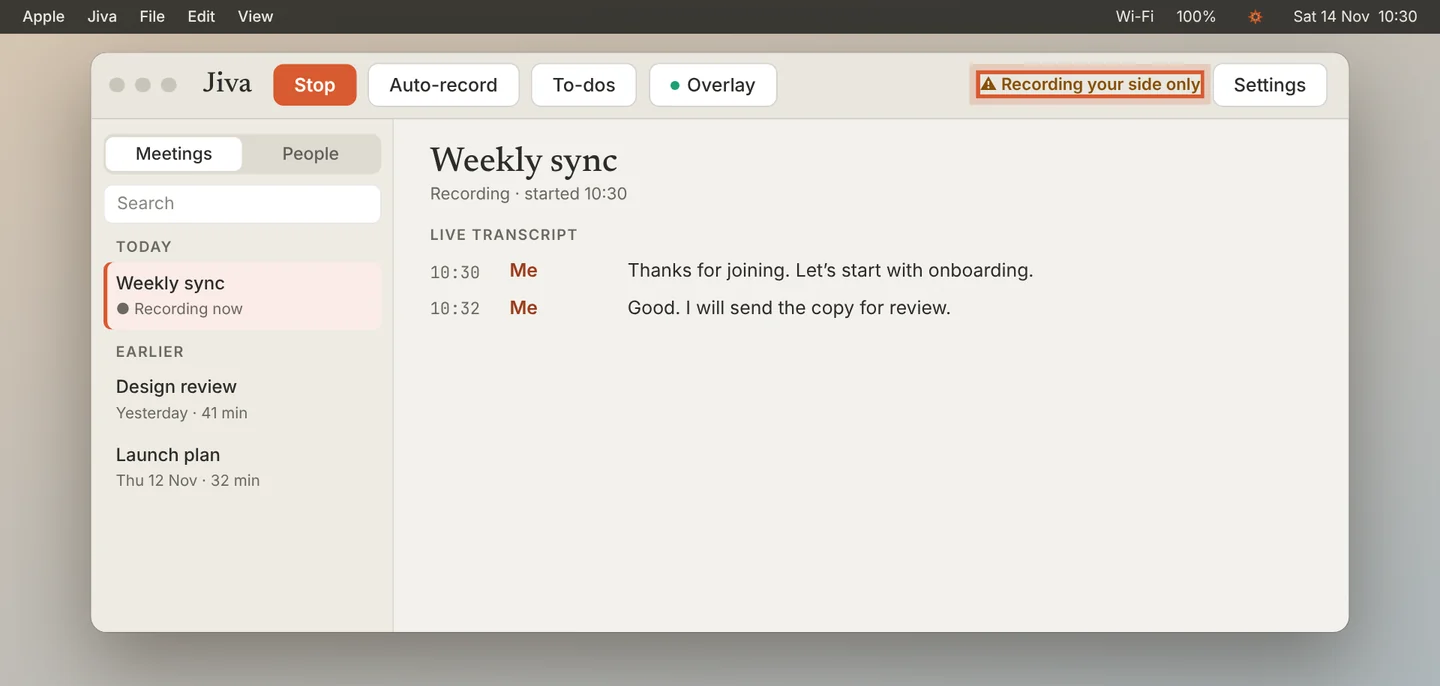
If the Jiva window shows Recording your side only, Jiva cannot hear your Mac’s sound. Open System Settings and turn on System Audio Recording for Jiva. Then quit Jiva and open it again.
If something goes wrong
The other people are missing from my transcript
Run the System Audio Recording test: click the lotus, choose Set Up Permissions…, then Test. See Grant the four permissions.
My own words appear twice
The other side leaked into your microphone. Use headphones for the next call.