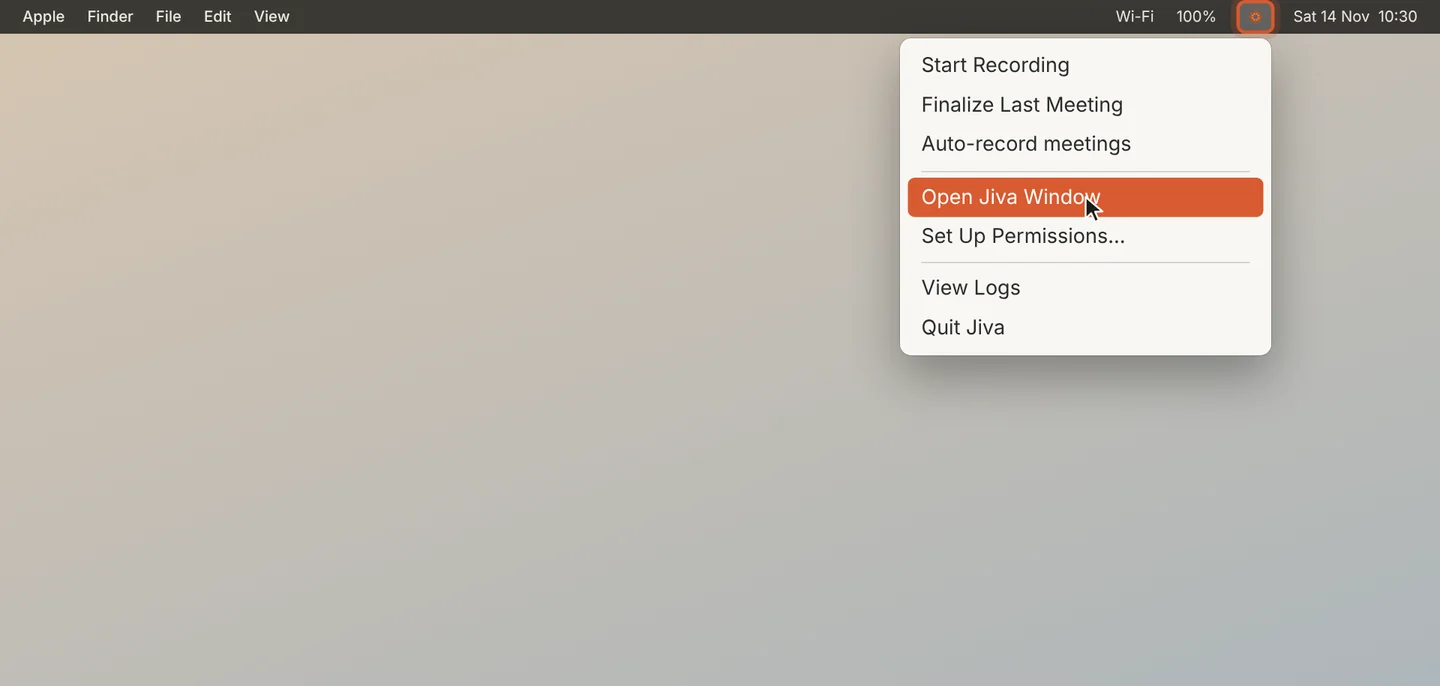
Open the Jiva window
Click the lotus in the menu bar, then Open Jiva Window.
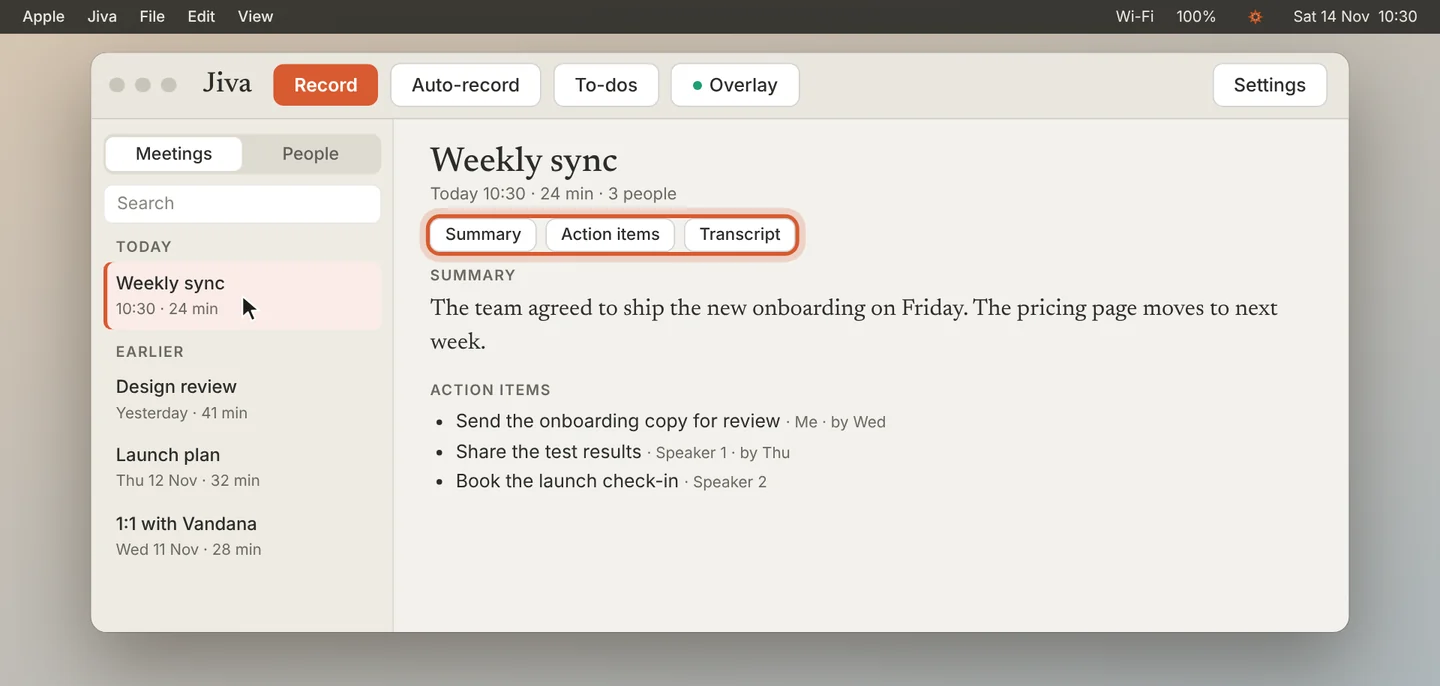
Use the top strip
The strip at the top holds what you use most: Record starts and stops a recording. Auto-record lets Jiva start by itself. To-dos opens your list. Overlay shows or hides the on-screen summary. Settings opens everything else.
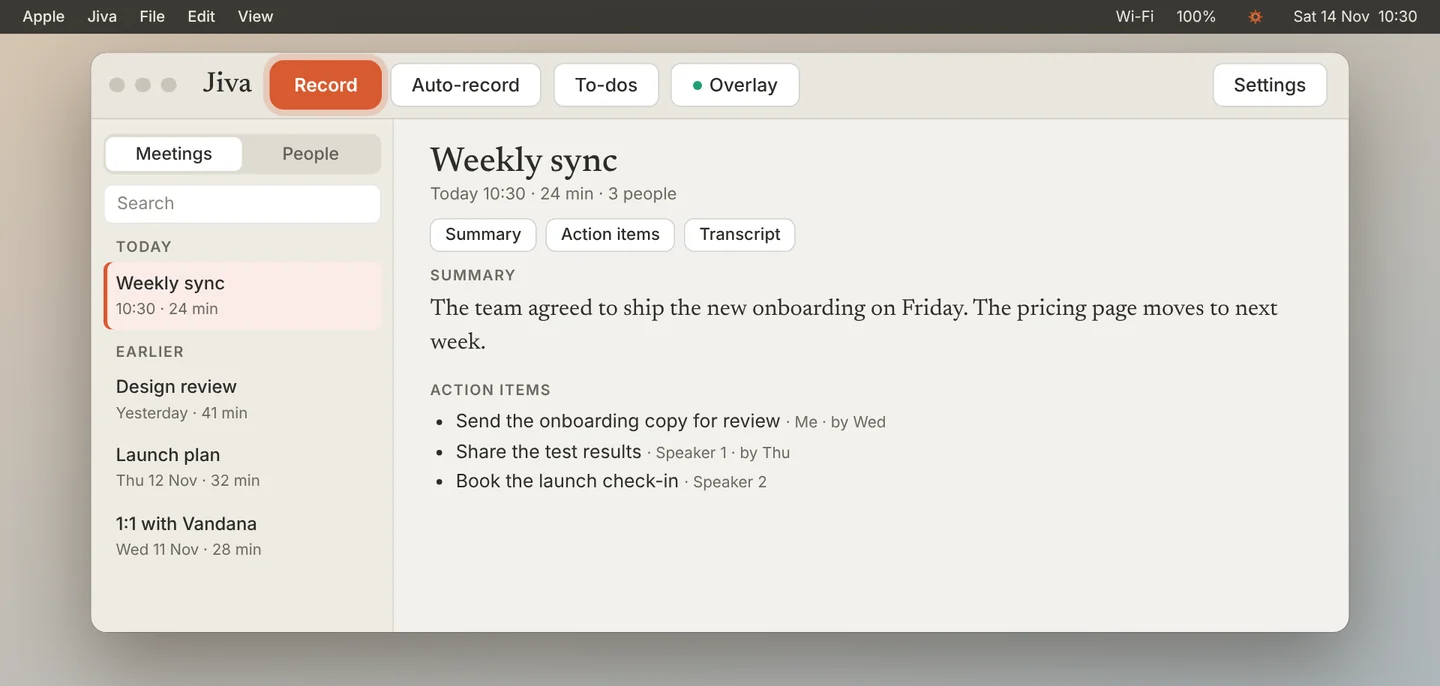
Find a meeting
Your meetings are on the left, newest first. Type in Search to find any of them.
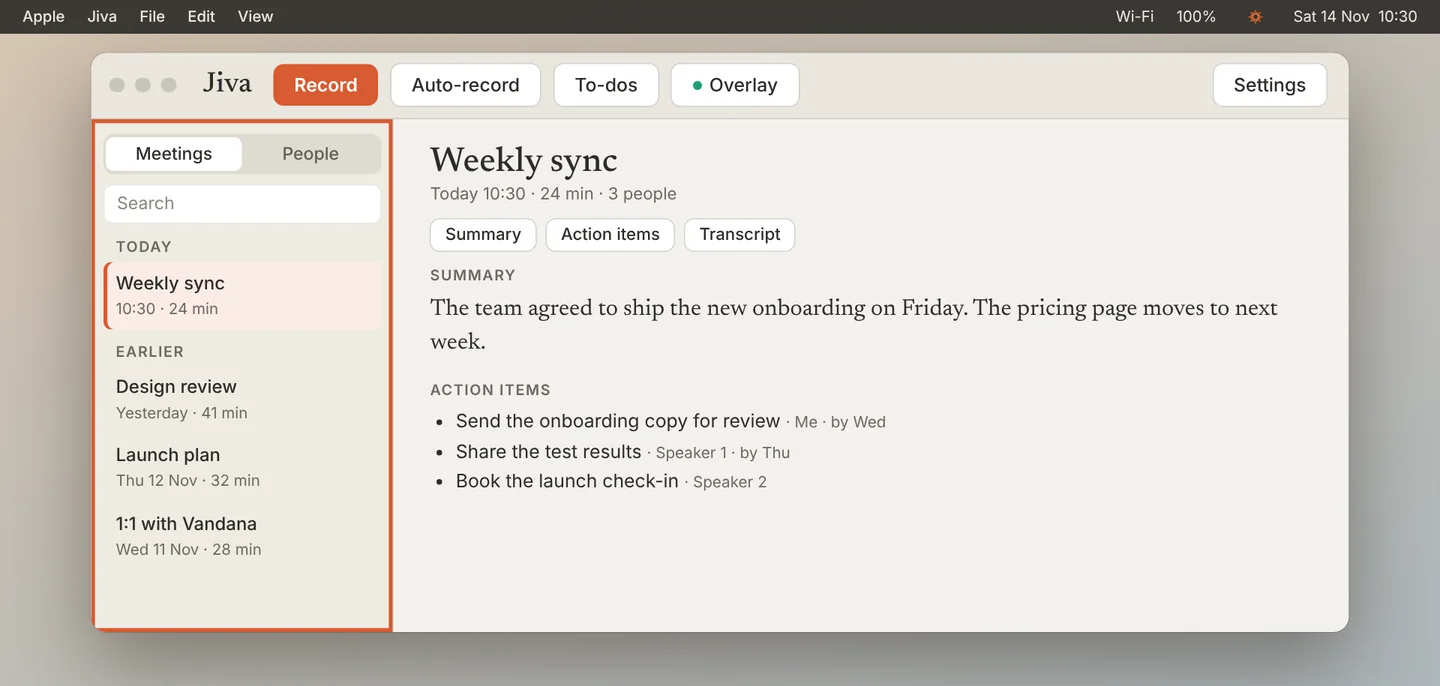
Read a meeting
Click a meeting to open it. Use the chips under the title to jump to Summary, Action items or Transcript.
Open To-dos
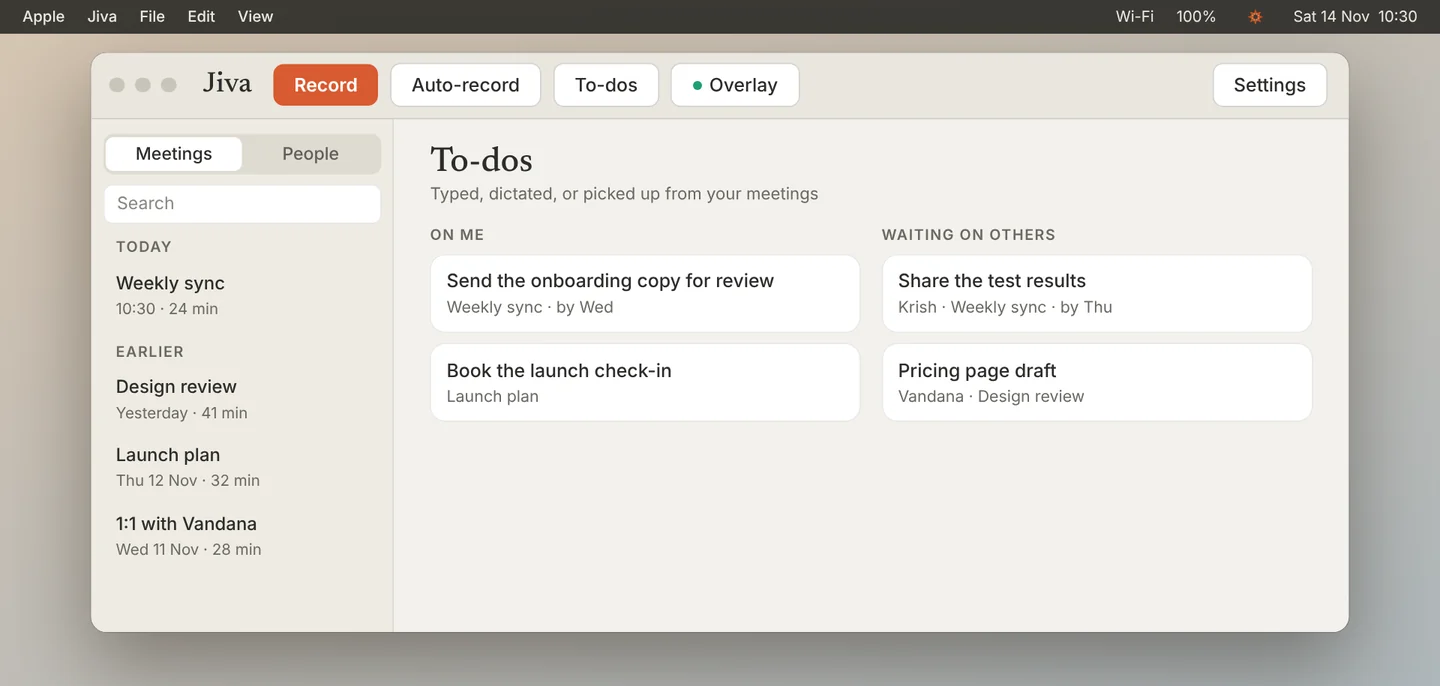
Click To-dos. What you owe is on the left. What others owe you is on the right. Action items from your meetings land here.
Open People
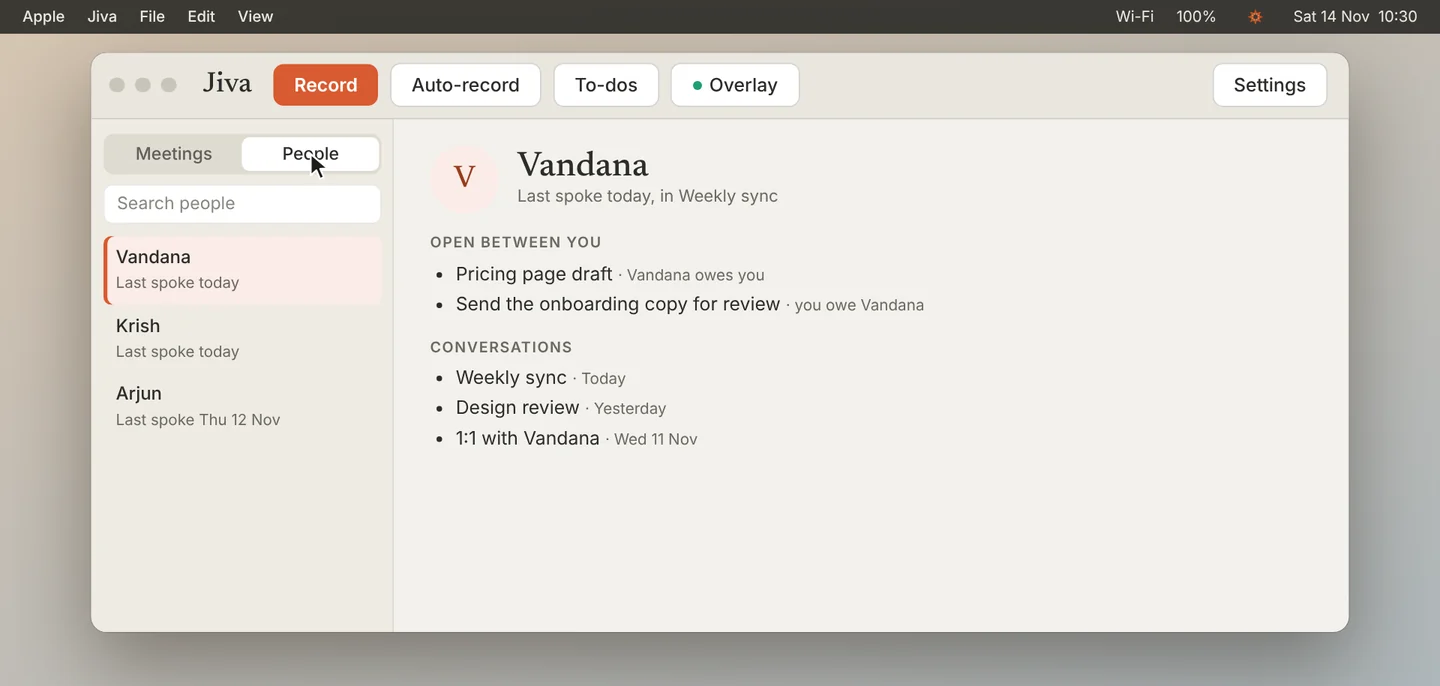
Switch the list from Meetings to People. Click a person to see when you last spoke, what is open between you, and every conversation.
Open Settings
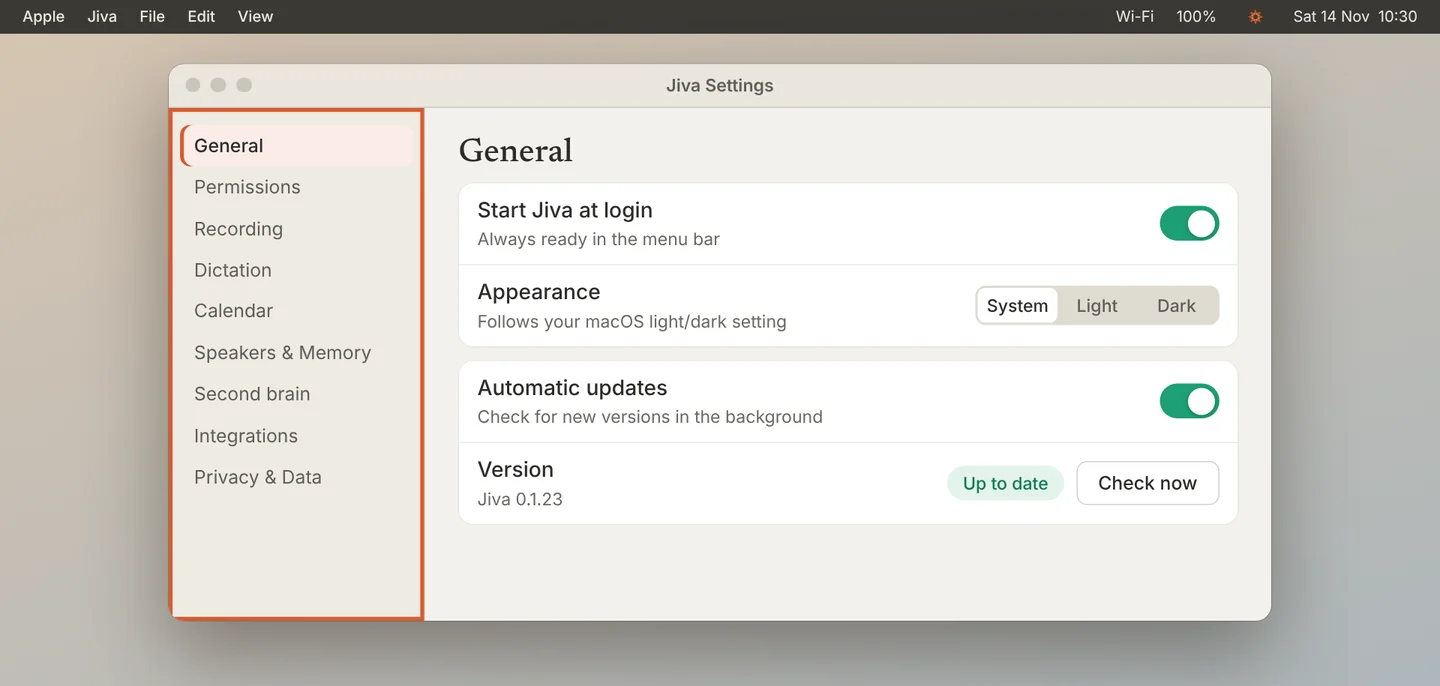
Click Settings for permissions, recording, dictation, your calendar and the rest. Each area has its own page in the list on the left.
If something goes wrong
I can’t find the lotus in the menu bar
A full menu bar can hide it. Open Jiva from your Applications folder; the Jiva window opens.
The People list is empty
People appear after you record meetings and name the speakers.