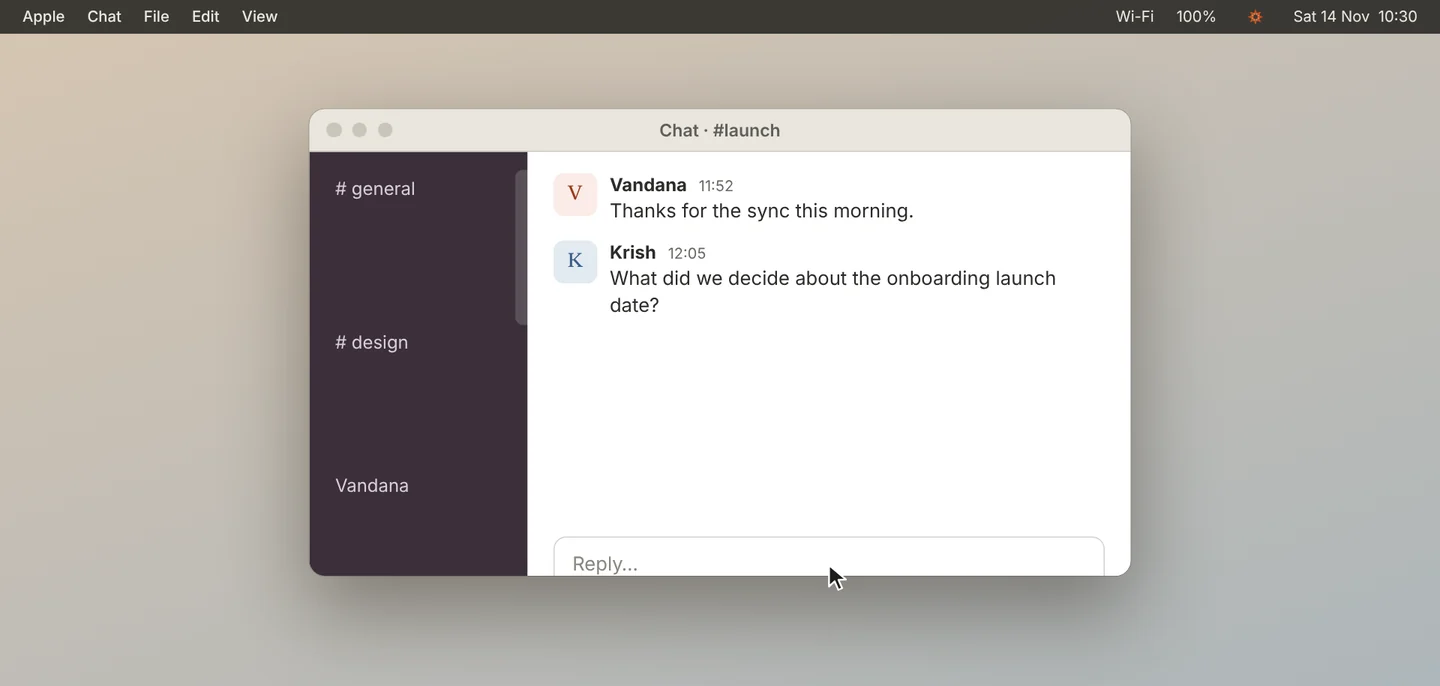
Click into the reply box
Someone asks you in chat about something from a meeting. Click into the reply box of that thread.
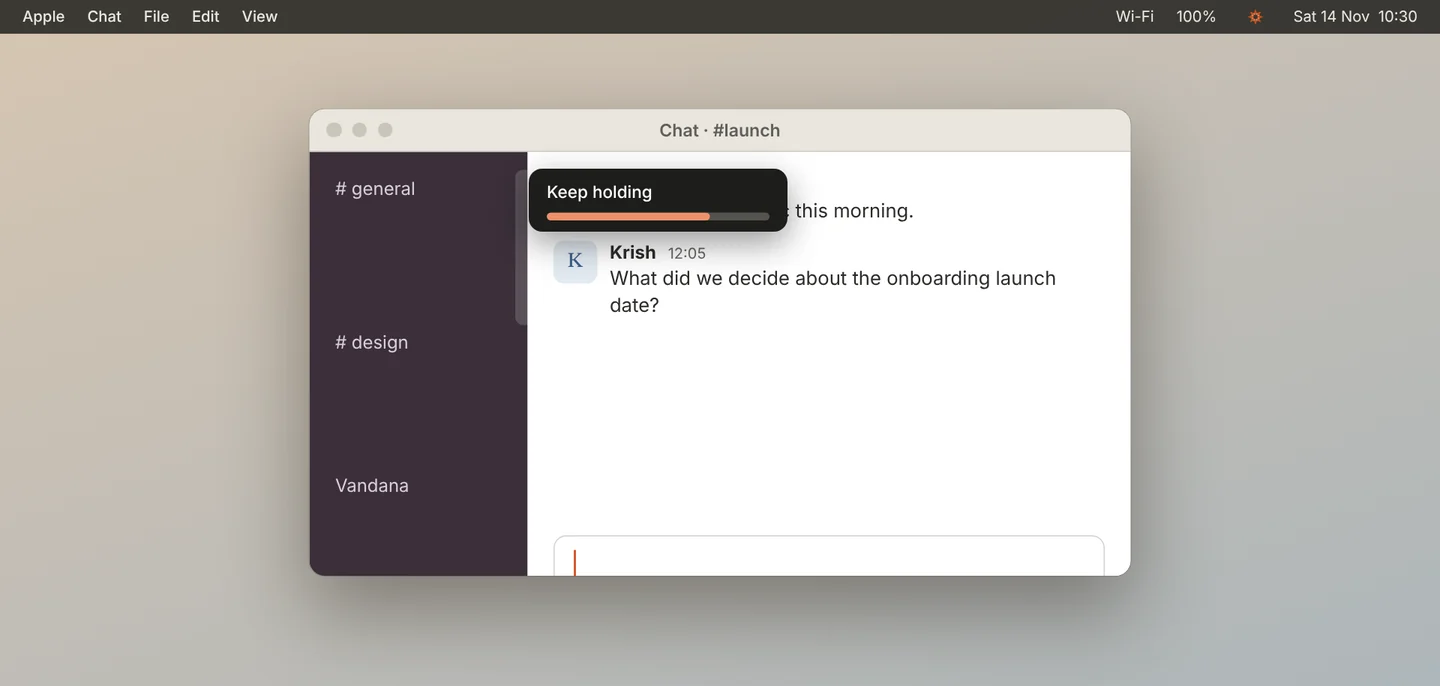
Hold Right ⌥ for 2 seconds
Hold Right ⌥ for 2 seconds. Let go early to cancel. Jiva reads the thread and answers the last message from the other person.
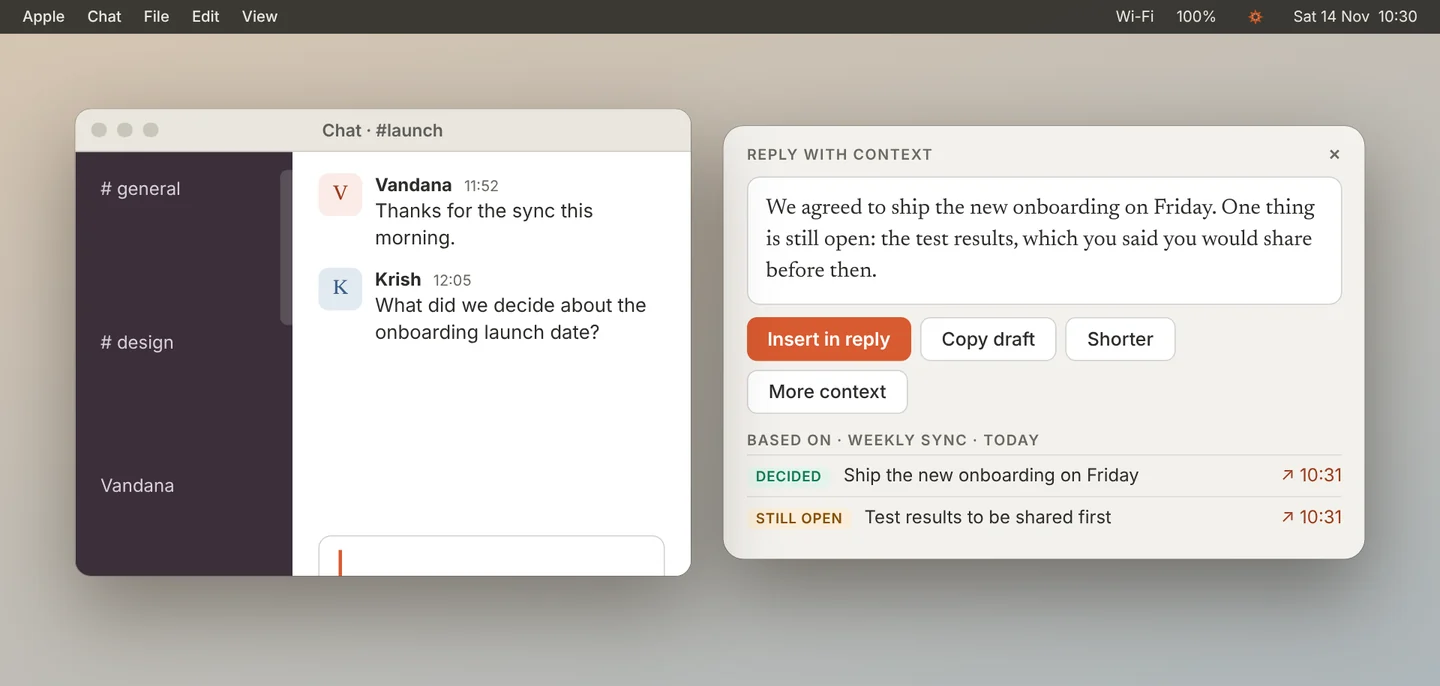
Read the draft
A panel opens with the draft at the top. Under it are the meeting and the lines the draft is based on: what was Decided and what is Still open. Click a line to open its source.
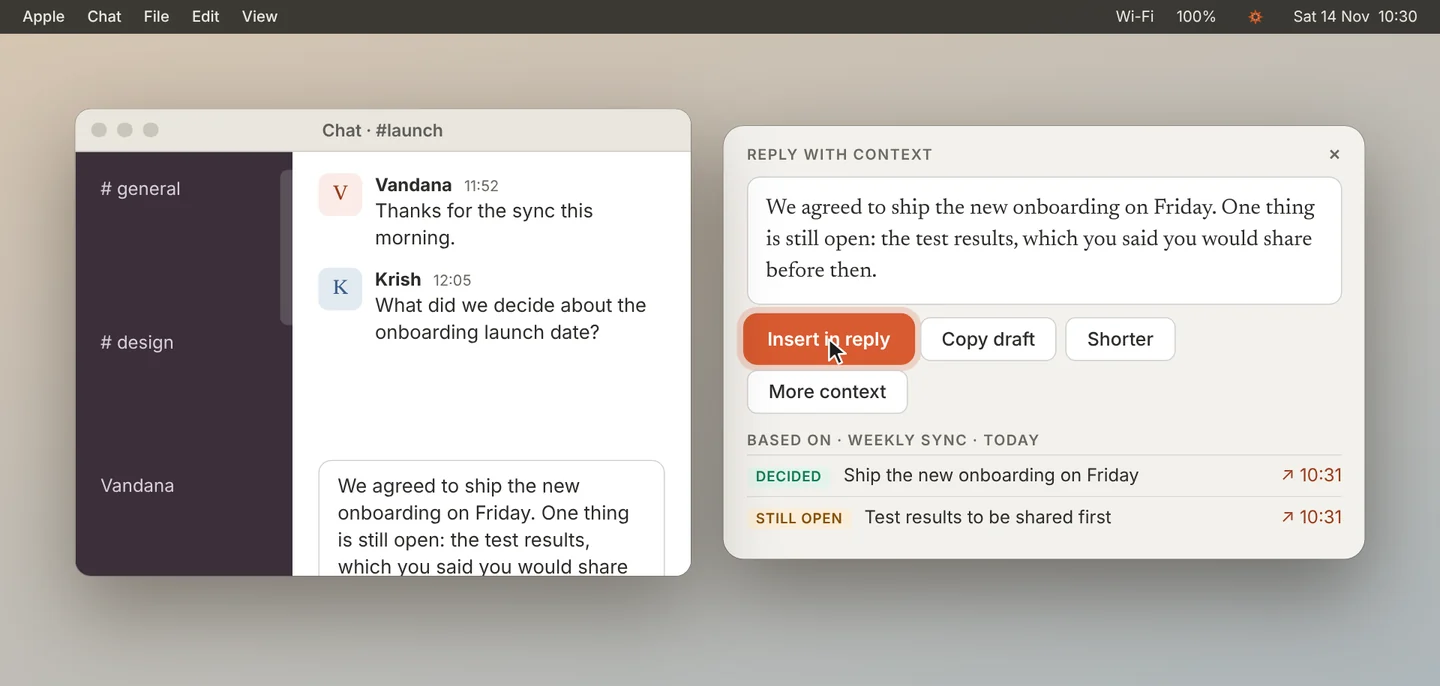
Insert it and send it yourself
Click Insert in reply, or Copy draft. Shorter and More context write the draft again. Edit the text if you want, then send it yourself.
Jiva never sends anything. Reply with context is new and has been tried in one chat app so far. If your meetings do not cover the question, Jiva says so and writes no draft.
Settings
Change the key or turn it off
Open Settings, then Dictation. Use the Reply with context switch and the Reply key menu. The reply key and the dictation key must be different.
Answer an earlier message
Select that message first, then hold the key.
If something goes wrong
Nothing happens when I hold the key
Hold the key alone, for the full 2 seconds. Check that Accessibility is granted in Settings, Permissions, and that the reply key is not the same as the dictation key.
Jiva could not read the thread
Select the message and the ones before it, then hold the key.
It says nothing in my meetings covers this
Jiva writes a draft only when it has a source. With the optional second brain, click Check live with Claude to look in your chat, mail and docs.