Turn it on
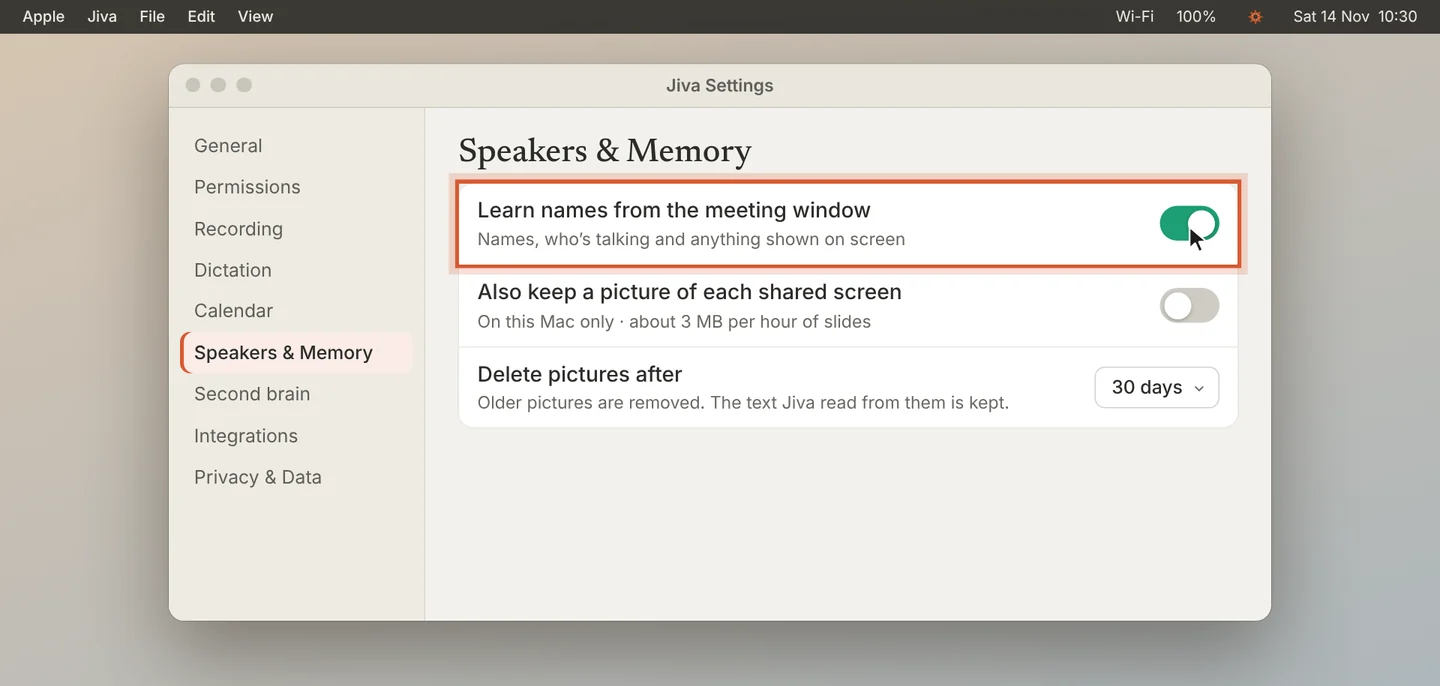
Open Settings, then Speakers & Memory. Turn on Learn names from the meeting window. macOS asks for the Screen Recording permission: allow it for Jiva.
Find the screen in your transcript
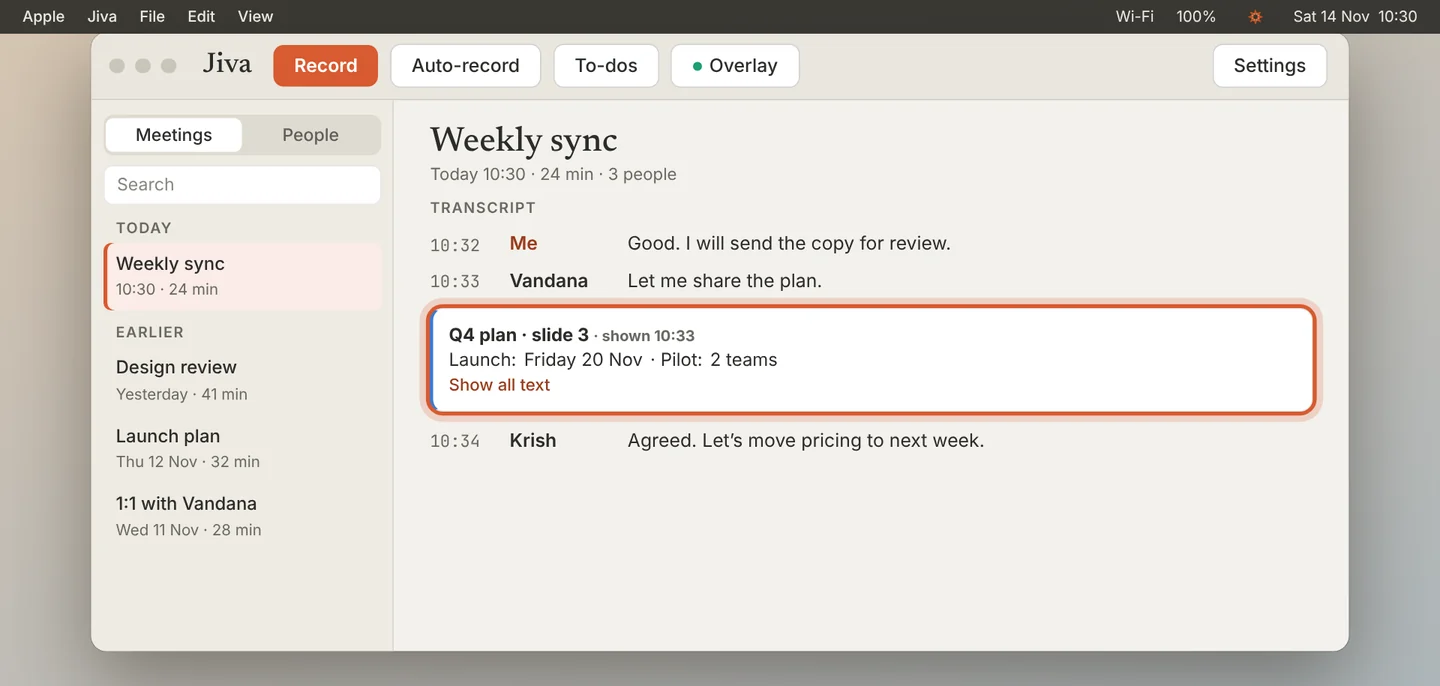
When someone shares a screen, a card appears in the transcript at the moment it was shown. It has the title and the key lines, with numbers highlighted. Click Show all text to read everything.
Keep a picture too
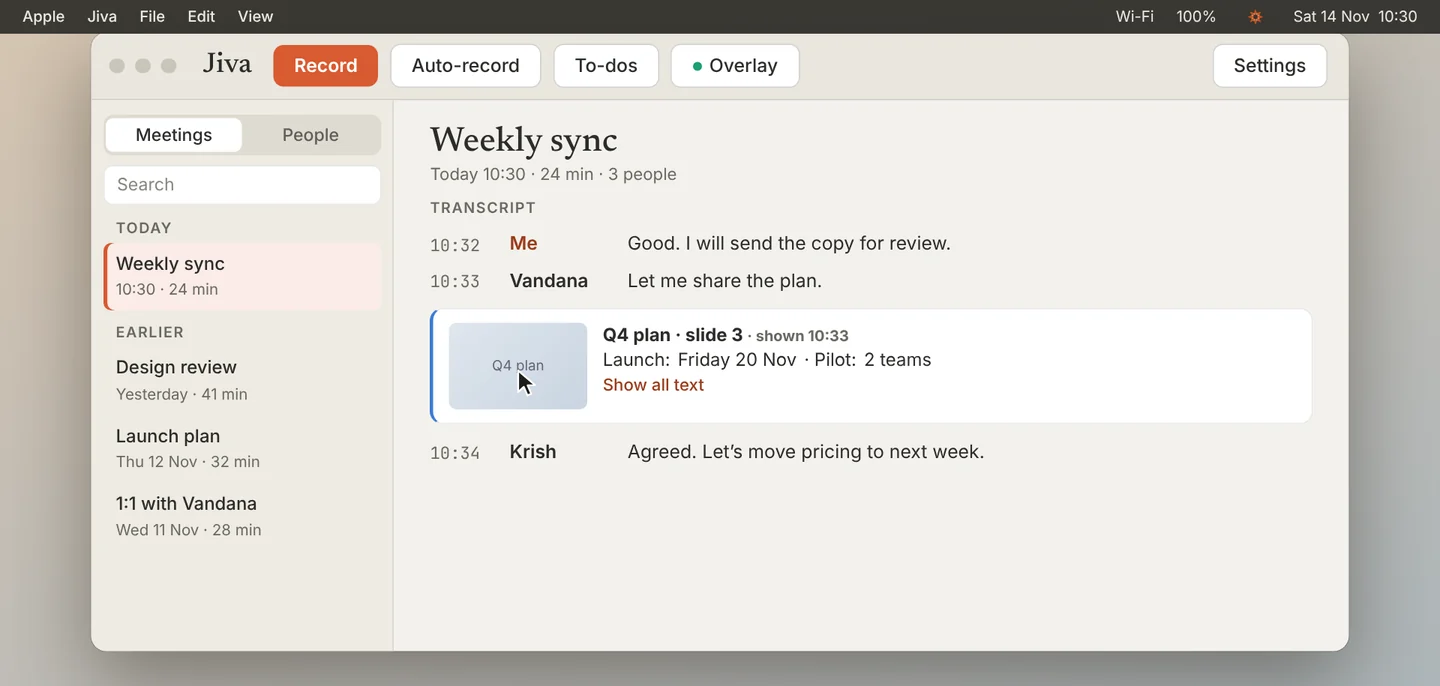
To keep a picture of each screen as well, turn on Also keep a picture of each shared screen. Click a picture in the transcript to see it full size and to step through every screen from the meeting.
Choose how long pictures stay
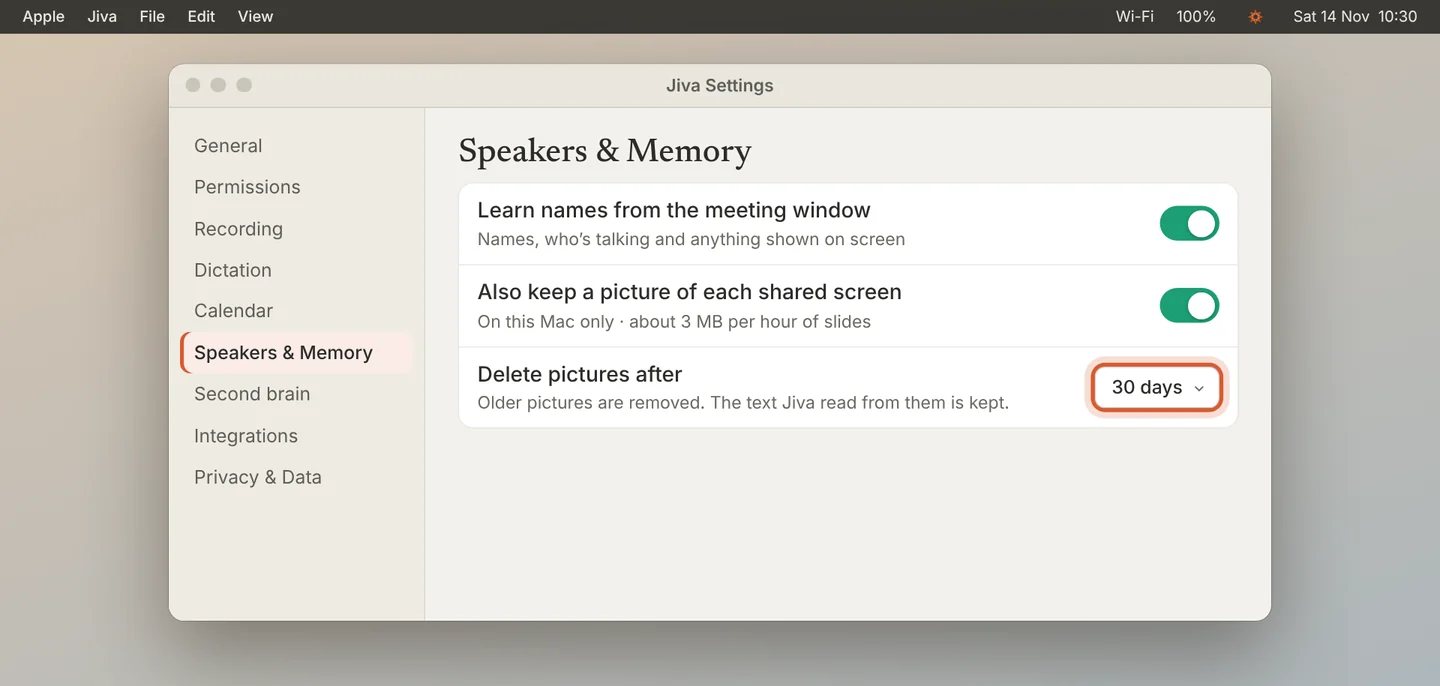
Set Delete pictures after to the time you want. Jiva removes older pictures and keeps the text it read from them.
Jiva reads only the meeting window and the window in front of you, on this Mac. It never records video, and it never reads Slack or Jiva itself. It reads your own screen only while you share one window; a full-desktop share is skipped.
If something goes wrong
No cards appear
Check Settings, Permissions: Screen Recording must be granted. Jiva shows a notification when it cannot read the meeting window.