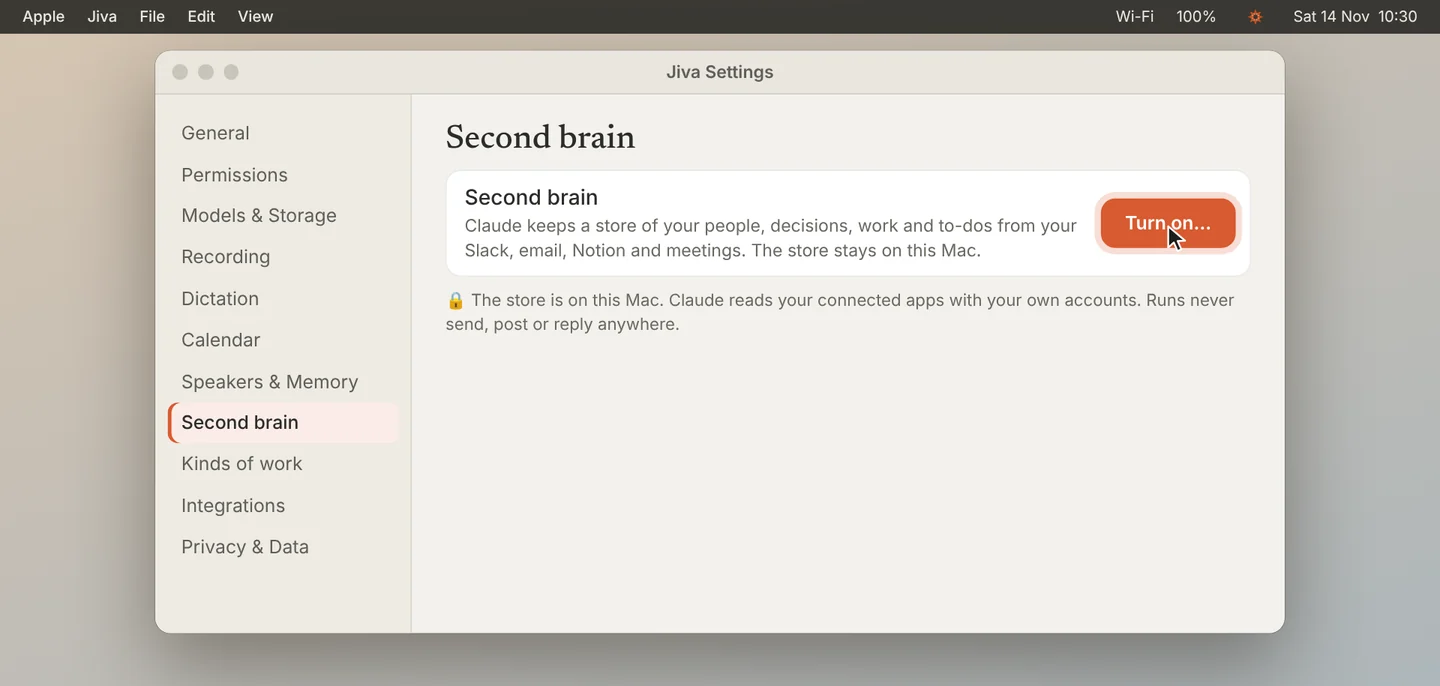
Click Turn on
Open Settings, then Second brain, and click Turn on…. Jiva adds its tools to the Claude desktop app and opens Claude.
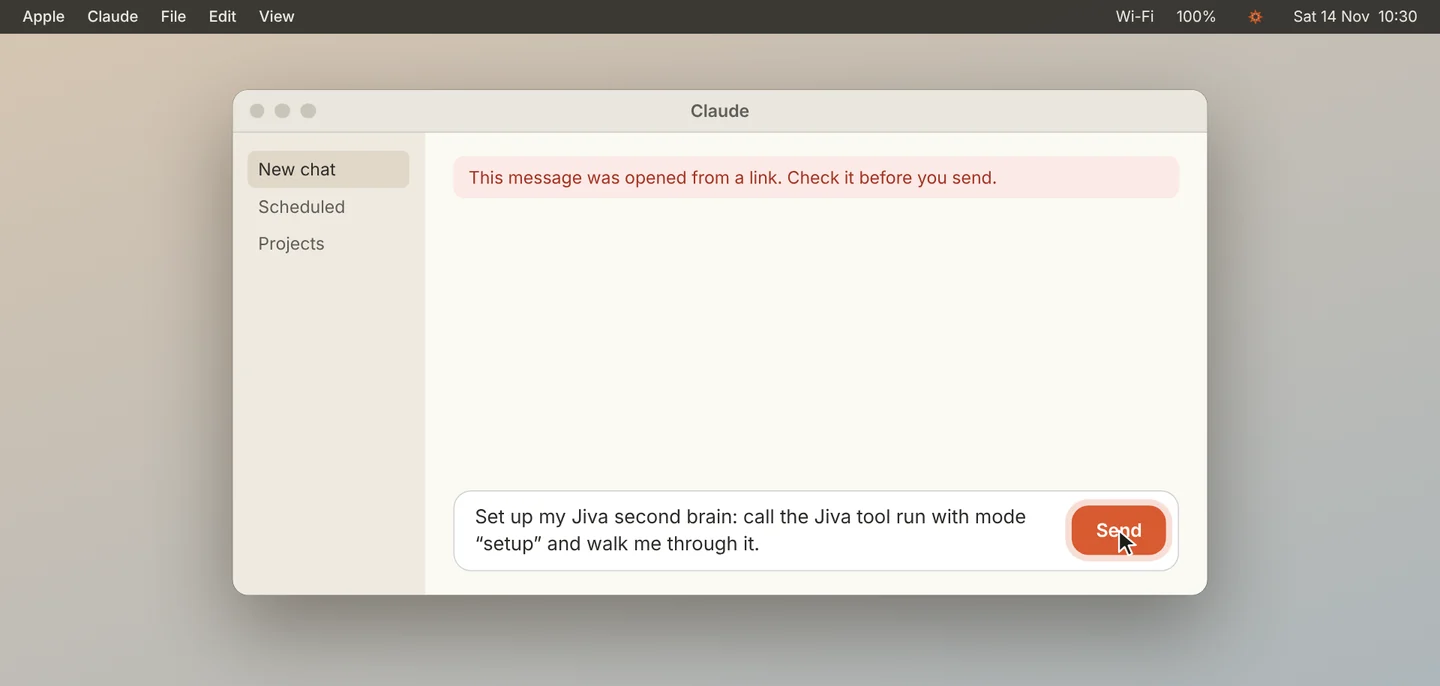
Press Send in Claude
Claude opens with a message already written. Press Send. Claude shows a red caution banner for any message that opens from a link. This one only asks Claude to use Jiva’s tools on your Mac.
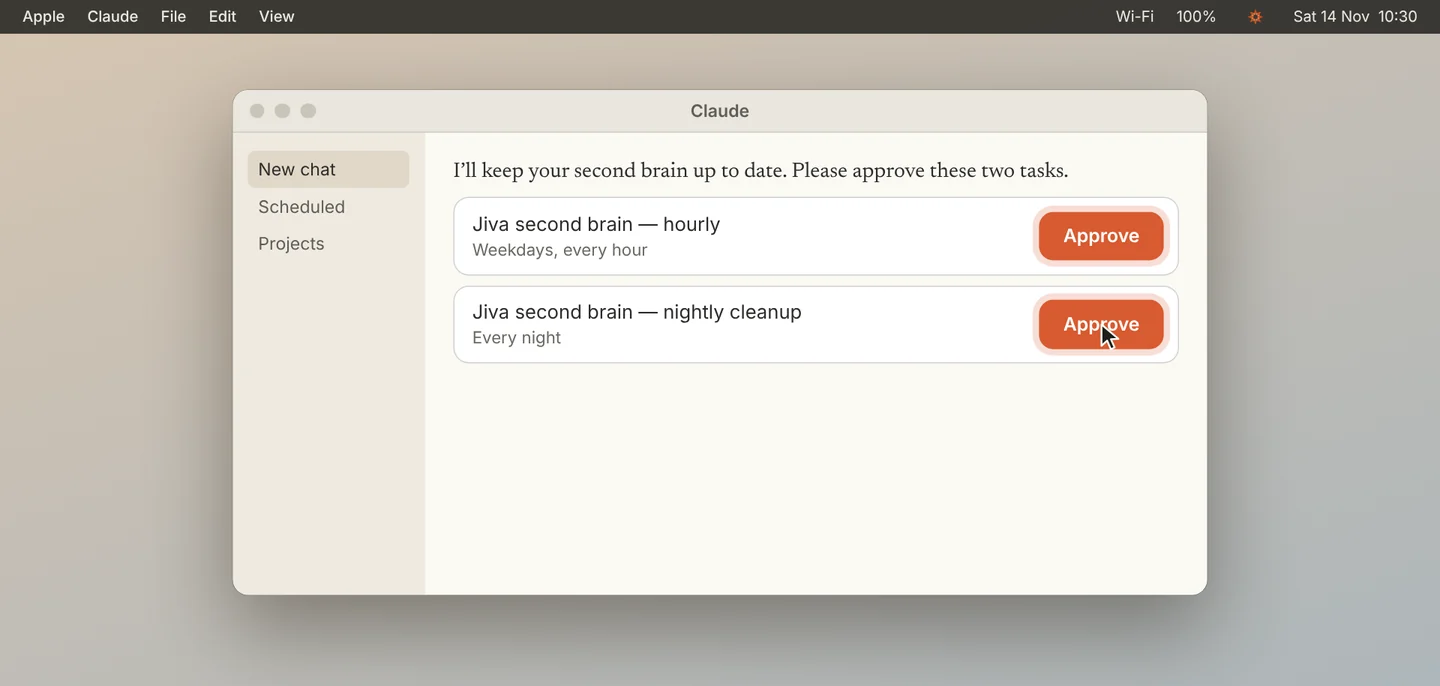
Answer Claude and approve the schedule
Claude asks who you are and which of your apps to read. Then it asks you to approve two scheduled tasks: one that runs every hour and one that cleans up each night. Approve both.
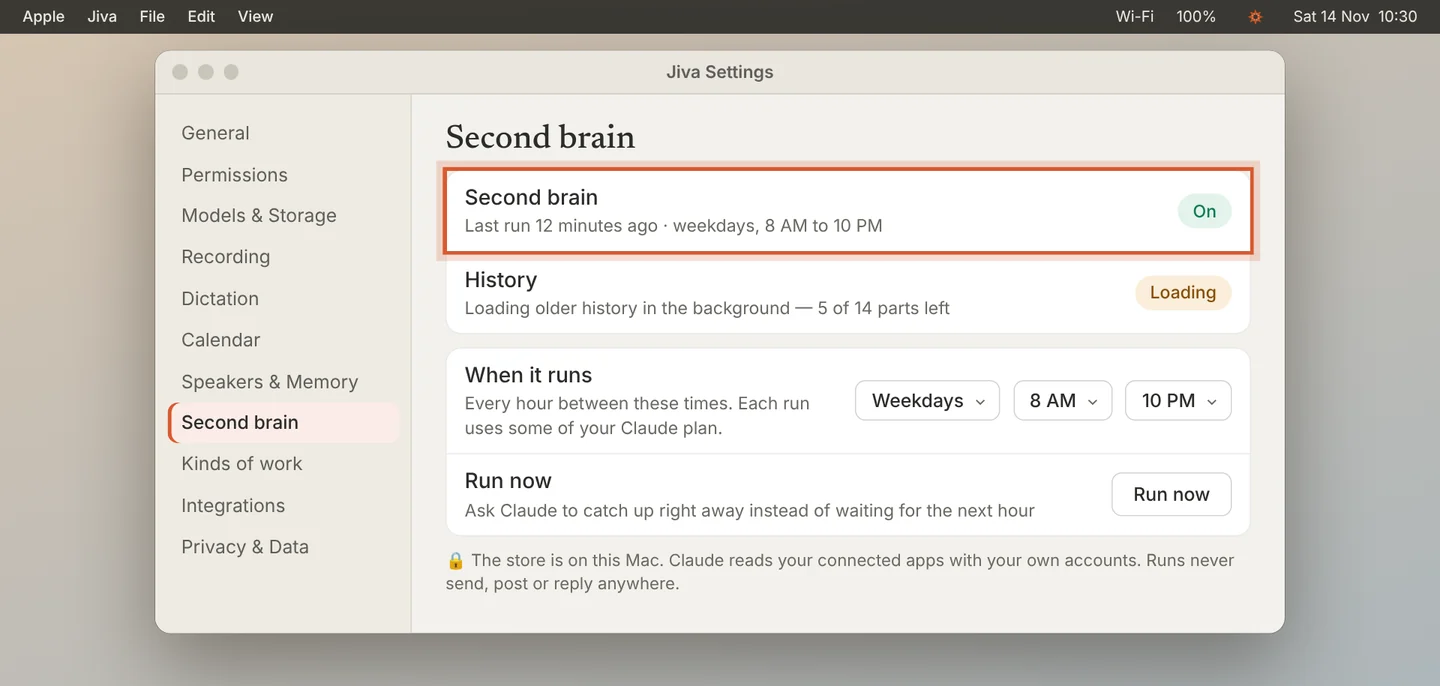
Check that it is on
Go back to Jiva. The row shows On. History shows Claude loading your last two weeks in the background.
You need the Claude desktop app, with your work apps (such as Slack, Gmail and Notion) connected in Claude. What Claude reads goes through your own Claude account, as in any Claude chat. Runs never send, post or reply anywhere.
If something goes wrong
The row says “Claude not found”
Install the Claude desktop app from claude.ai/download, then come back to this page.
The row says “Needs a restart”
Click Restart Claude. Claude must restart once to load Jiva’s tools.
It stays on “Waiting for Claude”
Click Open Claude again, press Send, and approve both tasks.