Find the folder
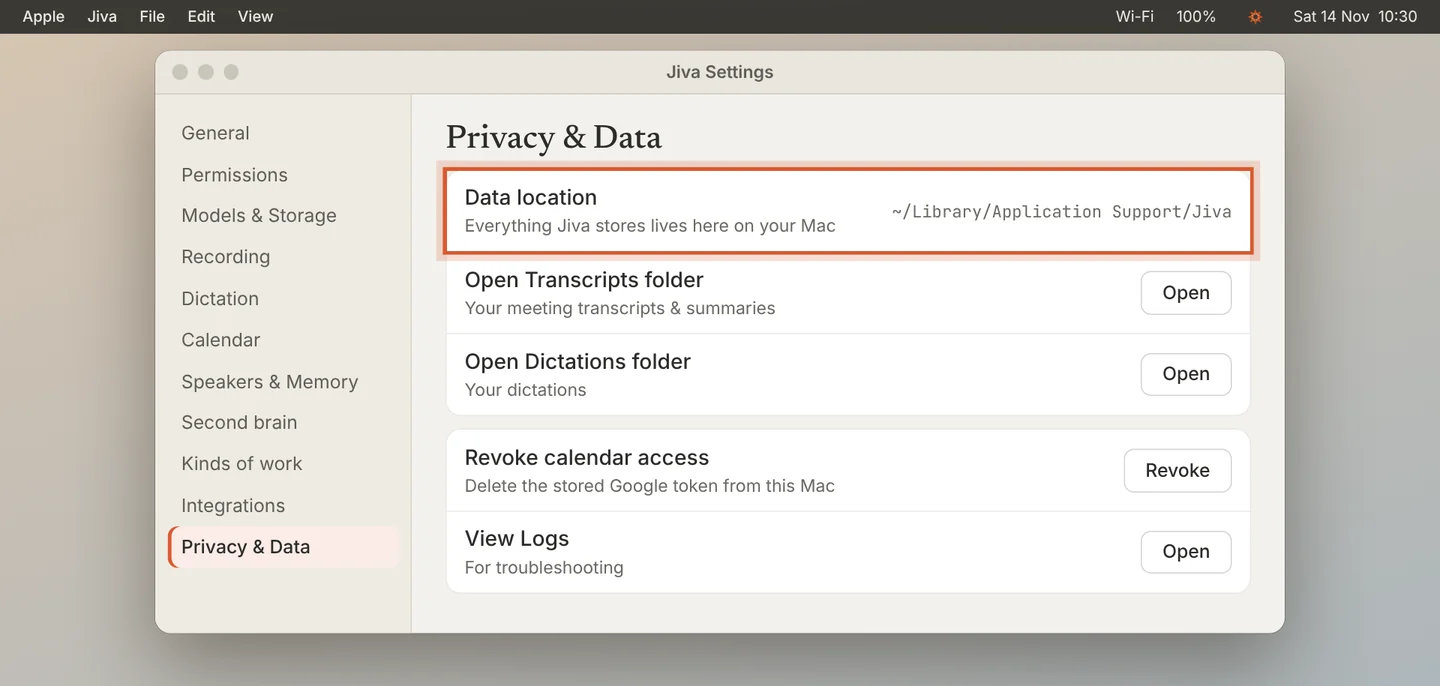
Open Settings, then Privacy & Data. Data location shows the folder: ~/Library/Application Support/Jiva.
Open your transcripts
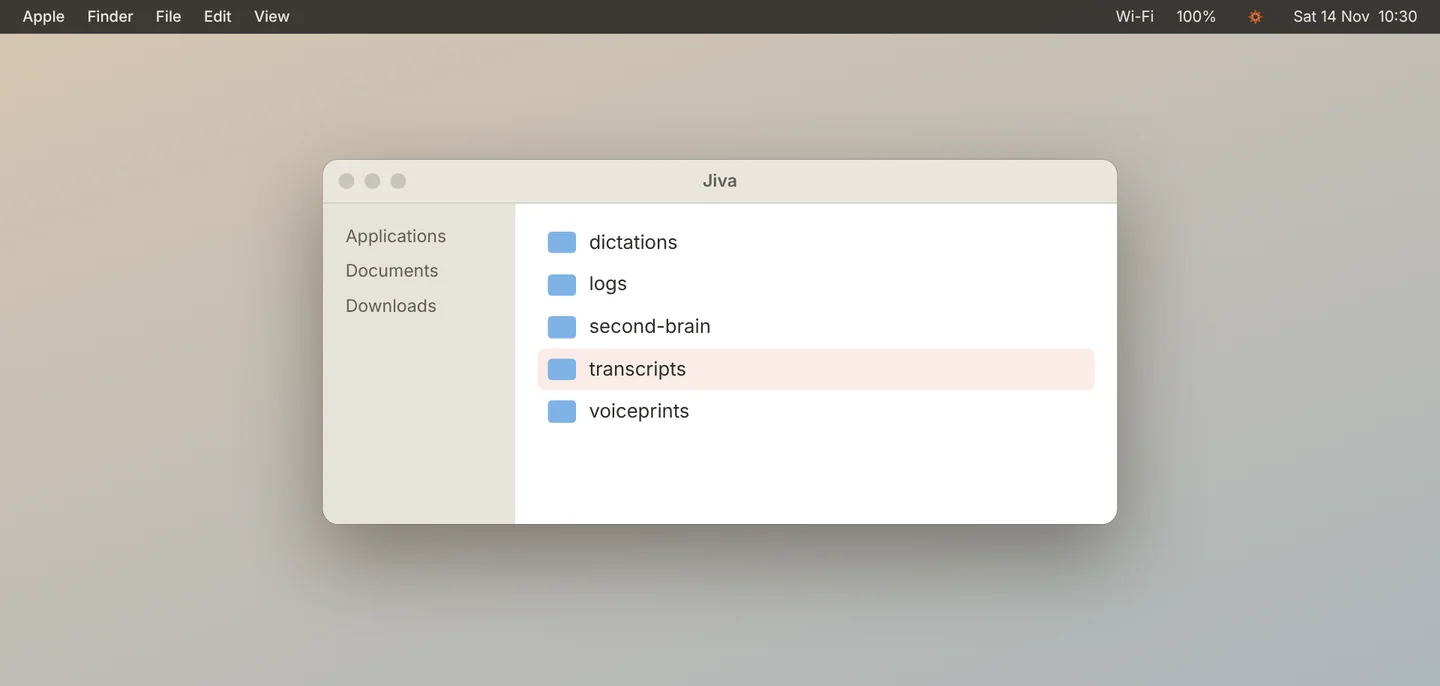
Click Open next to Open Transcripts folder. Each meeting is a text file you can read in any app.
Back it up
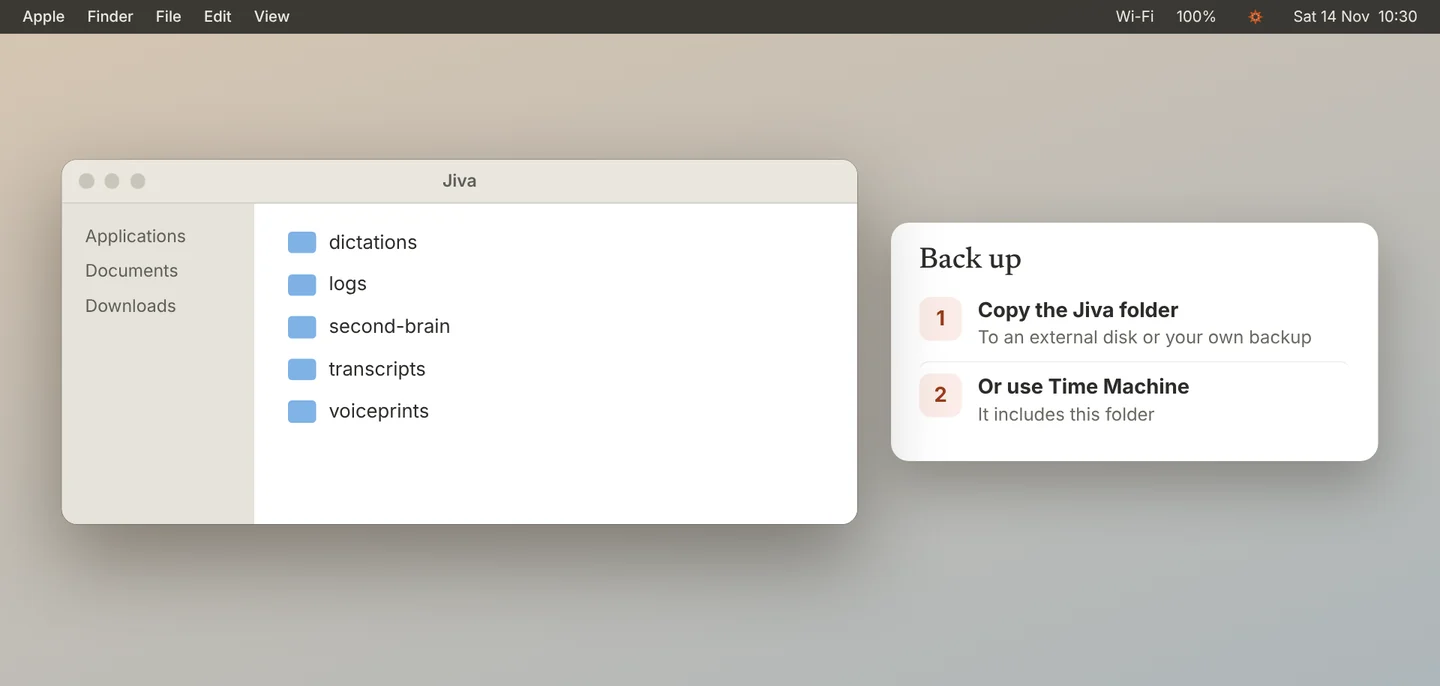
To back up, copy the Jiva folder to a safe place. Time Machine also includes it. Jiva has no cloud copy, so a backup is the only second copy.
Delete what you do not want
To delete one meeting, right-click it in Jiva and choose Delete. To remove the stored Google sign-in, click Revoke. To remove everything, quit Jiva and delete the Jiva folder.
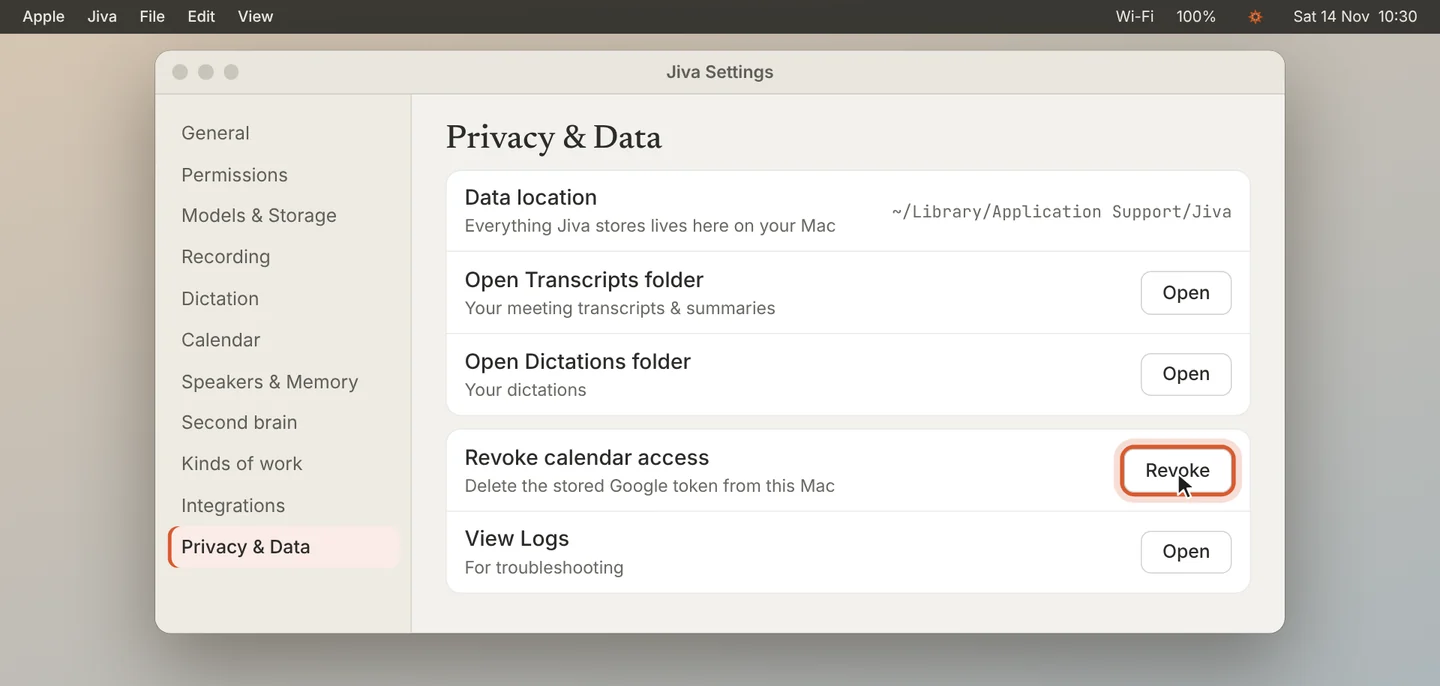
Deleting the Jiva folder removes your meetings, voices, to-dos and settings for good. The models are stored separately and can be downloaded again.
If something goes wrong
I cannot see the Library folder
In Finder, click Go in the menu bar, hold the Option key, and choose Library. Or use the Open buttons in Jiva.