1
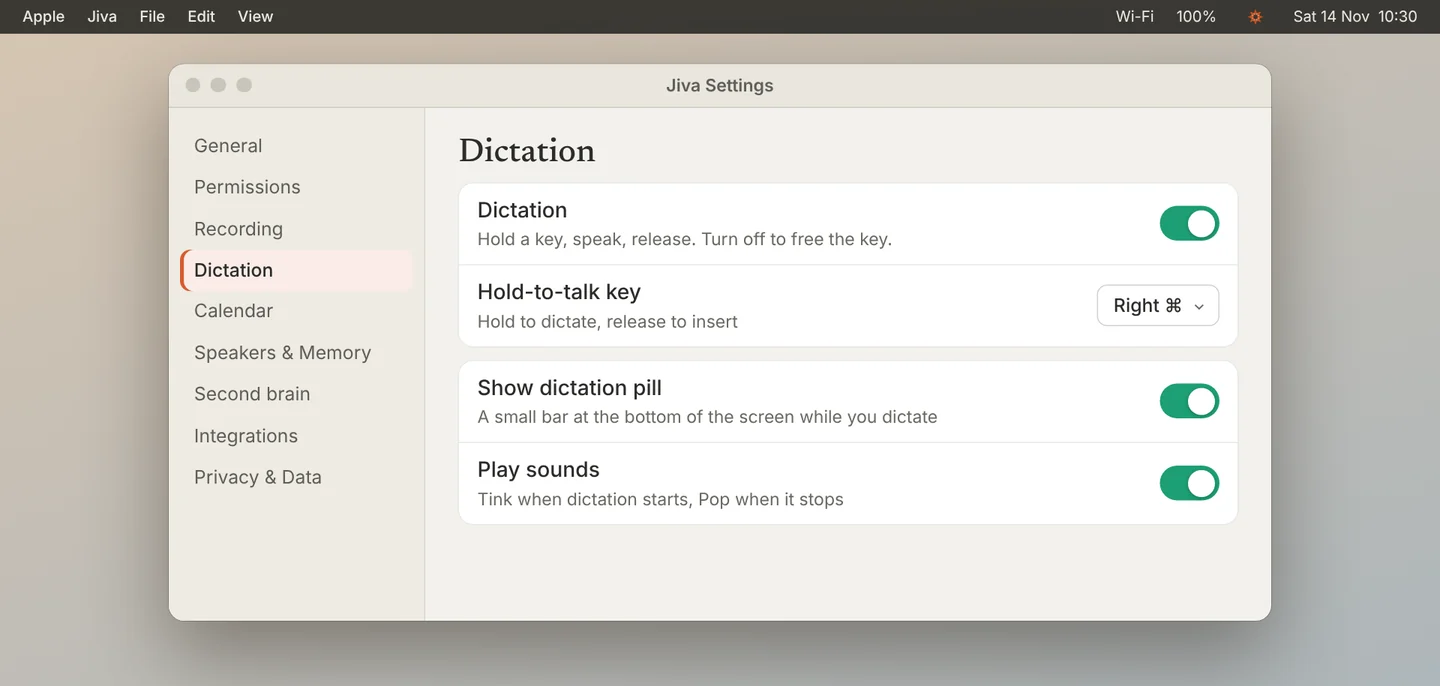
Open Dictation settings
Click Settings in the Jiva window, then Dictation.
2
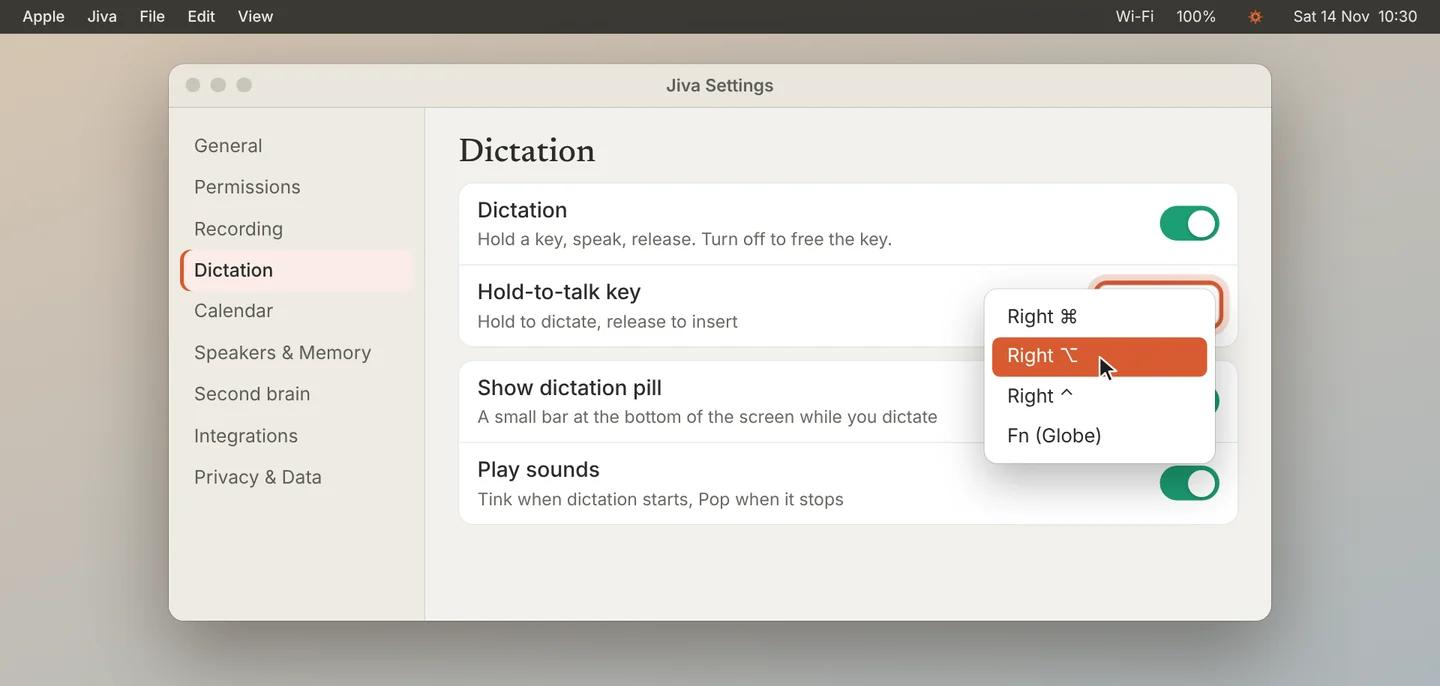
Choose another key
Click Hold-to-talk key and pick Right ⌘, Right ⌥, Right ⌃ or Fn (Globe). The key you pick stops doing its normal job while you hold it alone.
3
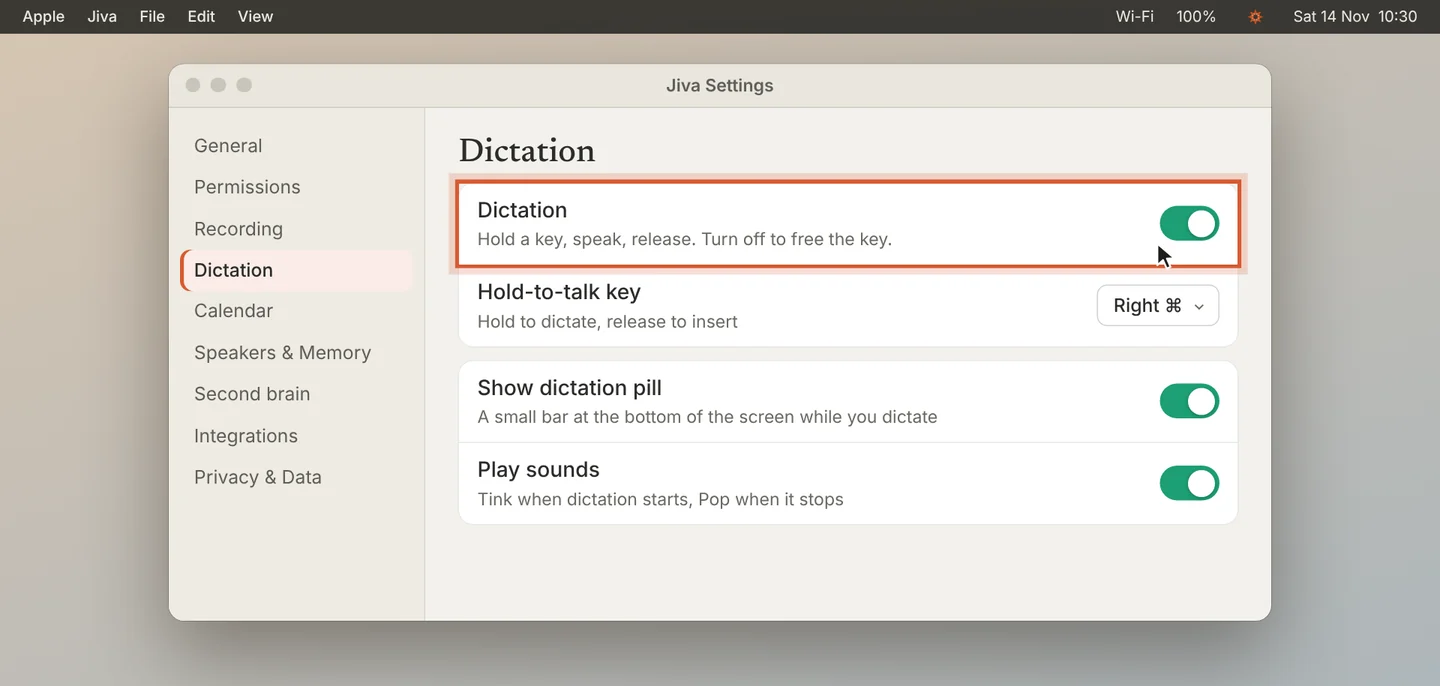
Turn dictation off
Turn off Dictation to free the key. Jiva then does not listen for any key. Meeting recording is not affected.
4
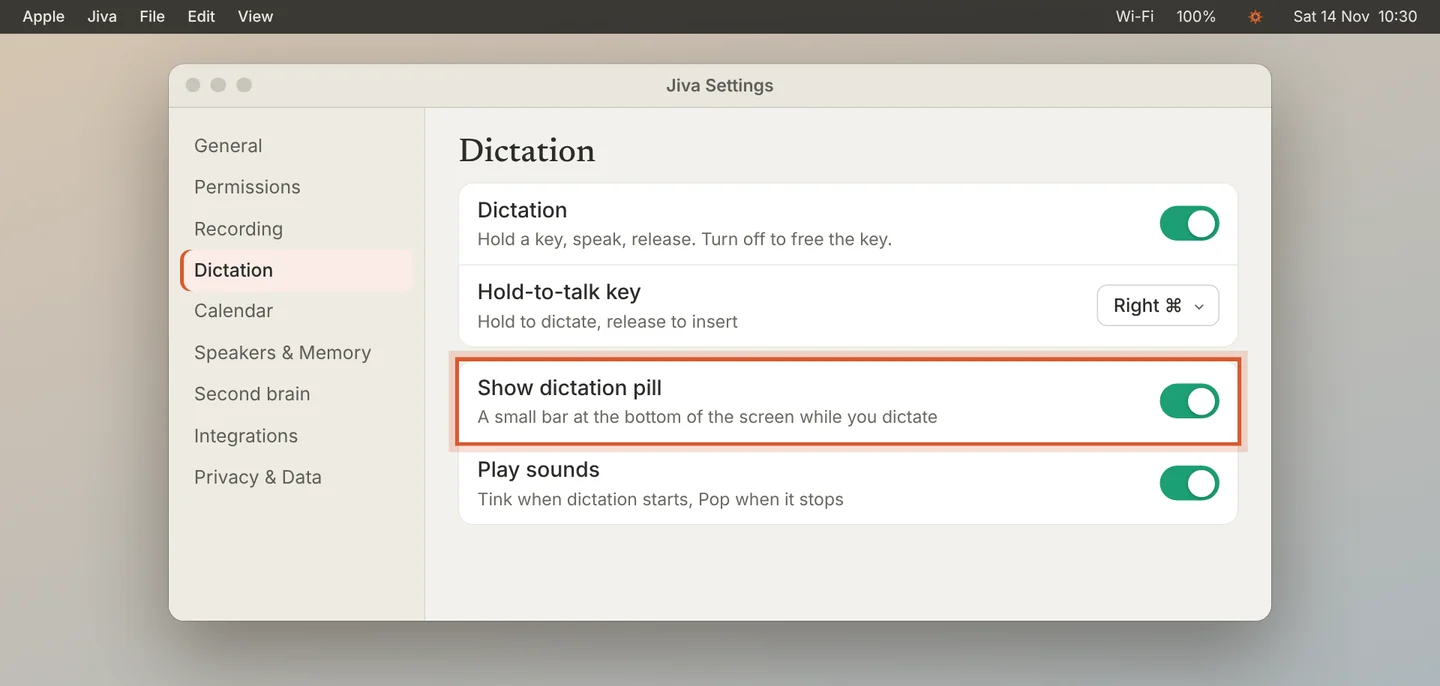
Hide the bar or mute the sounds
Turn off Show dictation pill to hide the bar. Turn off Play sounds to mute the start and stop sounds.
Good to know
If you pick Fn, macOS may also open the emoji picker. Change that in System Settings, Keyboard.
If something goes wrong
Reply with context stopped working
Dictation and Reply with context cannot use the same key. Change one of them; see Reply with context.
Did this guide help?
Next · Guide 3 of 4
Teach Jiva your words →1:00 video · 4 steps