Open the meeting
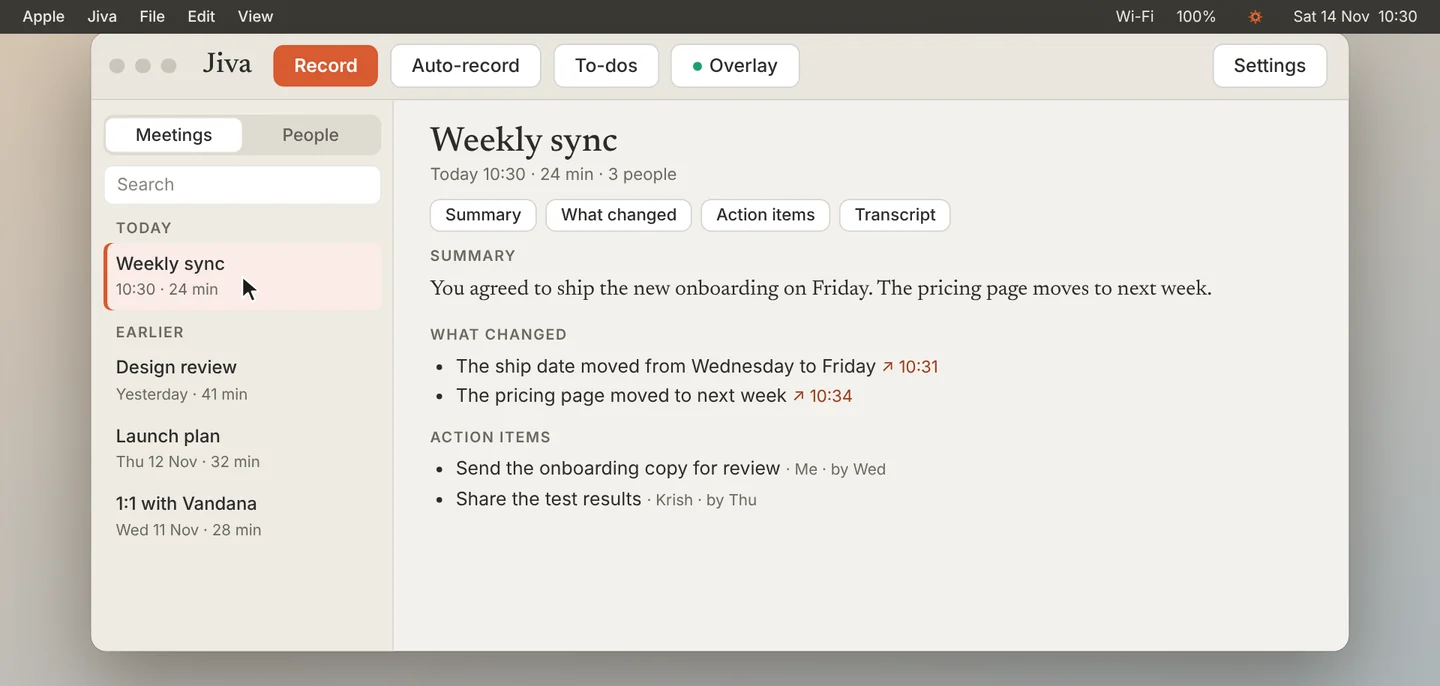
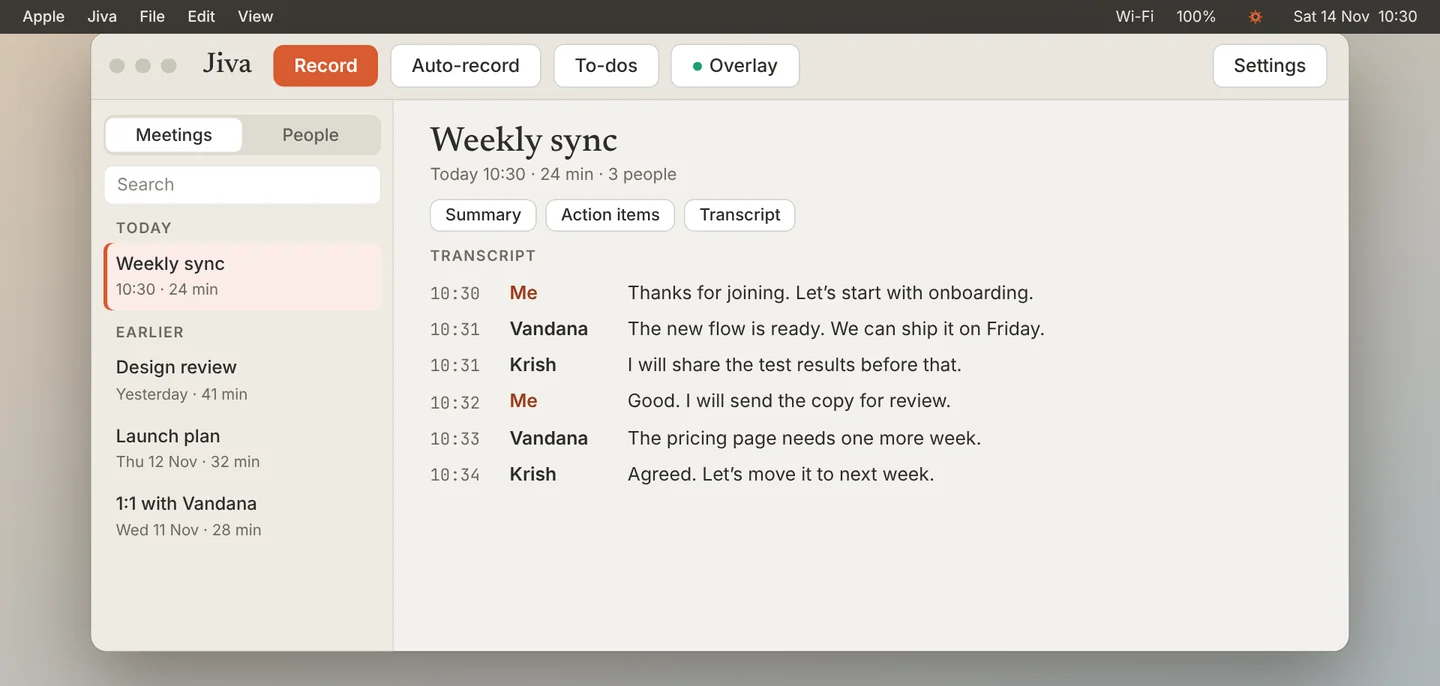
Click a meeting in the list. If you connected Google Calendar, the meeting has the name of its calendar event. If not, Jiva writes a title.
Read the summary
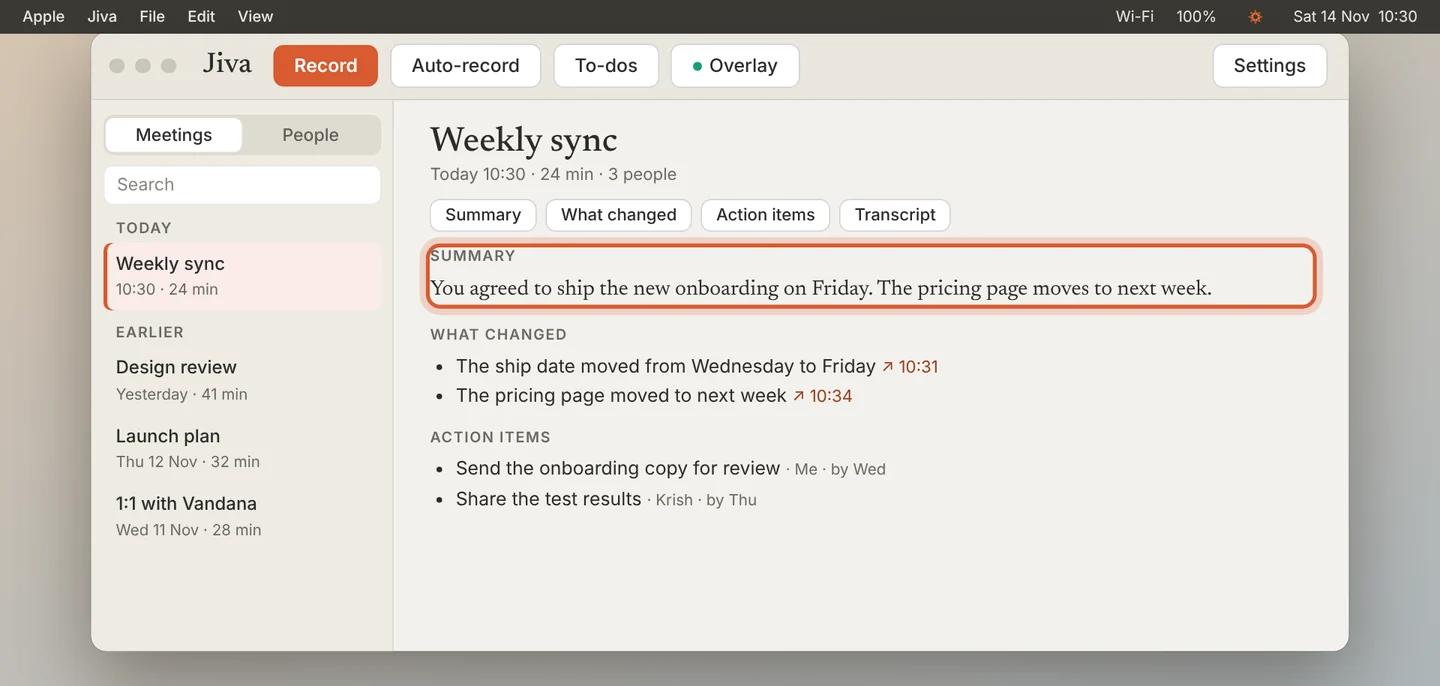
Summary is a few sentences about what the meeting decided. It speaks to you: “You agreed…”.
Check what changed
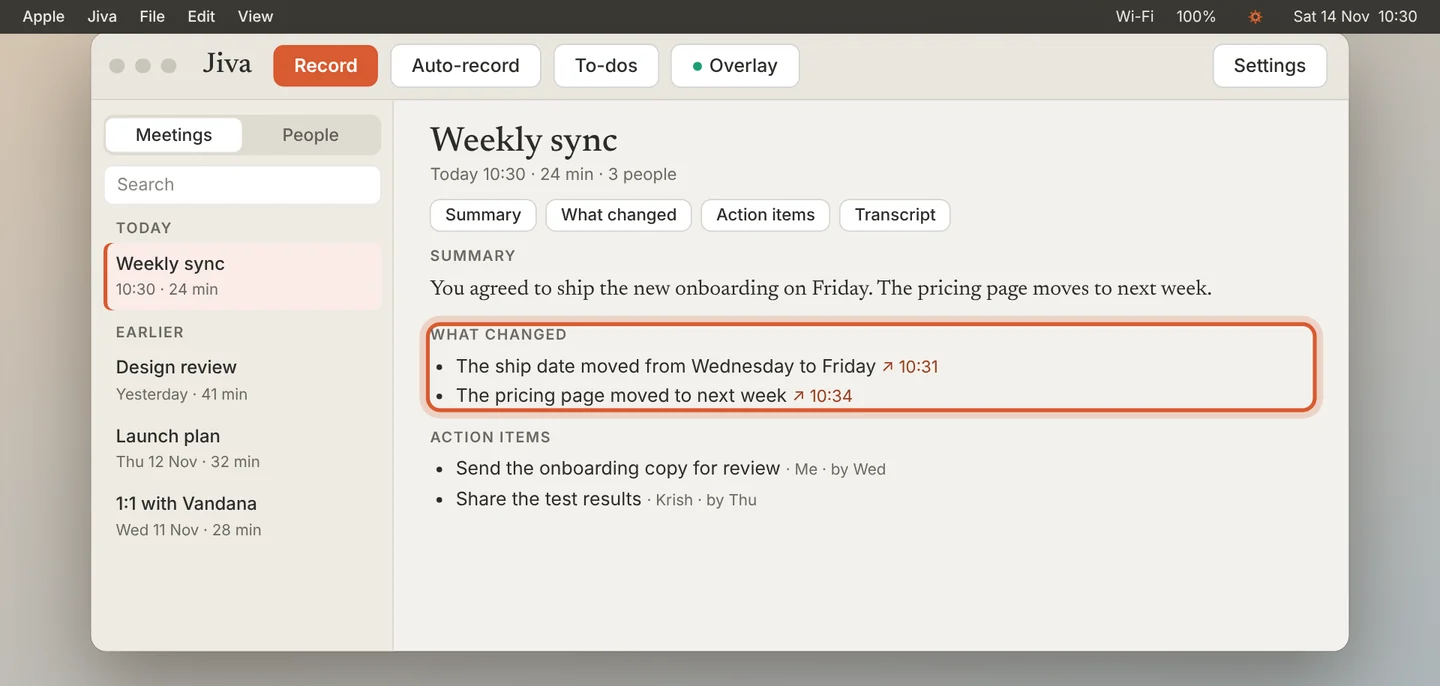
What changed appears when you have met about the same subject before. It lists what is different from last time, with a link to the line where it was said.
Read the action items
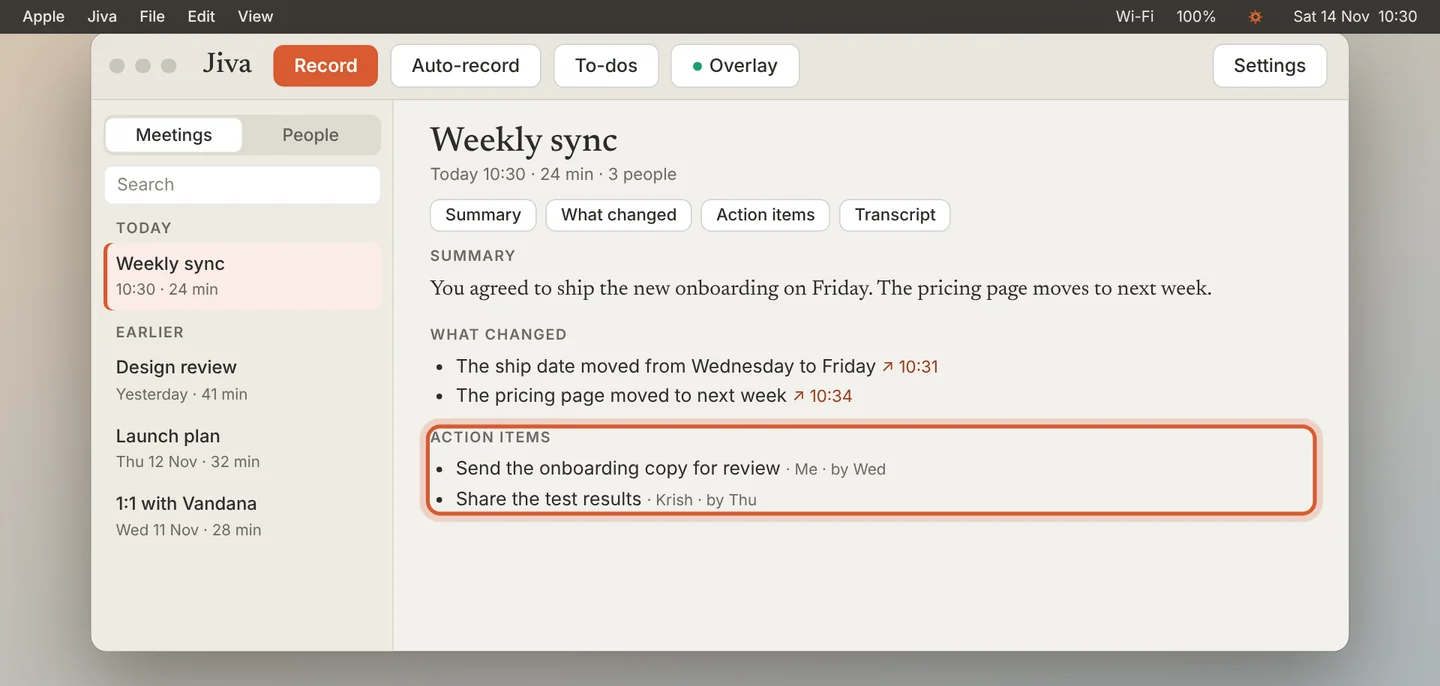
Action items lists who does what, and by when. The same items appear on your To-dos page.
Read the transcript
Click the Transcript chip, or scroll down. Every line has a time and a speaker.
Jiva transcribes English today. The summary is written on your Mac after the meeting; a long meeting takes longer.
If something goes wrong
There is no “What changed” section
It appears only when an earlier meeting covered the same subject.
A name is spelled wrong
Add it to your glossary: Settings, Speakers & Memory, Glossary, Edit…. See Teach Jiva your words.