1
Keep automatic updates on
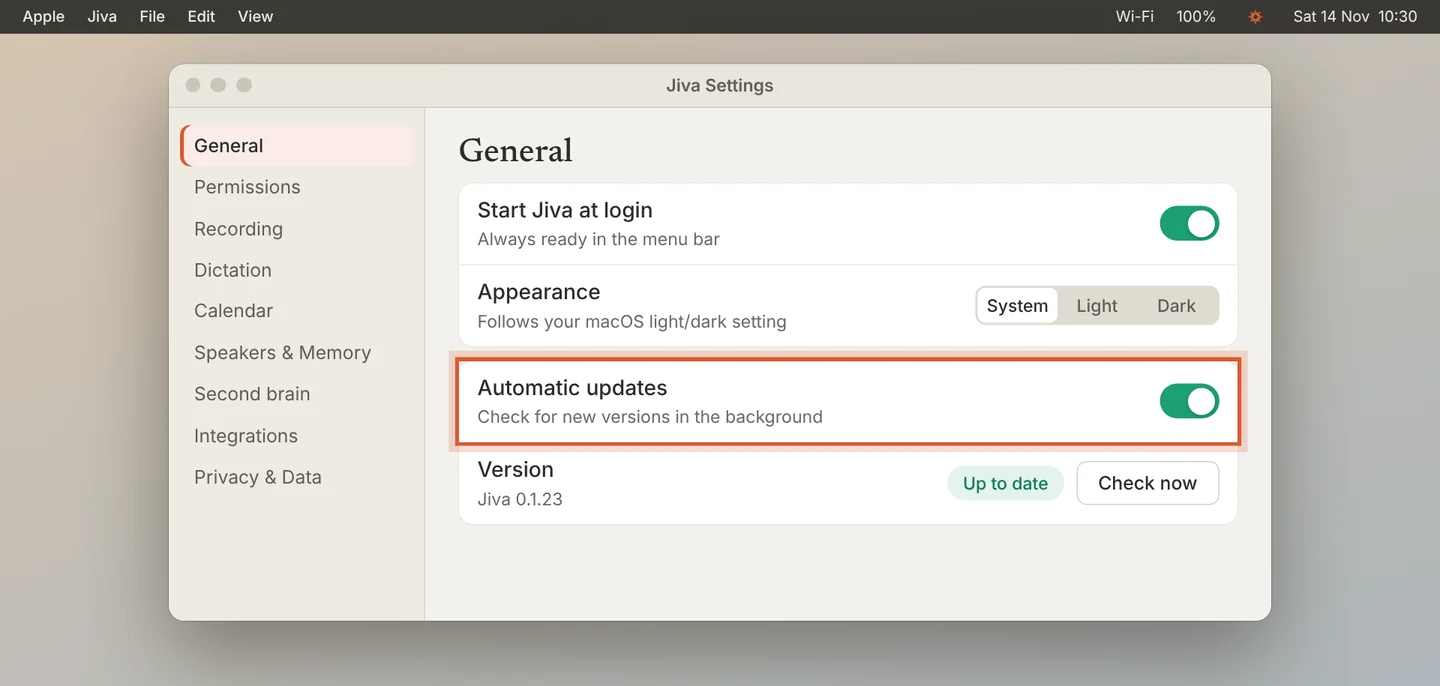
Open Settings, then General. Keep Automatic updates on. Jiva then checks for new versions in the background.
2
Click Update when it appears
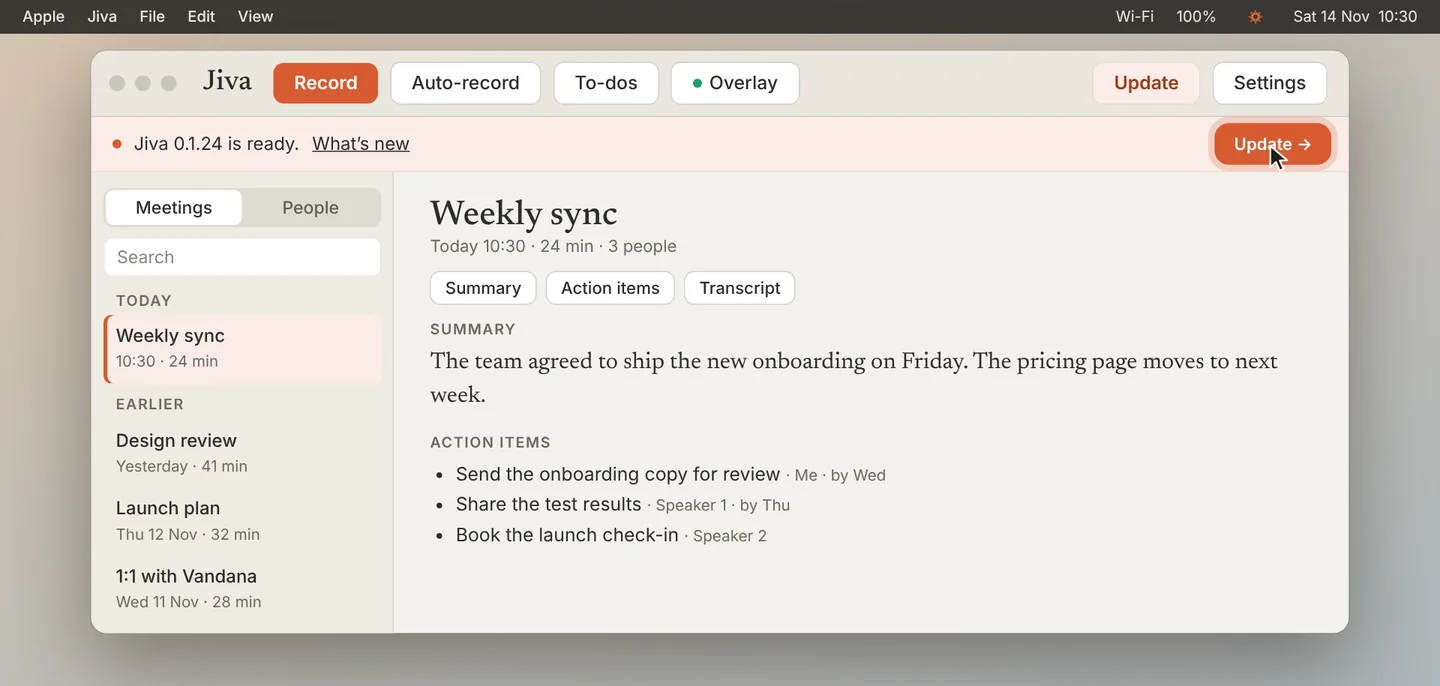
When a new version is ready, an Update button appears at the top of the Jiva window and in the lotus menu. Click it.
3
Wait for Jiva to reopen
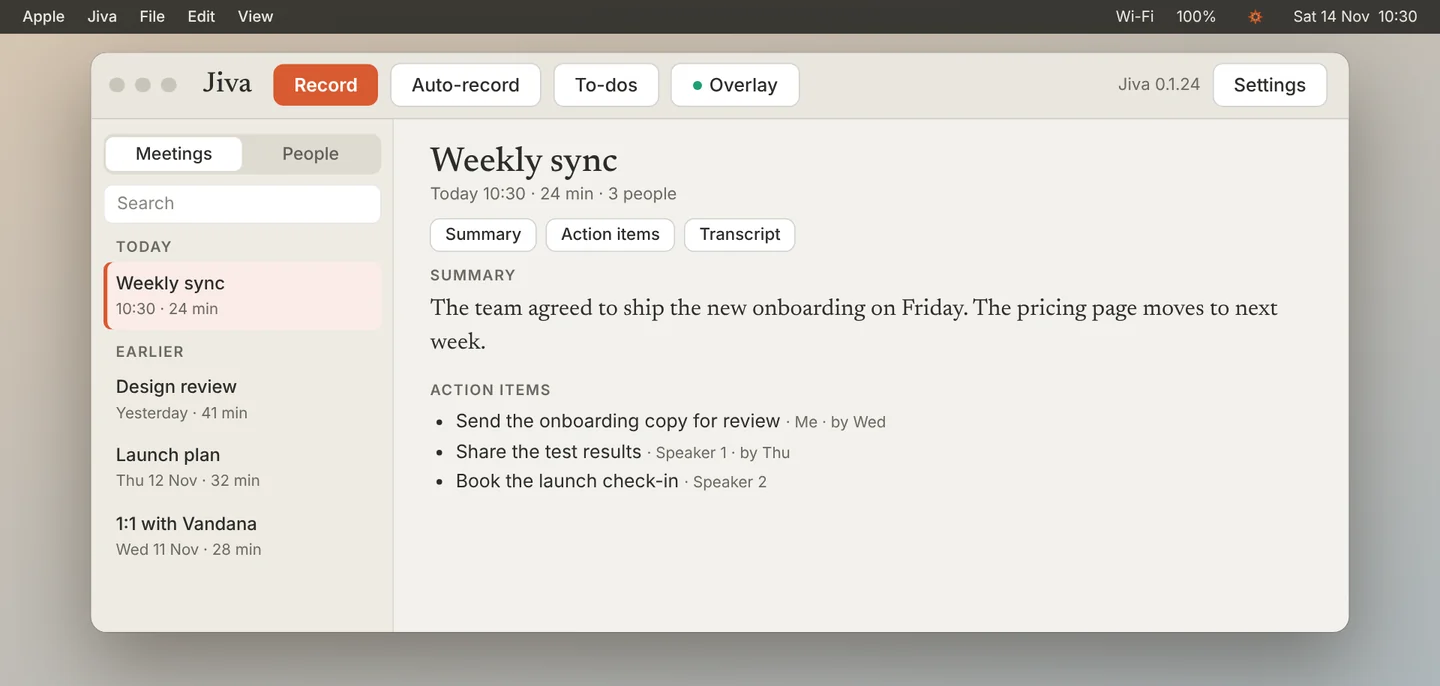
Jiva downloads the new version, replaces itself and reopens. Your meetings and settings stay as they are.
4
Check by hand
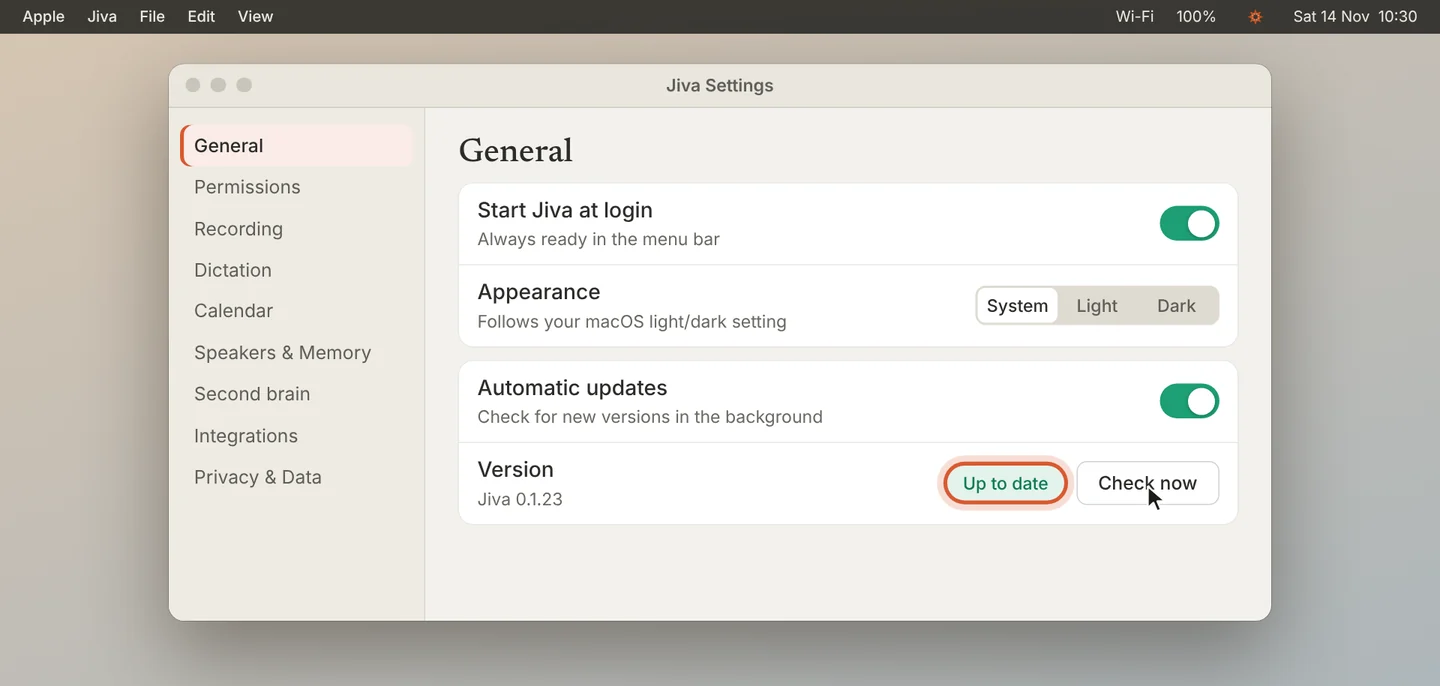
To check yourself, open Settings, then General, and click Check now next to Version.
Good to know
Jiva checks each update before it installs it. If the check fails, Jiva keeps the version you have.
If something goes wrong
Version shows “Check failed”
Check your internet connection, then click Check now.
The update did not install
Run the install command from Install Jiva again. It installs the latest version and keeps your data.
Did this guide help?
Next topic · Record meetings
Let Jiva record by itself →0:47 video · 4 steps